
Reorder and delete exercises
How to change the order of the exercises in your workout with Sort mode and how to delete an exercise from its card in WeFit for iPhone.
The order of the exercises on the day’s card is the order in which you’ll do them in the workout. You change it with the SORT mode in the “Exercises” header, and each exercise can be removed from the workout with the trash can on its card.
Steps
Tap SORT in the “Exercises” header. Each card shows the Move up and Move down arrows on the right, the header button changes to SAVE and the rest of the card controls are disabled while you sort.
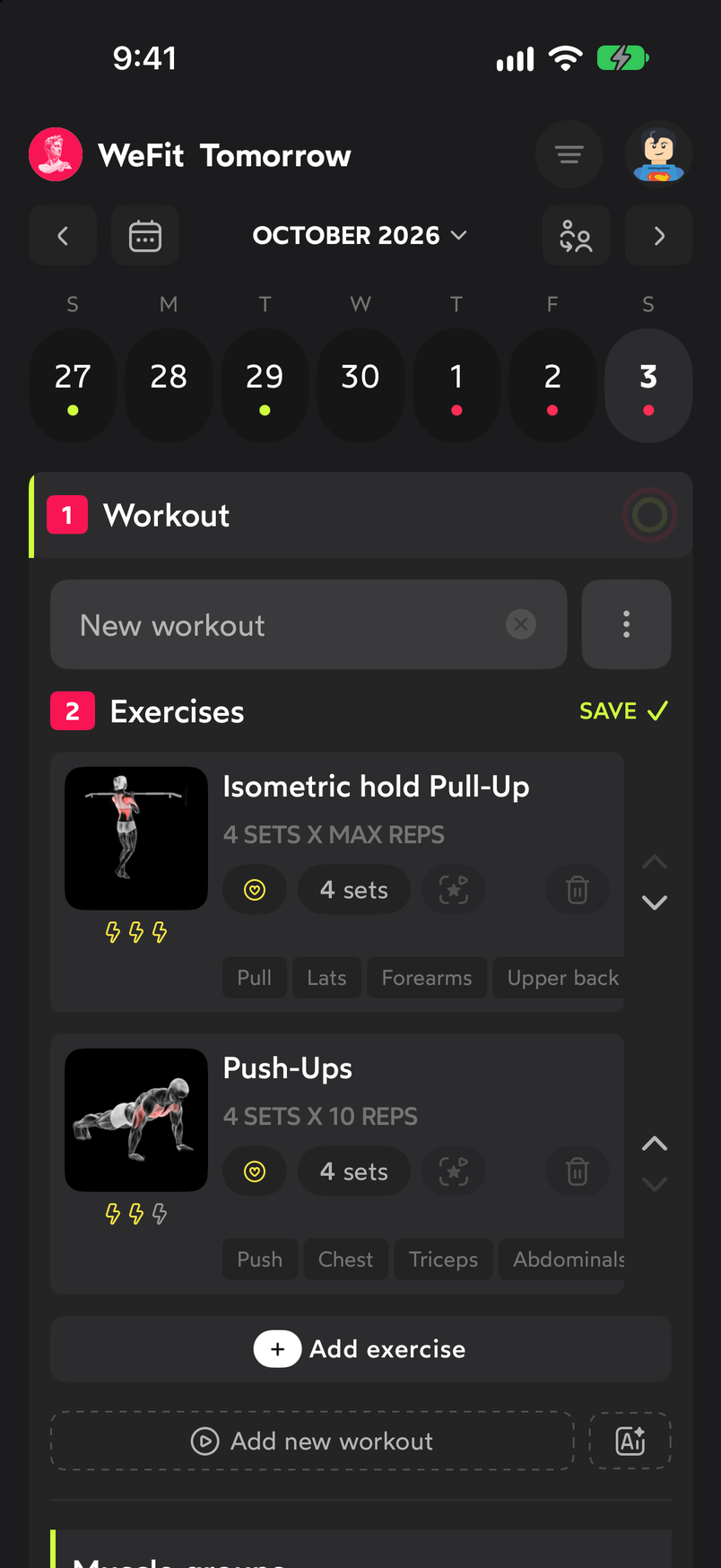
In Sort mode only the arrows work. Use the arrows to move the exercises. Here, tapping Move down on the first one puts the Push-ups in first place. You can repeat it as many times as needed.
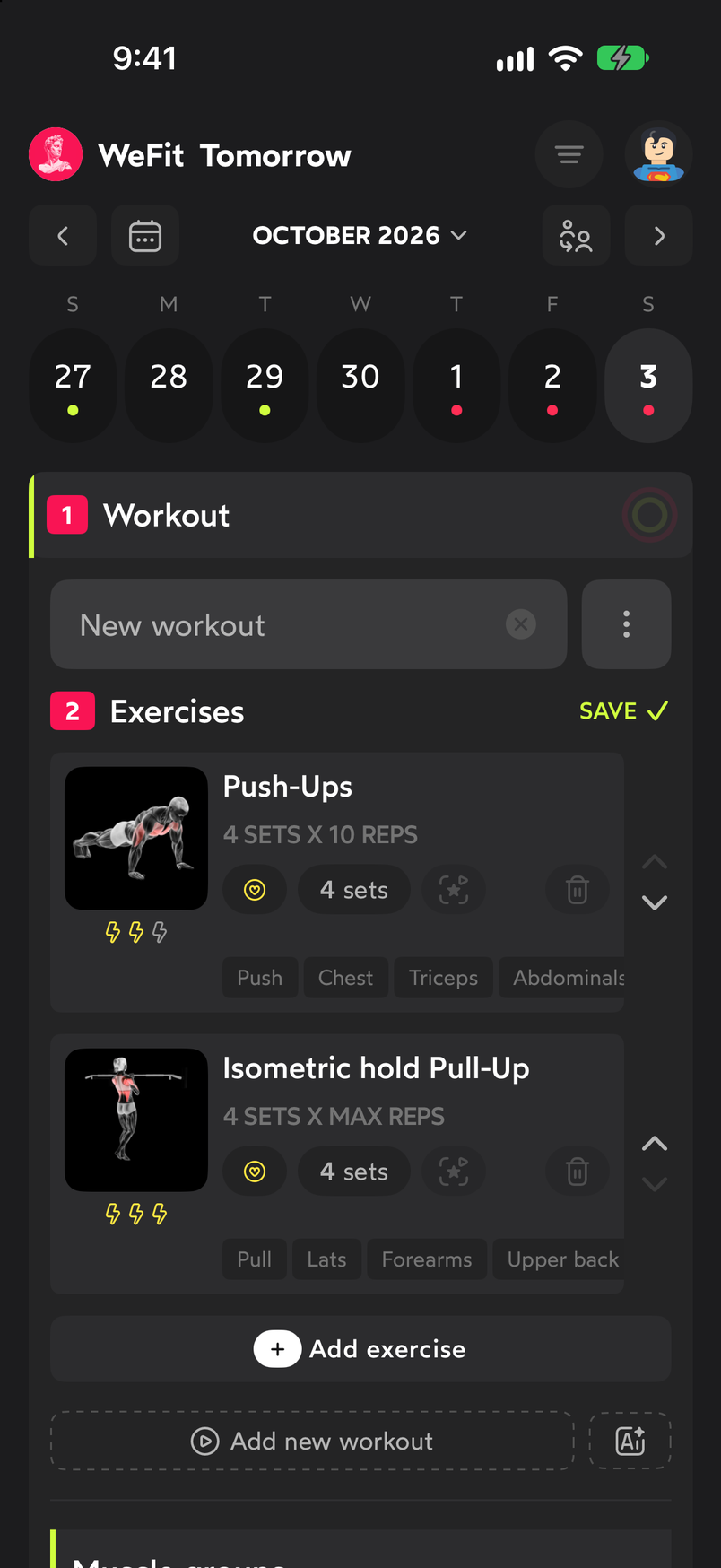
Each tap on an arrow moves the exercise one position. Tap SAVE. The header gets the SORT button back and the workout keeps the new order.
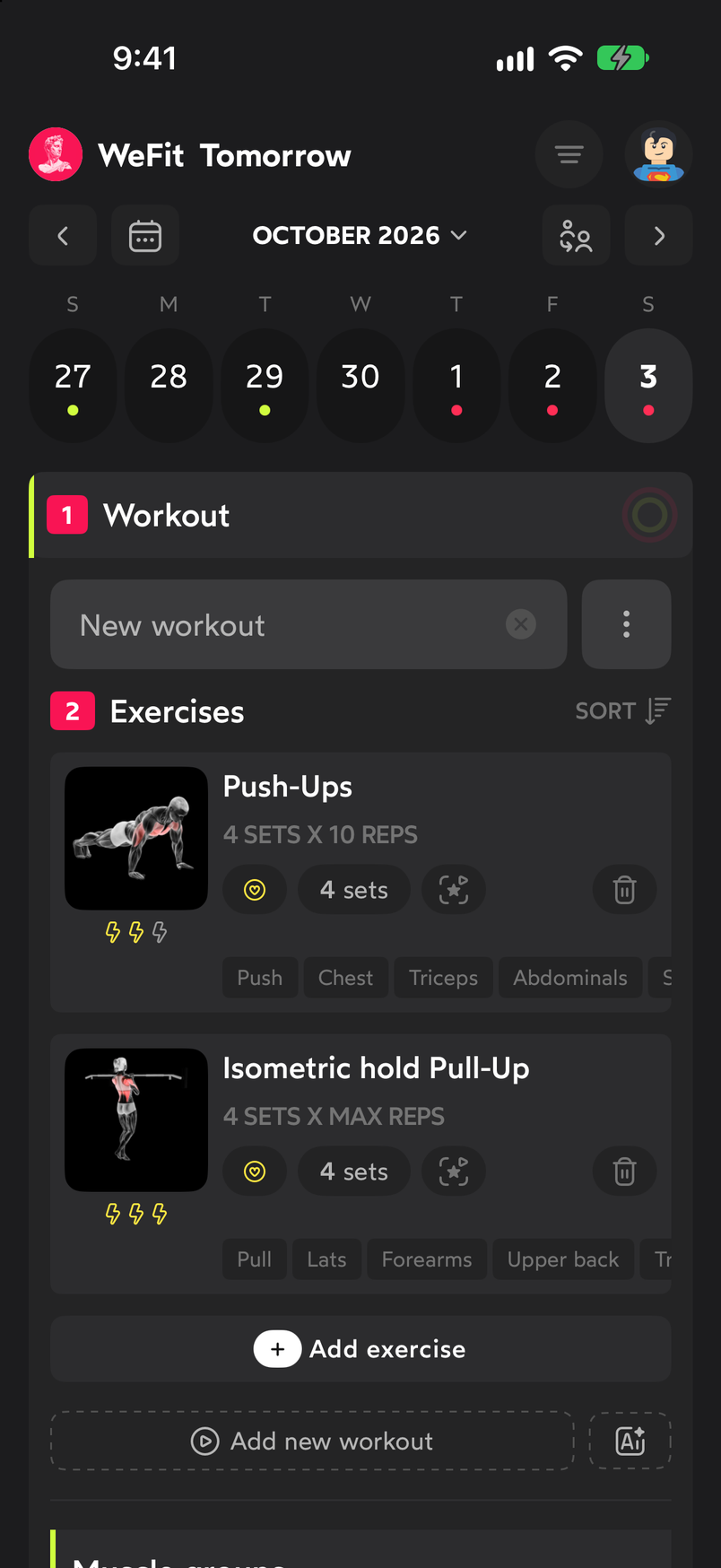
When you save, the card buttons become active again. To remove an exercise, tap the trash can on its card. The “Are you sure you want to delete it?” dialog appears with the Delete button.
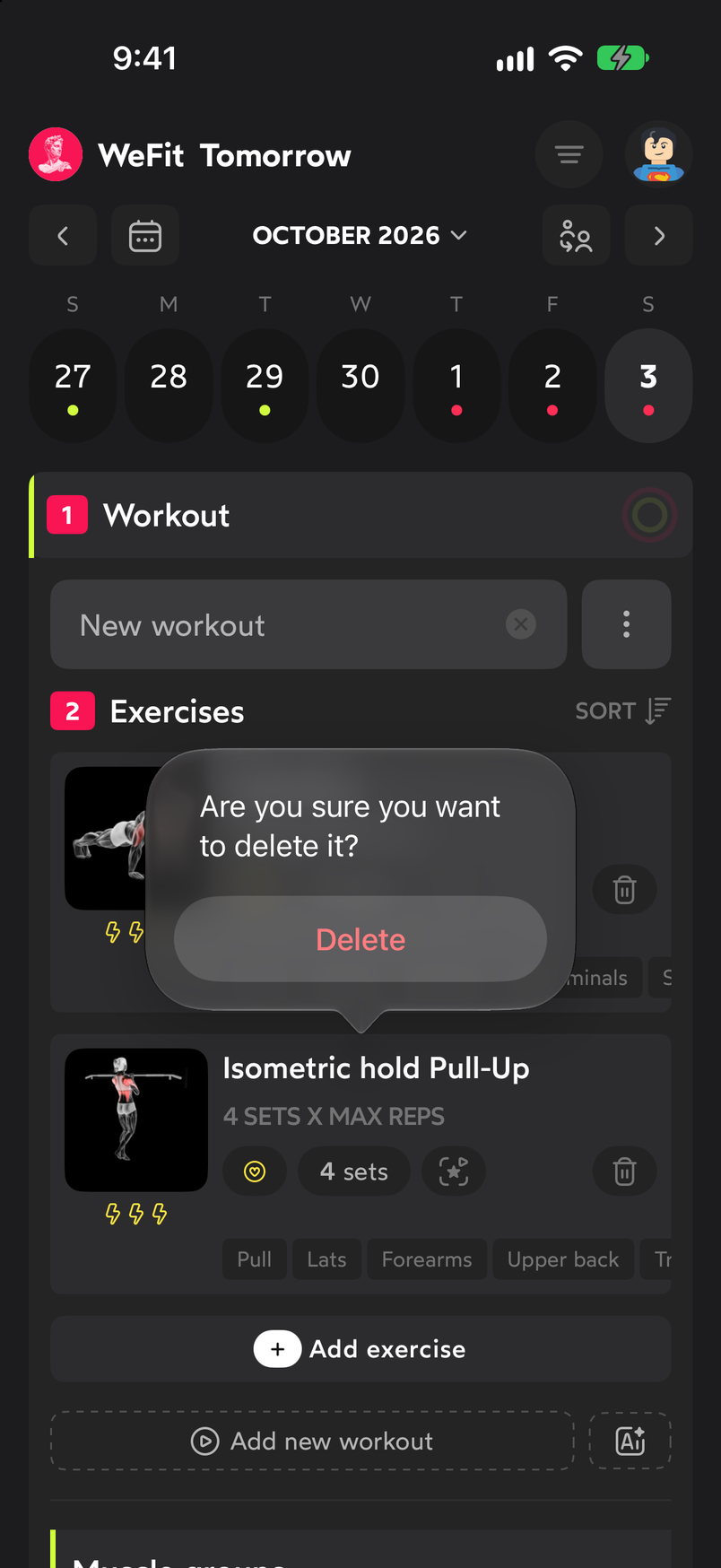
The app asks for confirmation before deleting. After you confirm, the exercise disappears and the counter in the header goes down. The rest of the workout stays as it was.
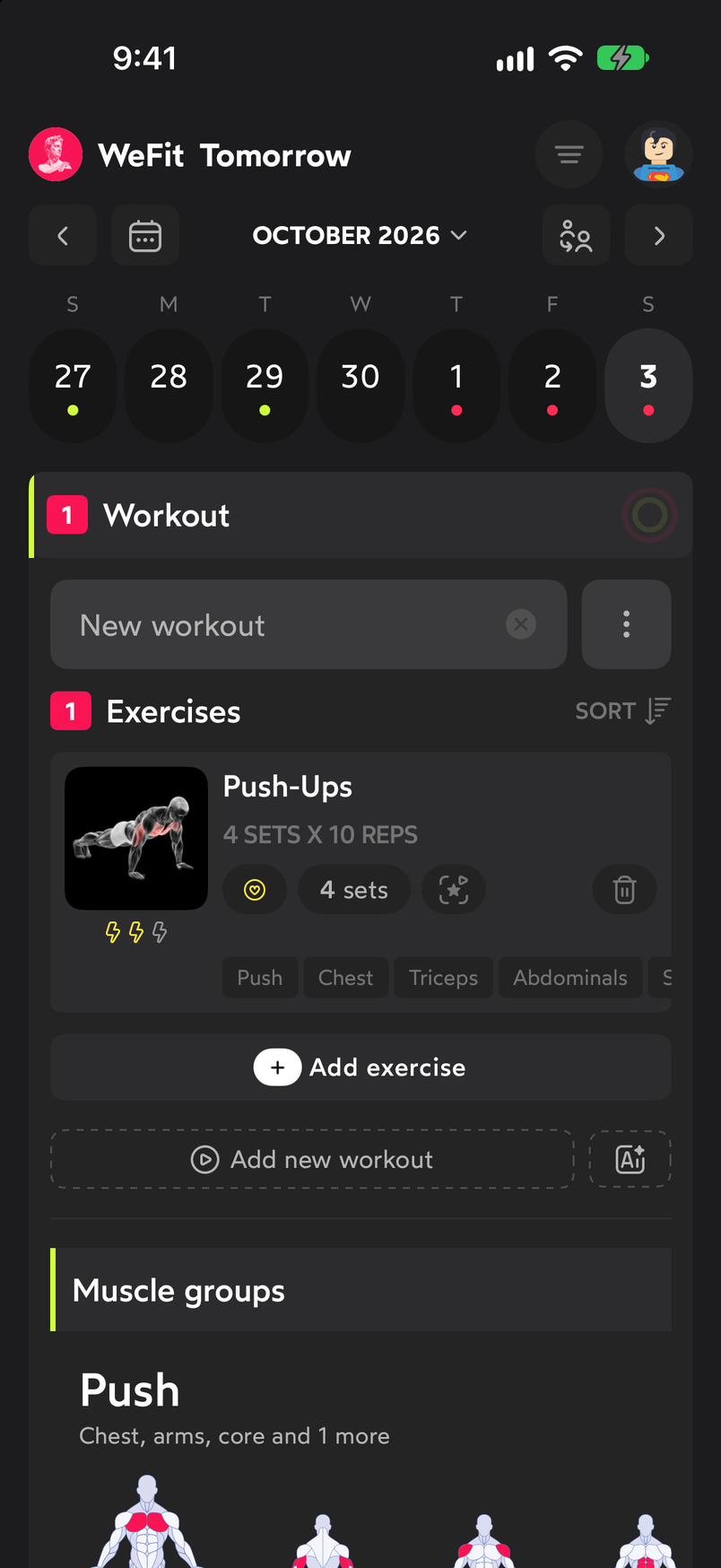
Only the exercise that wasn't deleted remains.
Common problems
The arrows don’t appear
They only show when Sort mode is on. Tap SORT in the “Exercises” header; if you see SAVE, you’re already in it.
I moved an exercise and it wasn’t saved
The new order is applied when you tap SAVE. If you leave the screen or change days before that, the order may stay as it was.
I can’t find the trash can
It’s in the row of buttons on each card, on the right. While Sort mode is on it’s disabled; save the order first and then tap it again.
Related guides
How did this guide go for you?
Thanks for your feedback