
Edit the sets of an exercise
How to open the exercise editor in WeFit for iPhone and adjust its sets: reps, weight, intensity, rest, deload sets and applying a change to the following sets.
Each exercise in the workout has its own table of sets: reps, weight, intensity and rest. Everything is edited from the exercise editor, which opens when you tap any set line on the day’s card. From there you can also change the exercise type and execution mode, and add or remove sets.
Steps
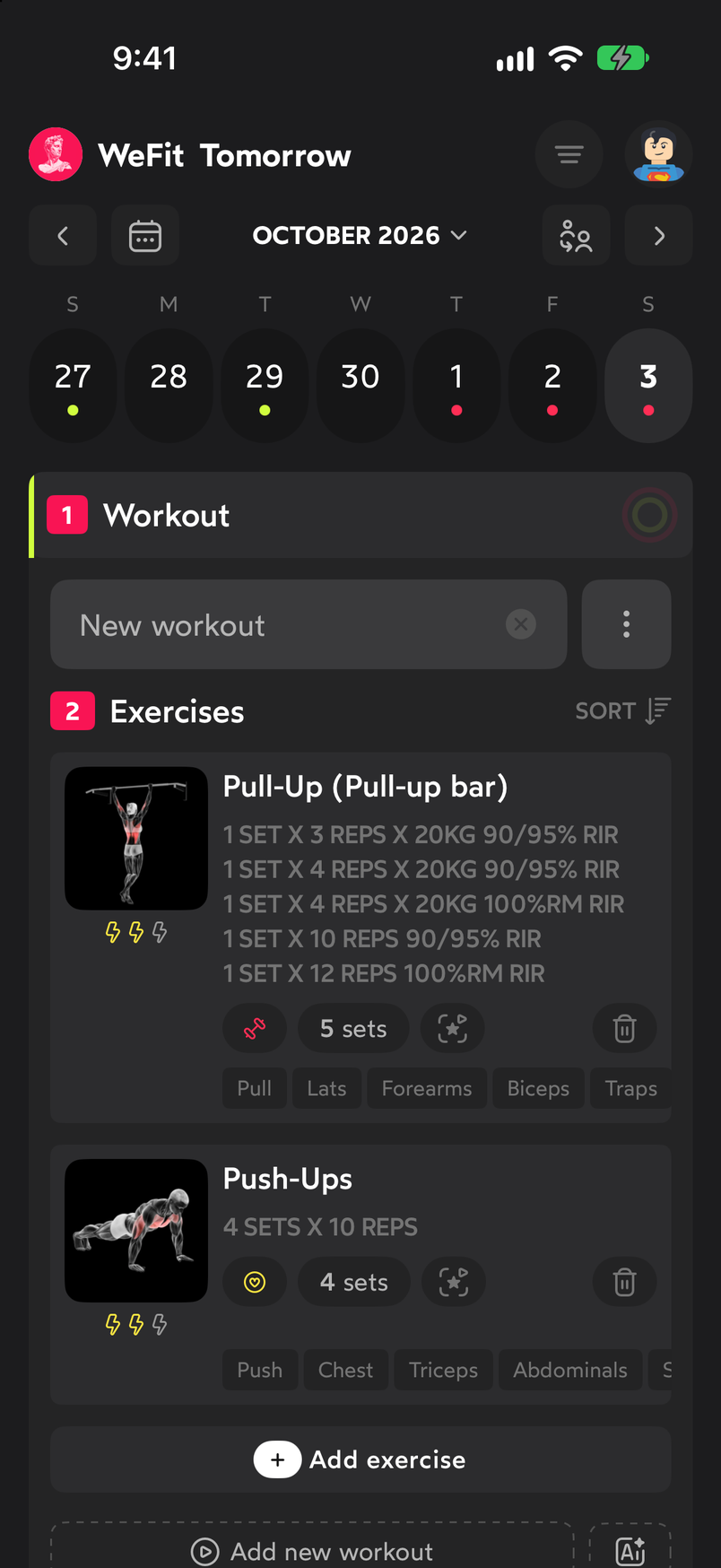
On the exercise card in Today, the sets are summarized in lines like “1 SET X 3 REPS X 20KG 90/95% RIR”. Tap any of those lines to open the editor.
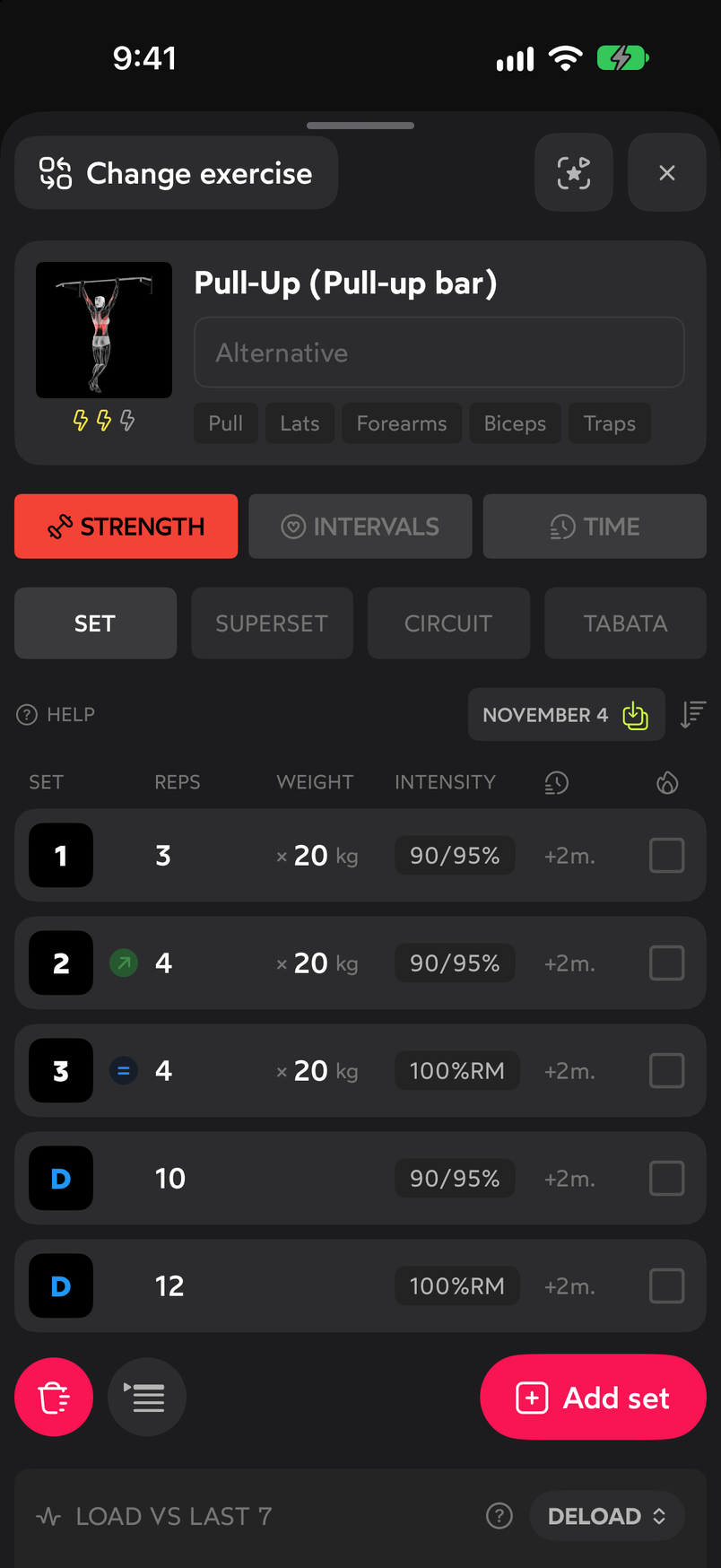
The set lines on the card open the exercise editor. At the top of the editor you have the Change exercise button, the exercise page with its name, the “Alternative” field, the muscle groups and the difficulty bolts. Below that come the exercise type (STRENGTH, INTERVALS or TIME), the execution mode (SET, SUPERSET, CIRCUIT or TABATA), the HELP link and the button with the date of the last session. Then the table starts, with the columns SET, REPS, WEIGHT, INTENSITY, rest (+2m.) and a checkbox for each set.
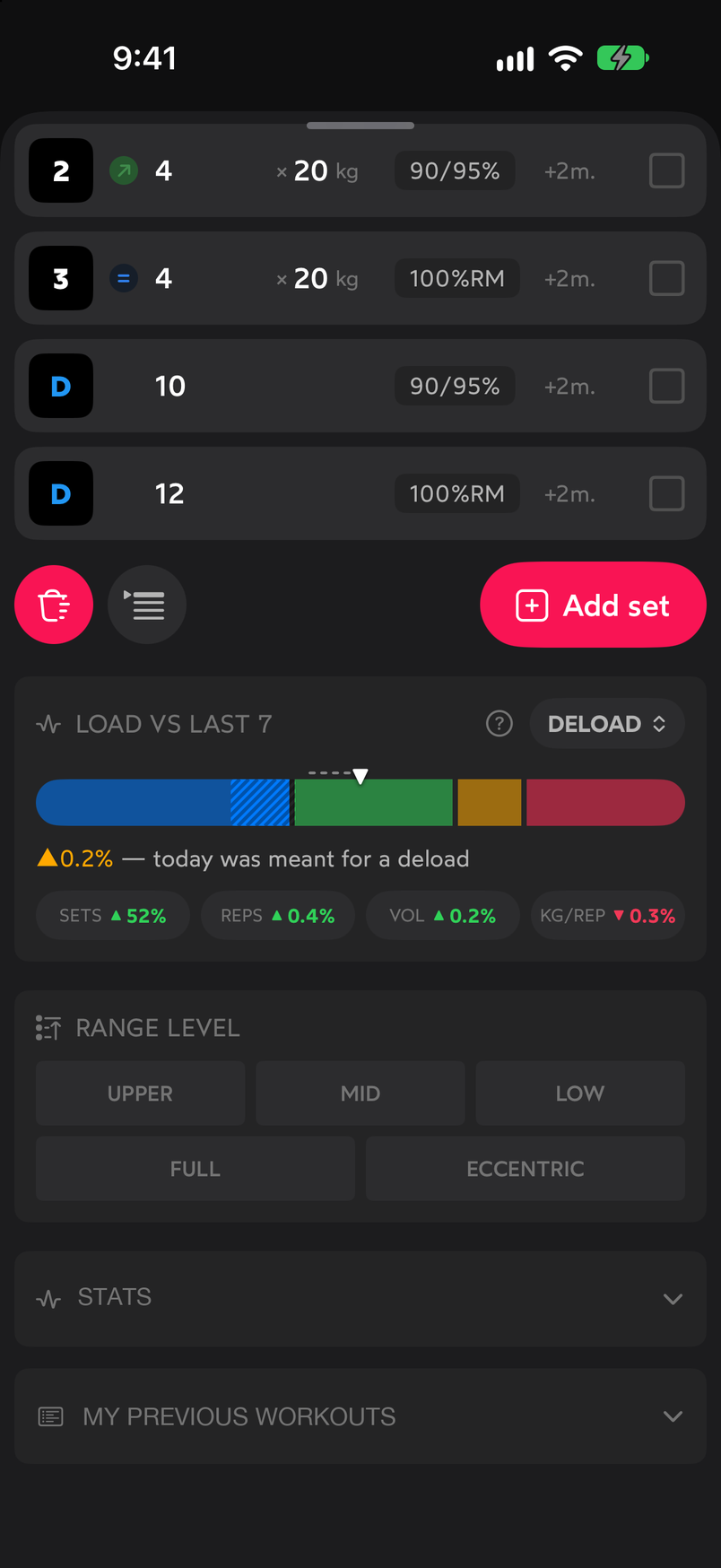
Choose the type and execution mode before touching the sets. Scroll through the table. The numbered sets (1, 2, 3…) are working sets, and those marked with D are deload sets. Below the table are the trash can, the Smart set adjustments button and Add set. The LOAD VS LAST 7 block compares this session with the previous seven, suggests what’s next (here, DELOAD) and breaks the variation down into sets, reps, volume and kg per rep. Further down is the movement’s range level.
D sets are deload sets; Add set creates a new one at the end. Tap a set to edit it. In the header you choose whether it’s a deload set or a working set, and you have the buttons to delete, duplicate and confirm. REPS and Weight (kg) are adjusted with the − and + buttons, INTENSITY opens the percentage picker, the Extra reps switch adds assisted reps and Rest sets the minutes with the +1, 2, +2, 3 and +3 buttons. At the end, Save and apply to the following copies the changes to all the consecutive sets.
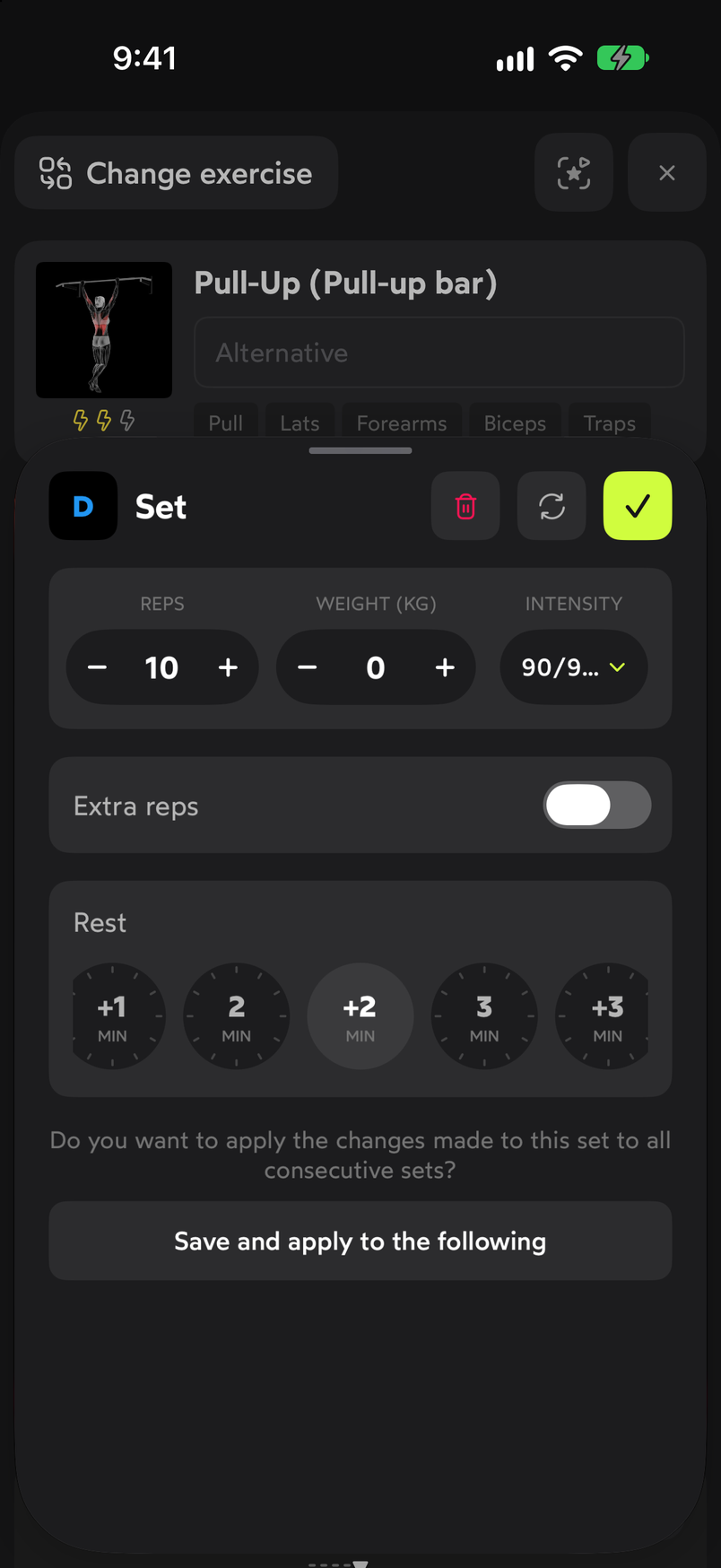
A 10-rep deload set, before changing it. Tap + on REPS to increase the reps; each tap adds one. When you have the value you want, confirm with the green check in the header to go back to the table with the change saved.
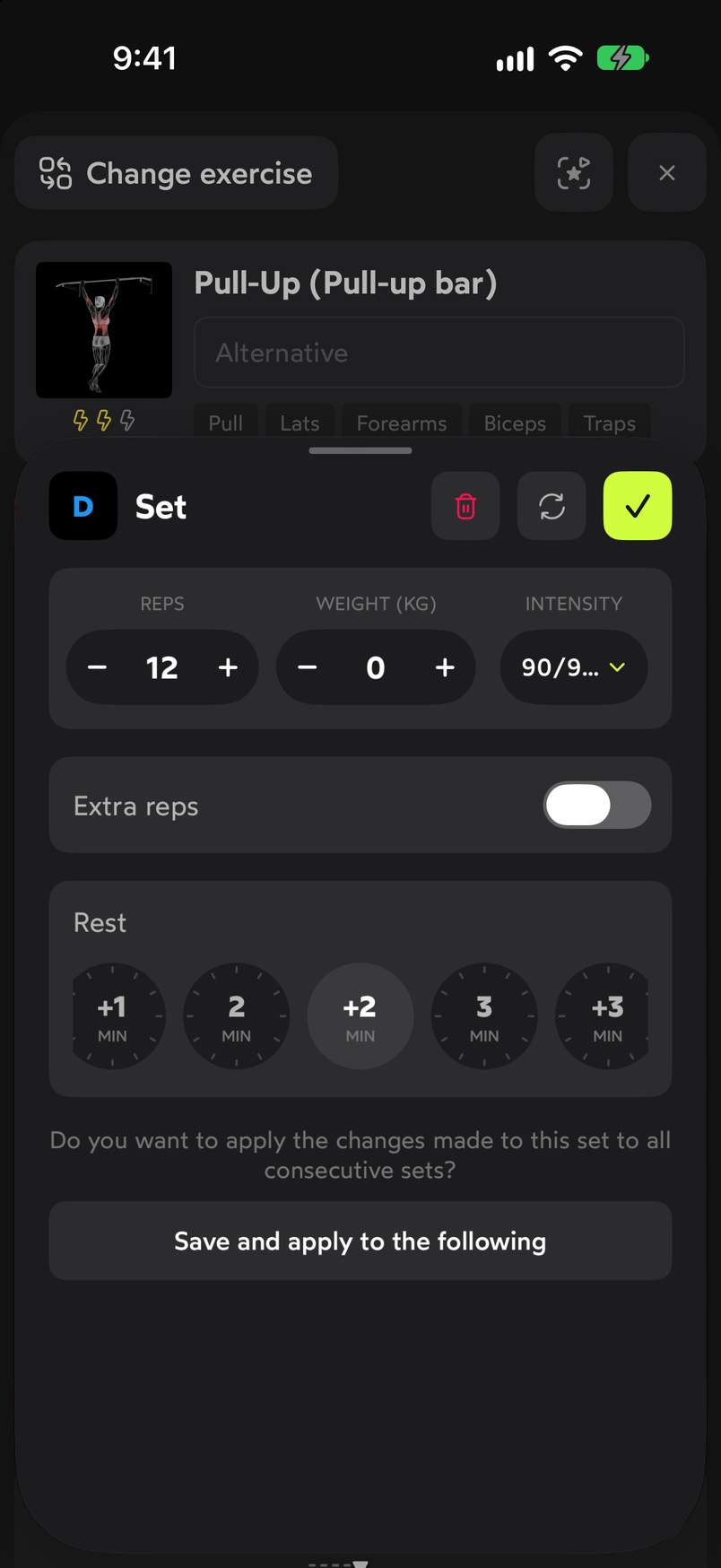
Two taps on + and the set goes from 10 to 12 reps.
Common problems
I changed one set and the others stayed the same
Each set is edited separately. If you want the same change on the ones that follow, use Save and apply to the following instead of the check.
I want a set to count as a warm-up or deload
Deload sets appear with the D in the table and are not numbered like working sets. In the header of each set’s editor, its type is shown next to “Set”.
I want to get back the sets from last time
The button with the date shows the last time you did that exercise and loads those sets. If you’d rather start from scratch, set up the sets by hand or with Smart set adjustments.
Related guides
How did this guide go for you?
Thanks for your feedback