
Repeat a workout on other days
How to copy a WeFit workout for iPhone to individual calendar days or schedule it on a recurring basis, for example every week for eight weeks.
Any workout can be repeated on other days without building it again. From the card menu you choose Repeat workout and decide whether to copy it to single days or schedule it on a recurring basis. Each copy is an independent workout: you can edit it later without affecting the others.
Steps
On the workout card, tap the three-dot button next to the name. The menu opens with Complete workout, Repeat workout, Convert into template, Share and Delete. Choose Repeat workout.
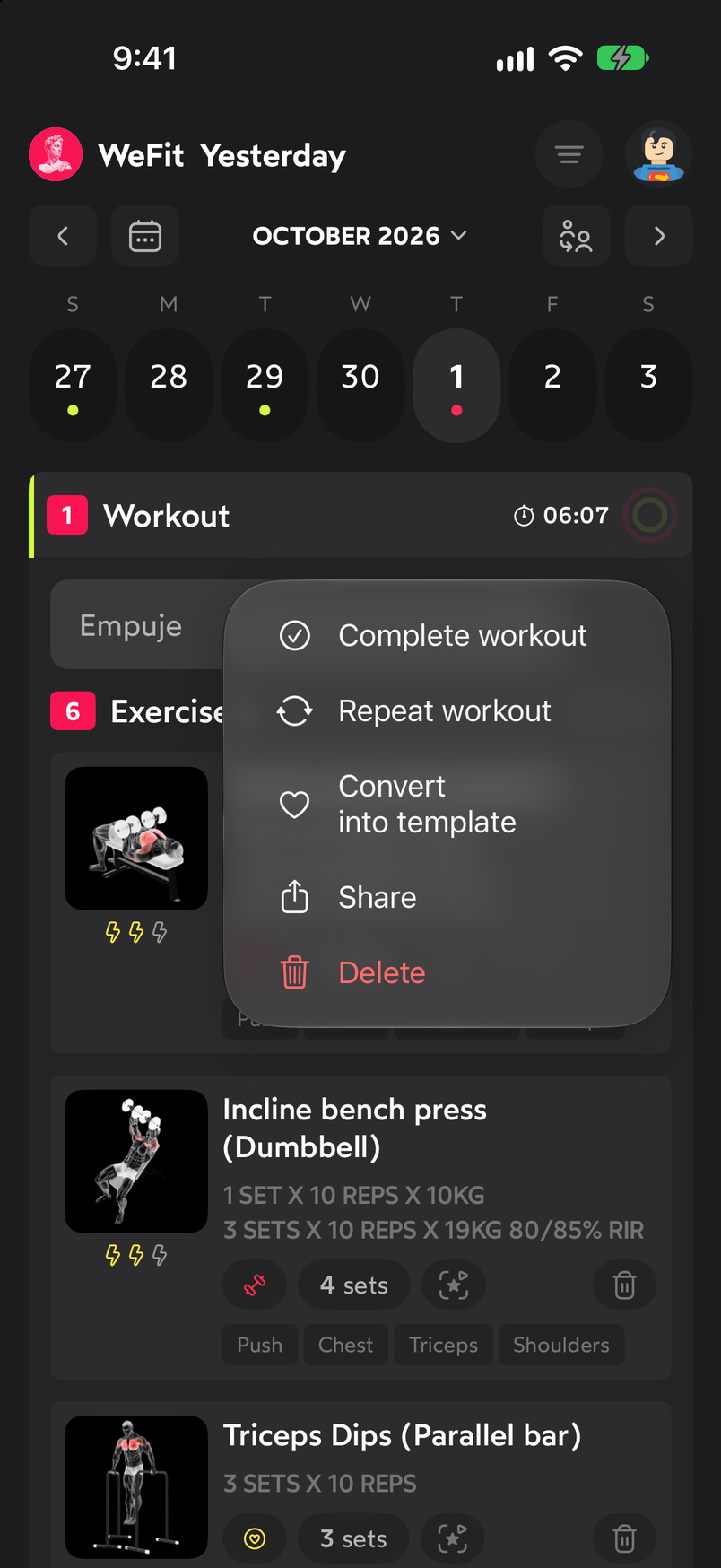
The card menu gathers the actions for the whole workout. In the Single days tab you’ll see a monthly calendar. Tap one or several days and confirm with the button at the bottom. The workout is copied to each selected day.
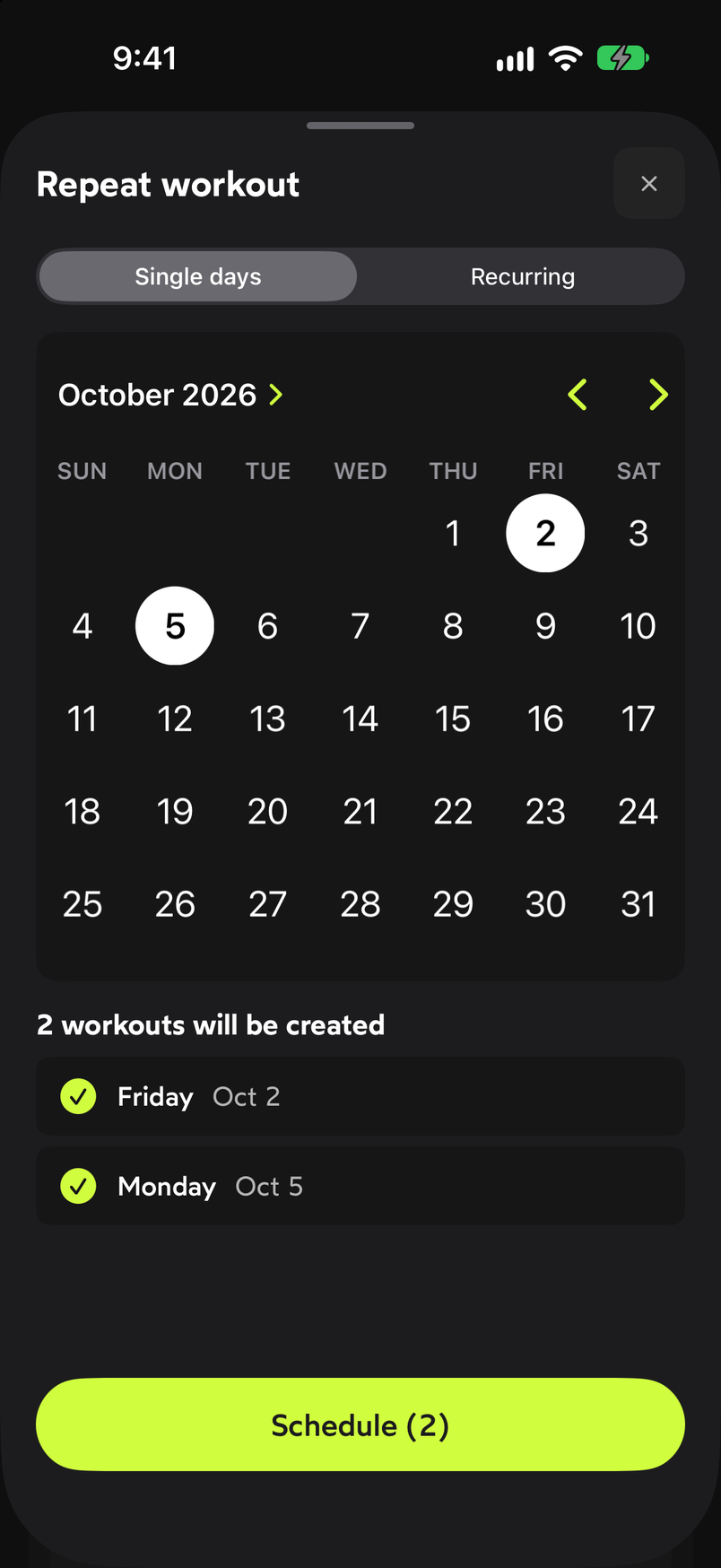
Select the days on the calendar and confirm. In the Recurring tab you set the cadence: Repeat (for example, every week), From the start date, Ends (after N times) and the number of Repetitions. The sheet shows how many workouts will be created and the list of resulting dates. Confirm with Schedule.
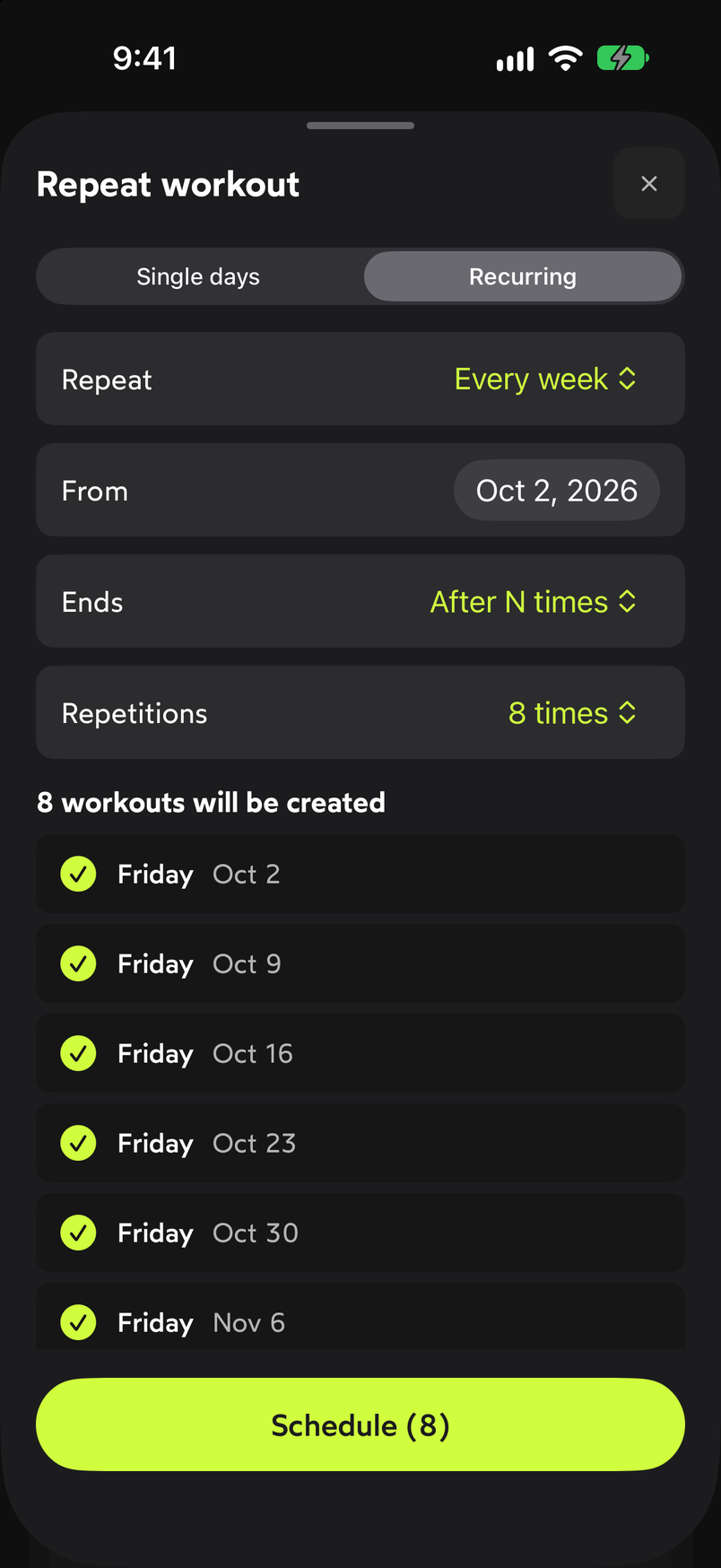
The preview list shows the exact dates before you schedule.
Common problems
I want to change just one of the copies
Each copy is a regular workout: go to that day and edit it. The others don’t change.
I picked the wrong days
Go to the wrong day, open the card menu and choose Delete. Only that workout is deleted.
I need a cadence that isn’t weekly
In the Recurring tab, tap the Repeat value to see the available cadences. If none fits, use Single days and select the dates by hand.
Related guides
How did this guide go for you?
Thanks for your feedback