
Follow the plan block by block
How to read the Plan view in WeFit for iPhone: the progress ring, the blocks with their numbered workouts, each workout's detail and the Start training button.
Subscription feature. What’s included
Once created, your plan lives in the Training plan view of the main menu. It’s divided into blocks of three workouts; the last block of each stretch is a deload block. There are no dates: workouts are marked as done as you complete them and the rings fill up.
Steps
The header shows a large ring with the completed workouts out of the total, in this case 0/24, and three counters: workouts, blocks and free. Below it appears the program type, “Strength”.
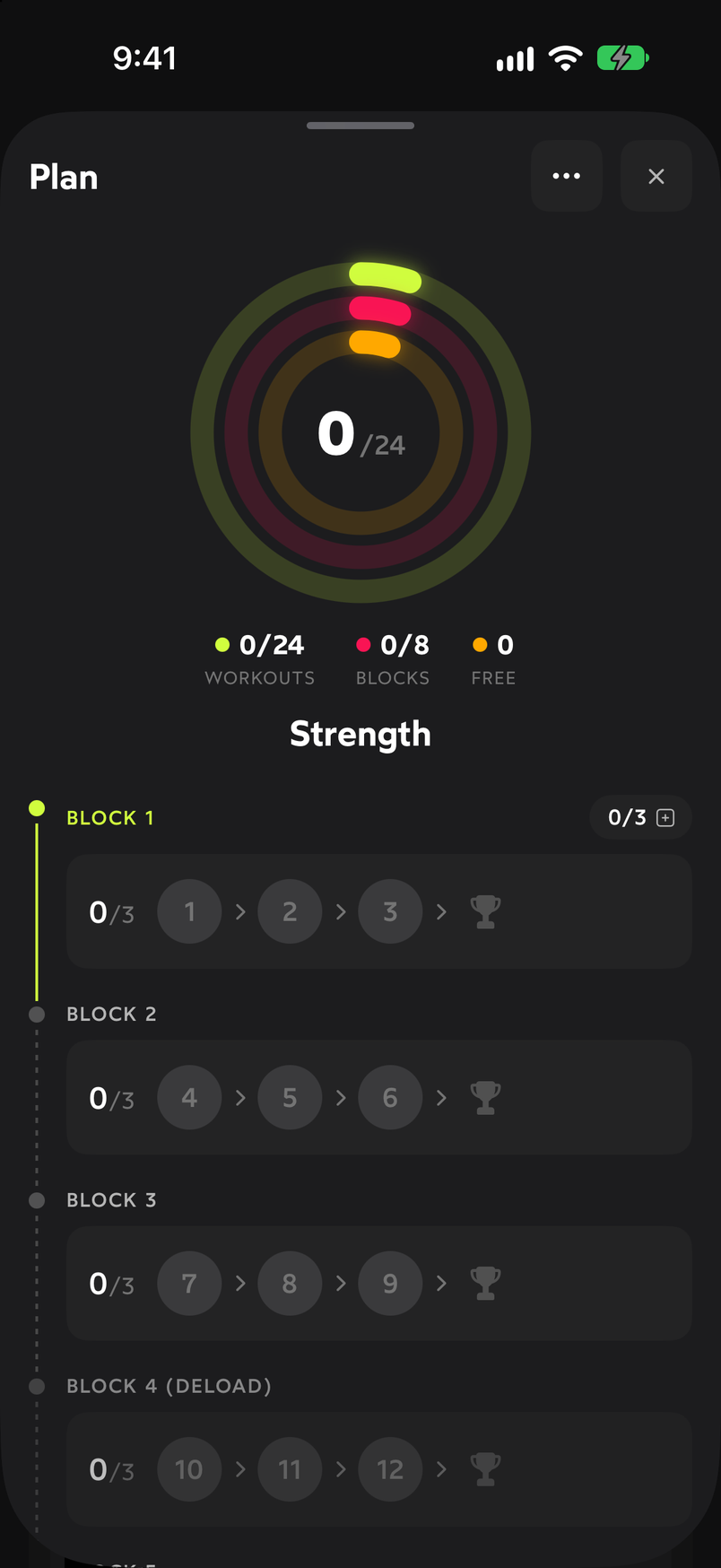
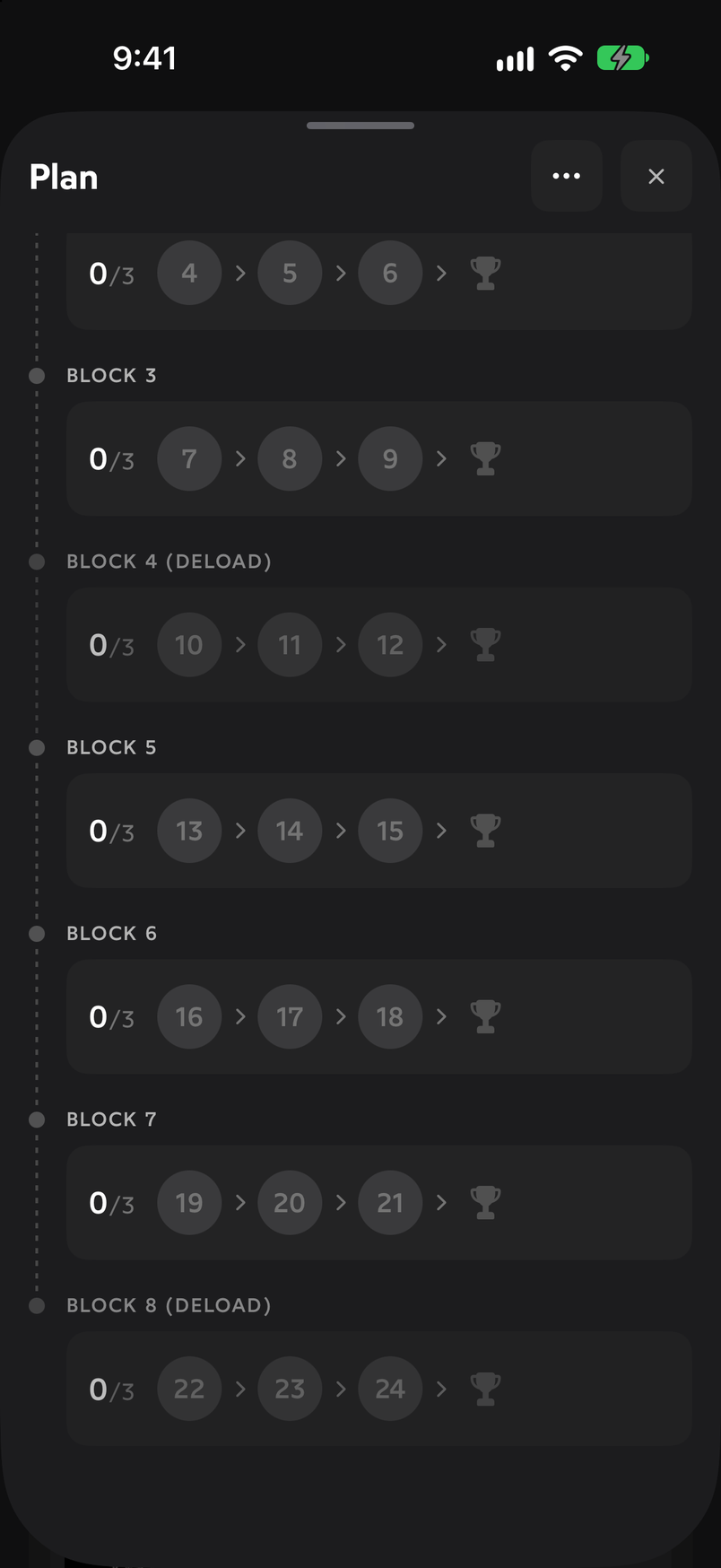
The ring summarizes the progress of the whole program. Each BLOCK has its own counter (0/3) and a row with the workouts numbered in order, followed by a trophy that marks the end of the block. Deload blocks are shown in parentheses: BLOCK 4 (DELOAD), BLOCK 8 (DELOAD). Scroll to see the eight blocks of the 8-week plan.
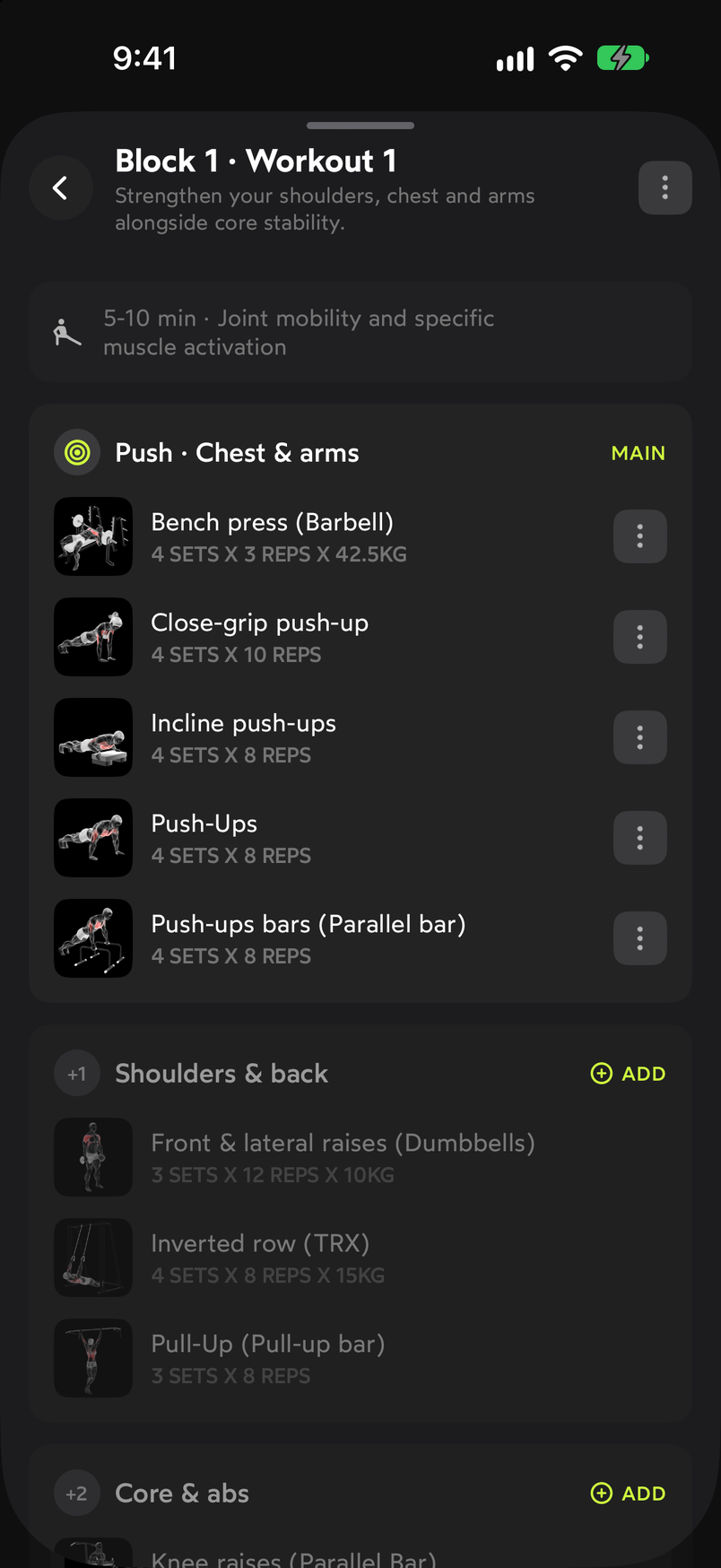
Workouts are numbered from 1 to 24. Tap a workout’s number to open its detail: Block 1 · Workout 1, a description of the goal, the recommended warm-up (5-10 min of mobility and activation) and the MAIN block with its exercises and sets. Below are added blocks, such as “Shoulders & back” or “Core and abs”, with an ADD button to add them to the workout.
The main block is the core of the workout; the added blocks are optional. At the end of the detail is Start training. When you tap it, the workout moves to your day on Today, where you log it set by set like any other.
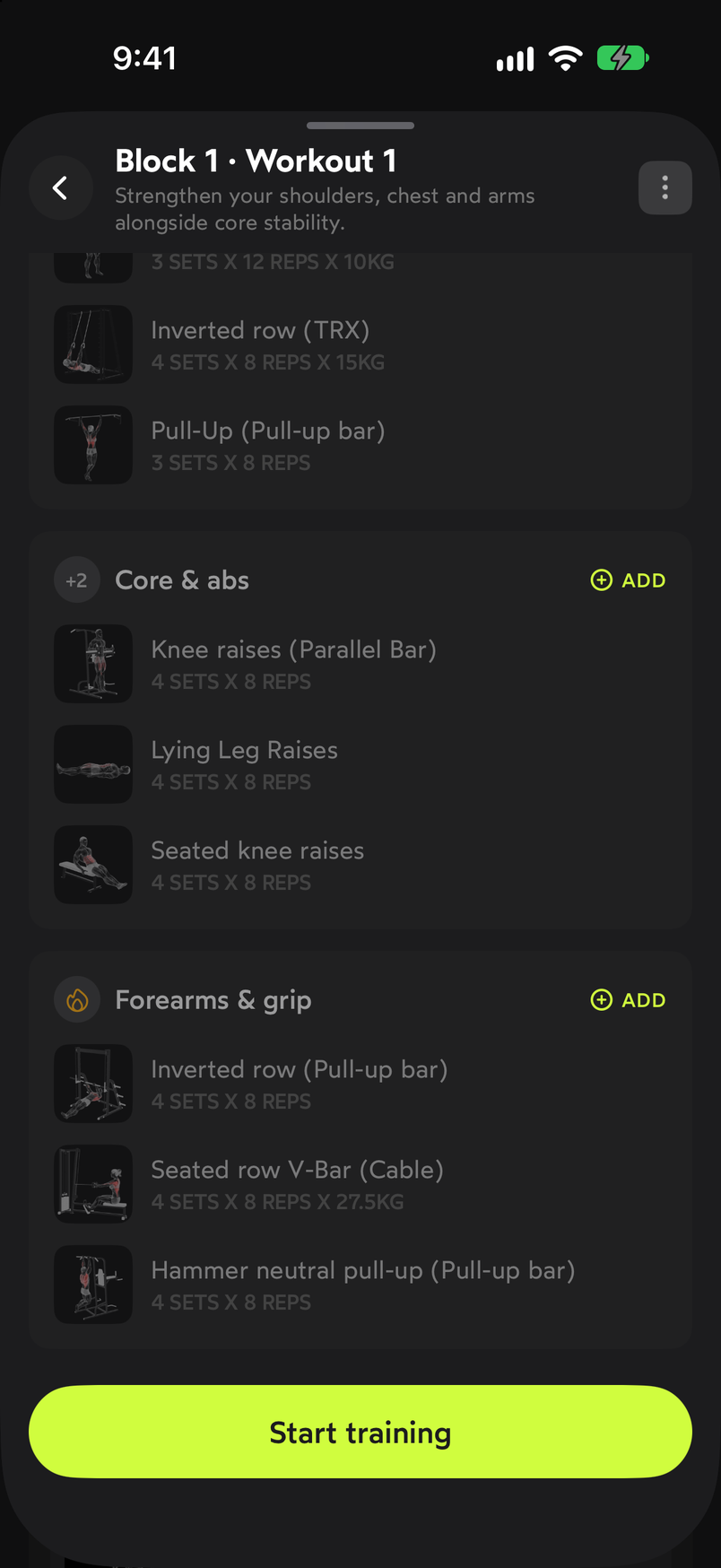
Start training takes the plan workout to Today.
How a session is logged, with a timer and a final summary, is covered in Start and finish a workout.
Common problems
I want more or fewer workouts in a block
Tap the block’s counter (0/3) to change its number of workouts. It’s explained in Adjust or leave the plan.
A plan workout doesn’t work for me
Open its detail and use the ⋯ in the top right corner, or change it once it’s loaded on Today with Swap one exercise for another. The plan is a guide, not an obligation.
Related guides
3 months free, cancel anytime.
What WeFit PRO includesHow did this guide go for you?
Thanks for your feedback