
Adjust or quit your plan
How to change the number of workouts in a block of your WeFit training plan on iPhone, create a new plan, or leave the current one, which moves to Previous plans.
Subscription feature. What’s included
Your plan isn’t set in stone. You can adjust how many workouts each block has, and if your circumstances change, create a new plan or leave the current one. Everything is done from the Training plan view in the main menu.
Change the workouts in a block
In the Training plan view, tap the block counter (for example 0/3) to the right of its name. The This block’s workouts sheet opens: “Increase or decrease the workouts in this block or week. This way you can keep up with your plan and keep progressing toward your goal. Any workouts you have already completed are kept.”
Use the − and + buttons to set the number. Below, it says “The block will have 3 workouts” and, under Your block will be, you’ll see the list of workouts with their status (Pending). Confirm with Save.
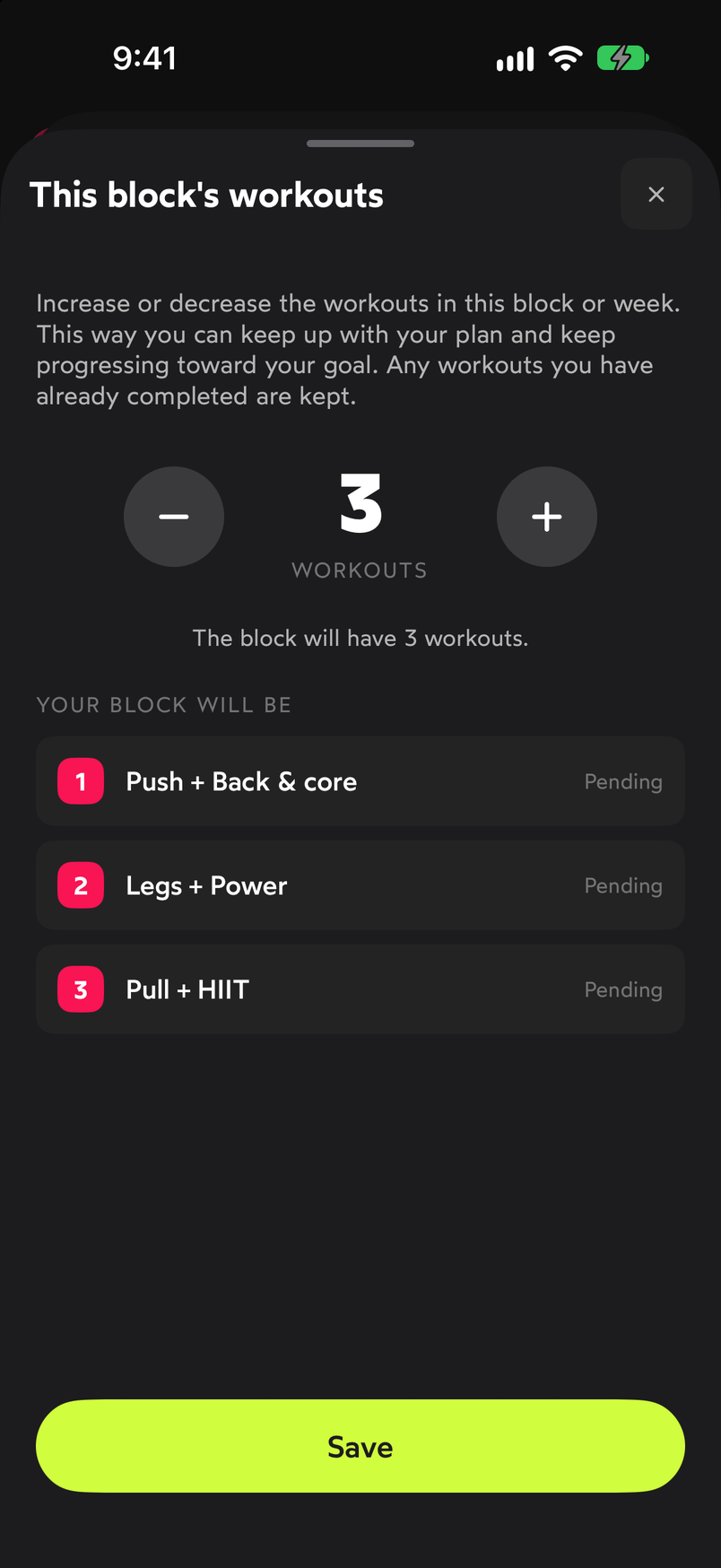
Workouts you've already completed aren't lost when you change the number.
Create a new plan or leave the current one
Tap the ⋯ button in the header of the Training plan view. The menu offers Create new plan, Previous plans and Leave plan.
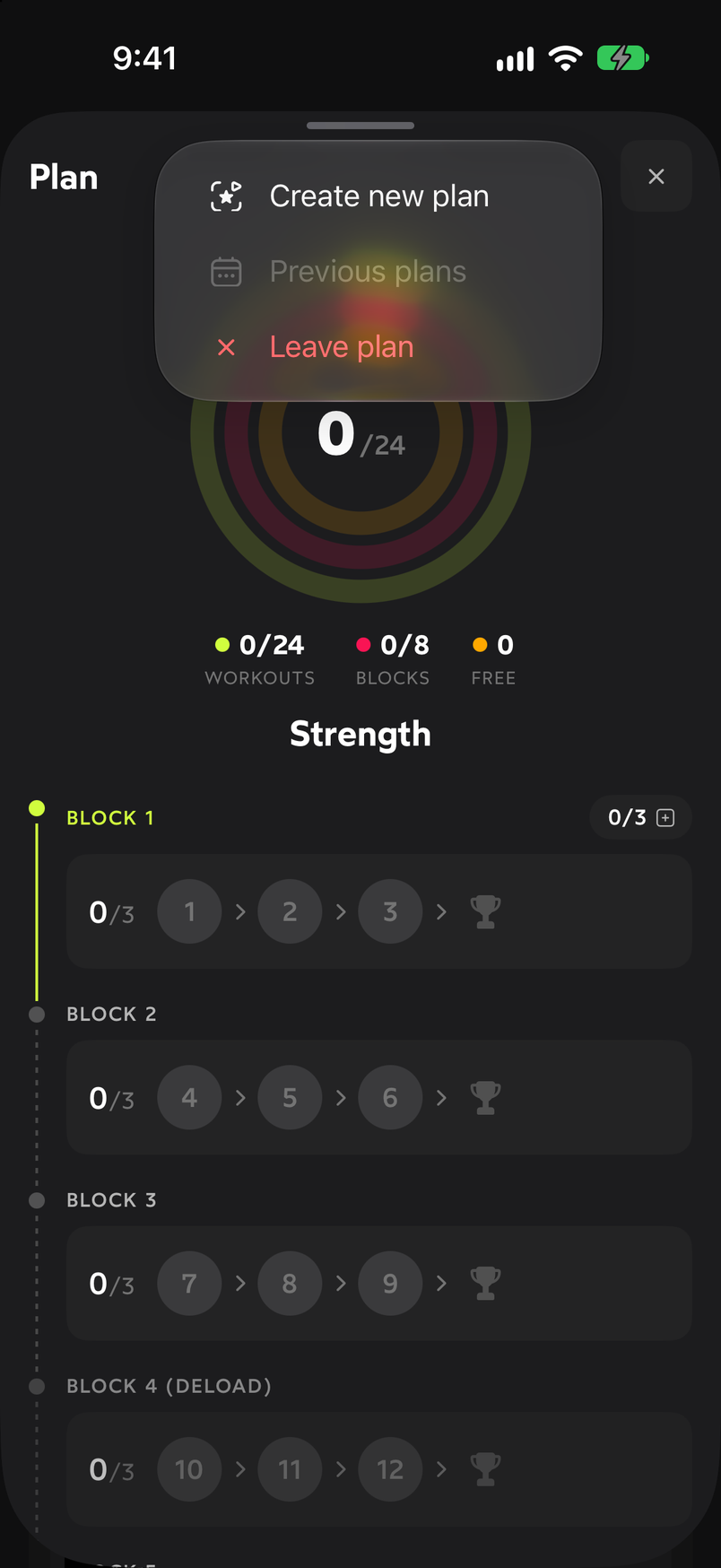
Previous plans is disabled until there is an archived plan. Leave plan asks for confirmation with the Leave this plan? dialog: “Your logged workouts are not deleted. You can resume it from Previous plans.” Confirm with Leave.
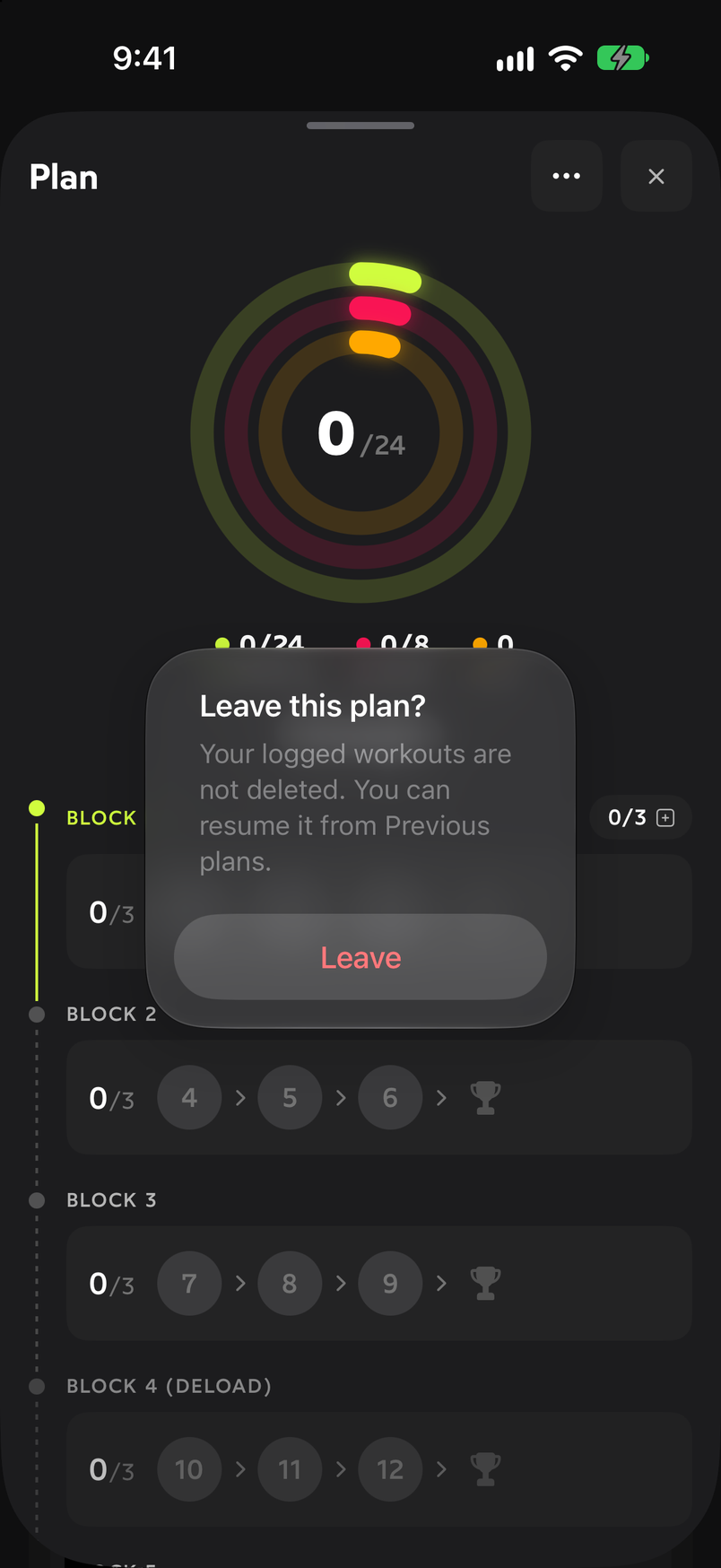
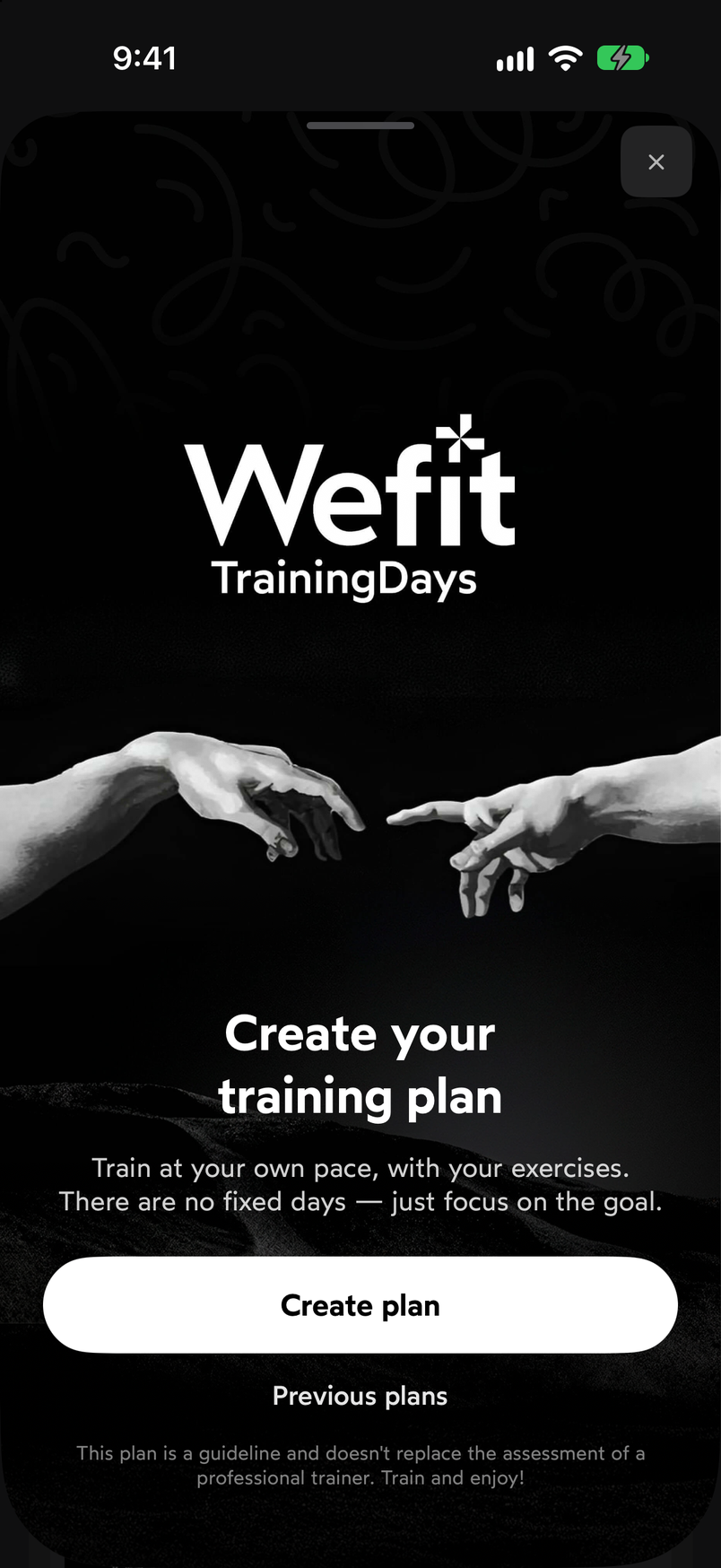
Leaving the plan doesn't delete anything you've already trained. After you leave, you return to the Create your training plan screen, now with a Previous plans link below the Create plan button. Create new plan from the menu opens the generator again, and the plan you had active also moves to Previous plans.
The plan you left doesn't disappear: it stays in Previous plans. Previous plans lists the archived programs with their type, duration, status and dates, for example “Strength · 8 weeks · Abandoned · Oct 1, 2026 → Oct 1, 2026”.
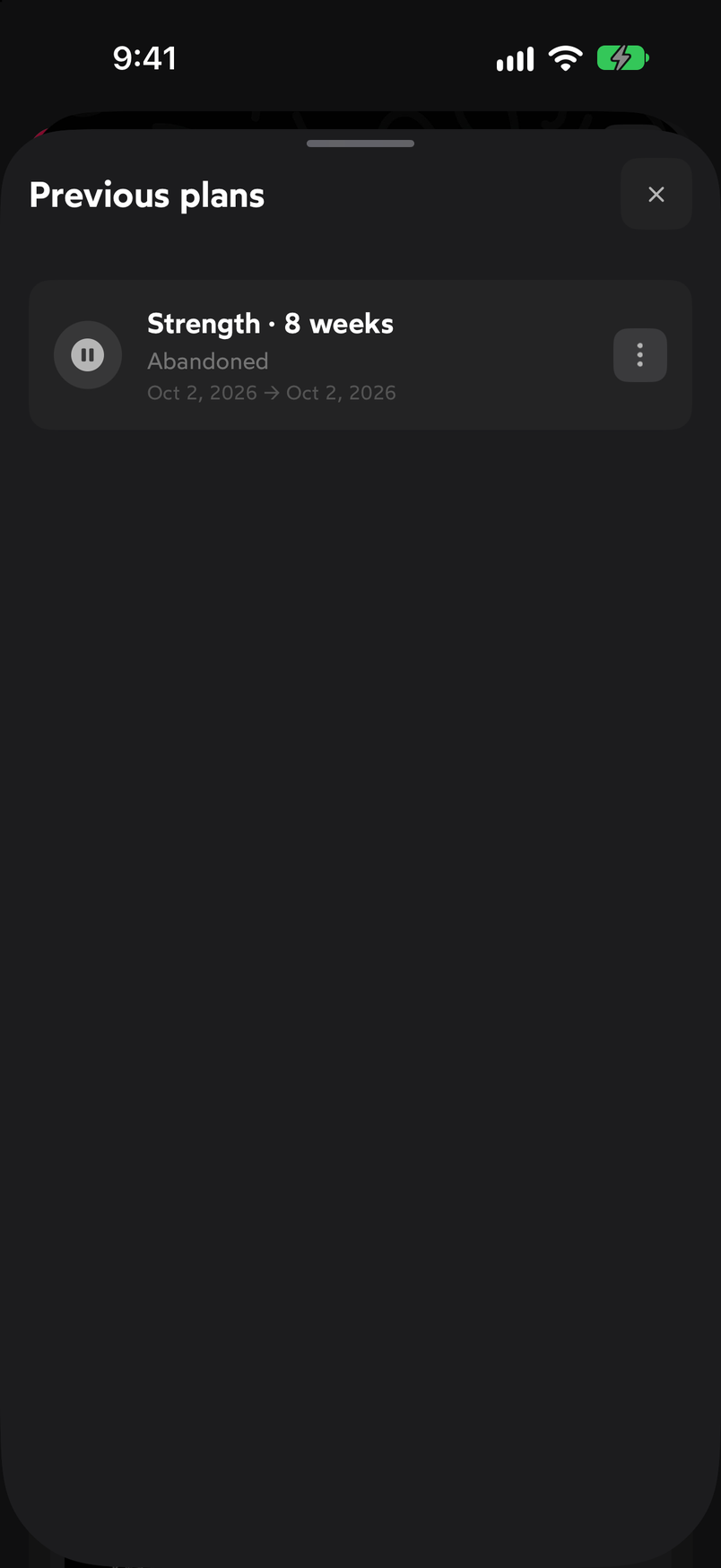
Each archived plan keeps its status and dates. Tap the ⋯ of a previous plan to Resume it (it becomes active again), Share its card or Delete it from the history. Deleting asks for confirmation with “Delete this plan from history?”.
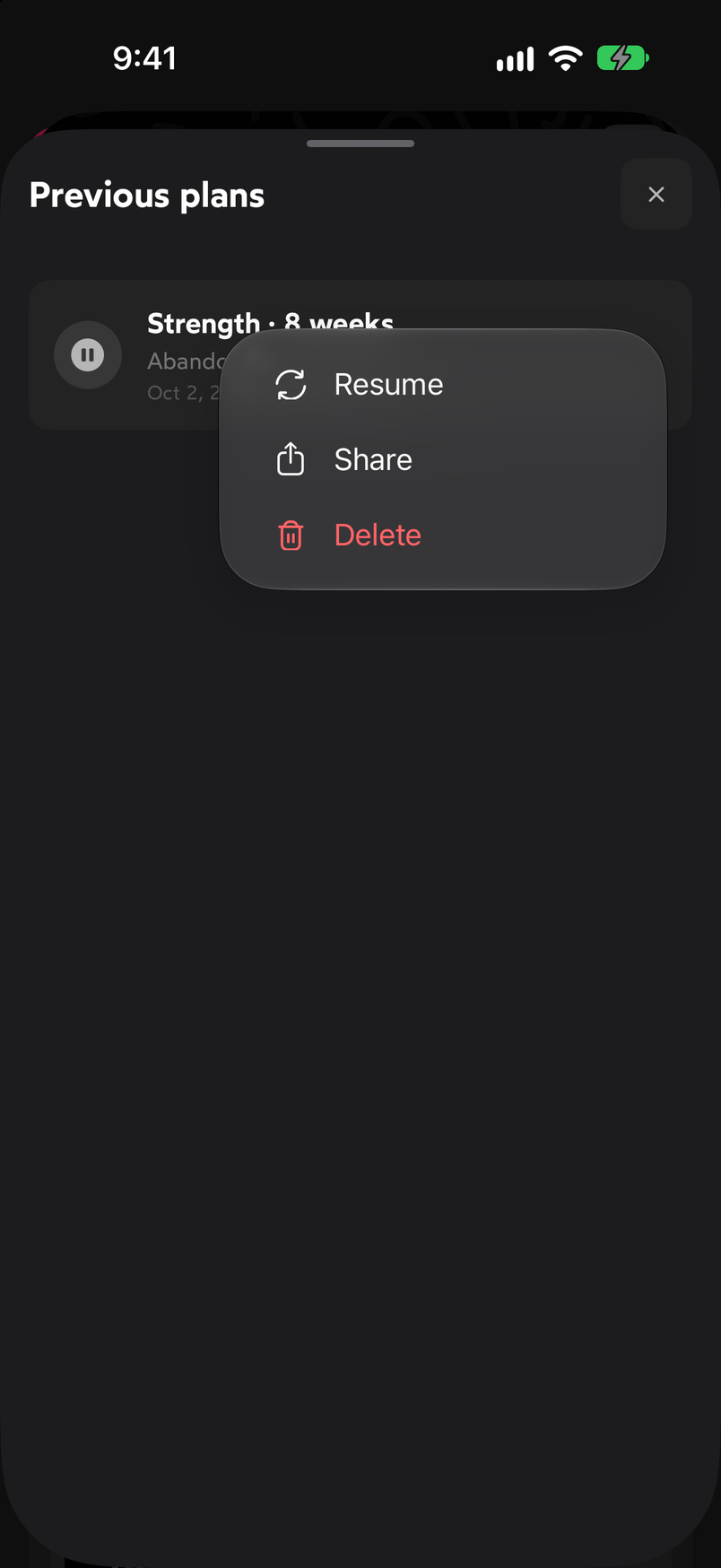
Resume brings the plan back to active.
Common problems
I left the plan by accident
Open Previous plans, tap the ⋯ of the plan and choose Resume. If you created another plan in the meantime, that one will move to Previous plans when you resume the old one.
I can’t find Previous plans
The menu option is disabled as long as there is no archived plan. It appears as soon as you leave a plan or create a new one while another is active. With no active plan, the link is below the Create plan button.
Related guides
3 months free, cancel anytime.
What WeFit PRO includesHow did this guide go for you?
Thanks for your feedback