
Create a training plan
How to generate a training plan in WeFit for iPhone: choose the length, review the proposed workouts and exercises, and activate it.
Subscription feature. What’s included
The training plan is a multi-week program that WeFit builds from your most frequent exercises and organizes into blocks. It has no fixed days: you decide when you train, and the plan keeps suggesting your next pending workout. You can create it in just a few taps from the main menu.
Steps
Open the main menu with the three-line icon at the top right of Today, and tap Training plan.
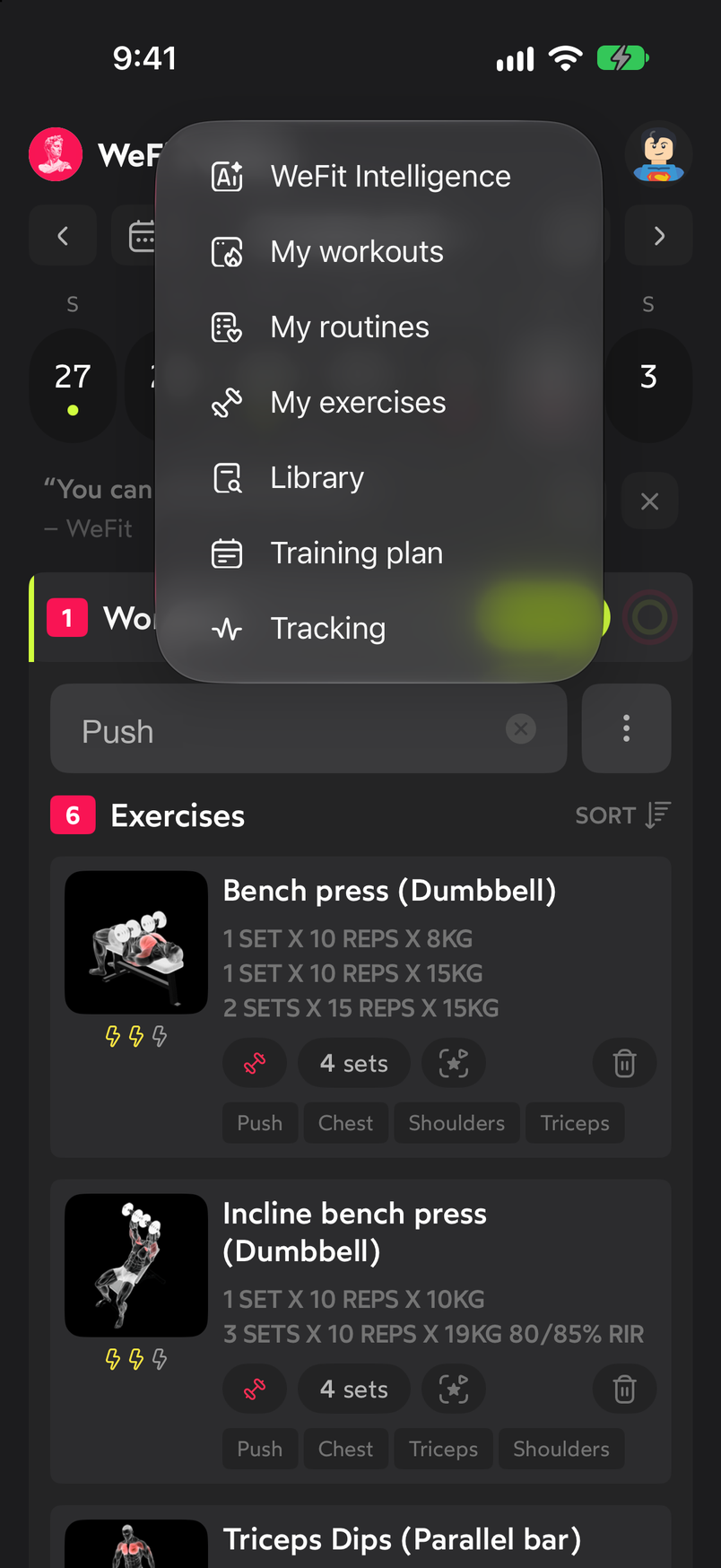
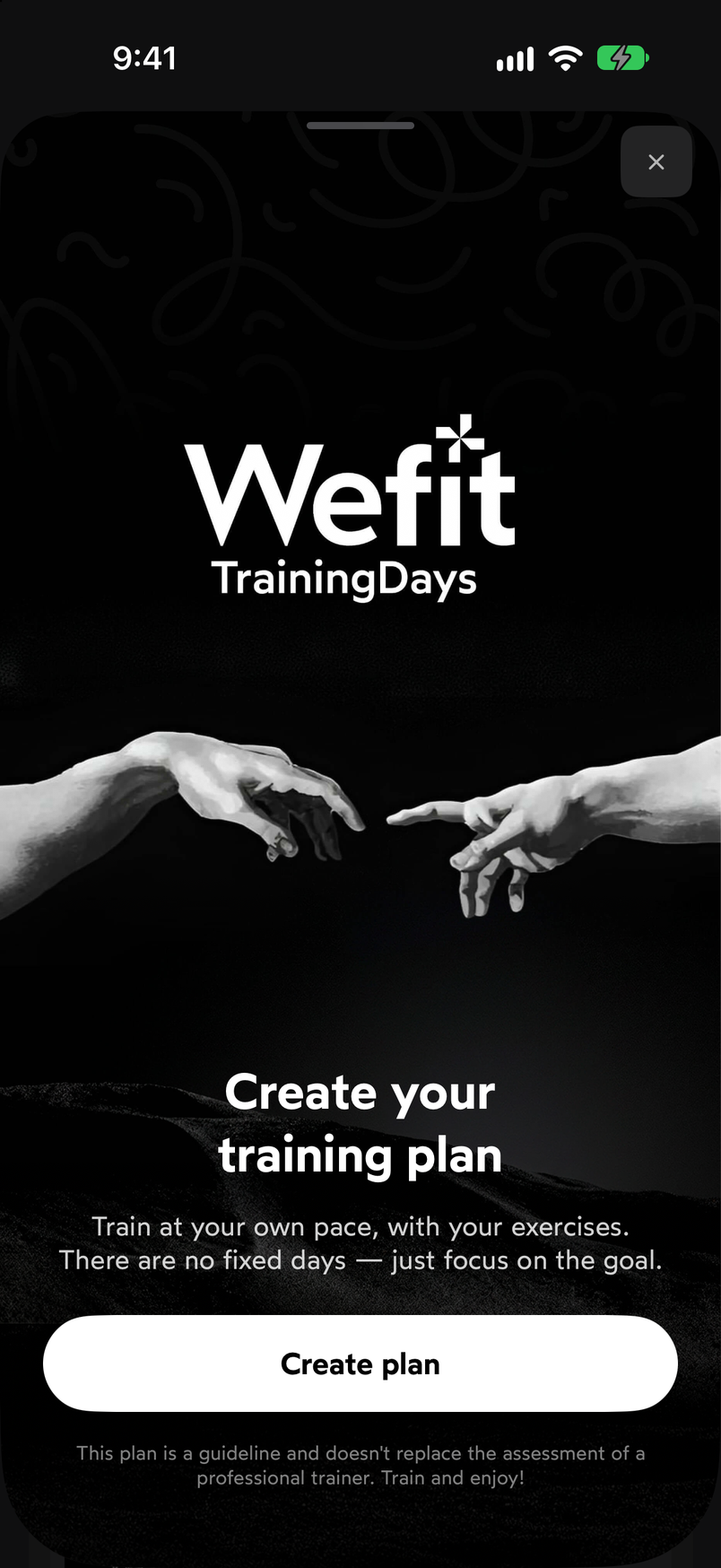
Training plan is in the main menu. If you don’t have a plan yet, you’ll see the Create your training plan screen: “Train at your own pace, with your exercises. There are no fixed days, just focus on the goal.” Tap Create plan.
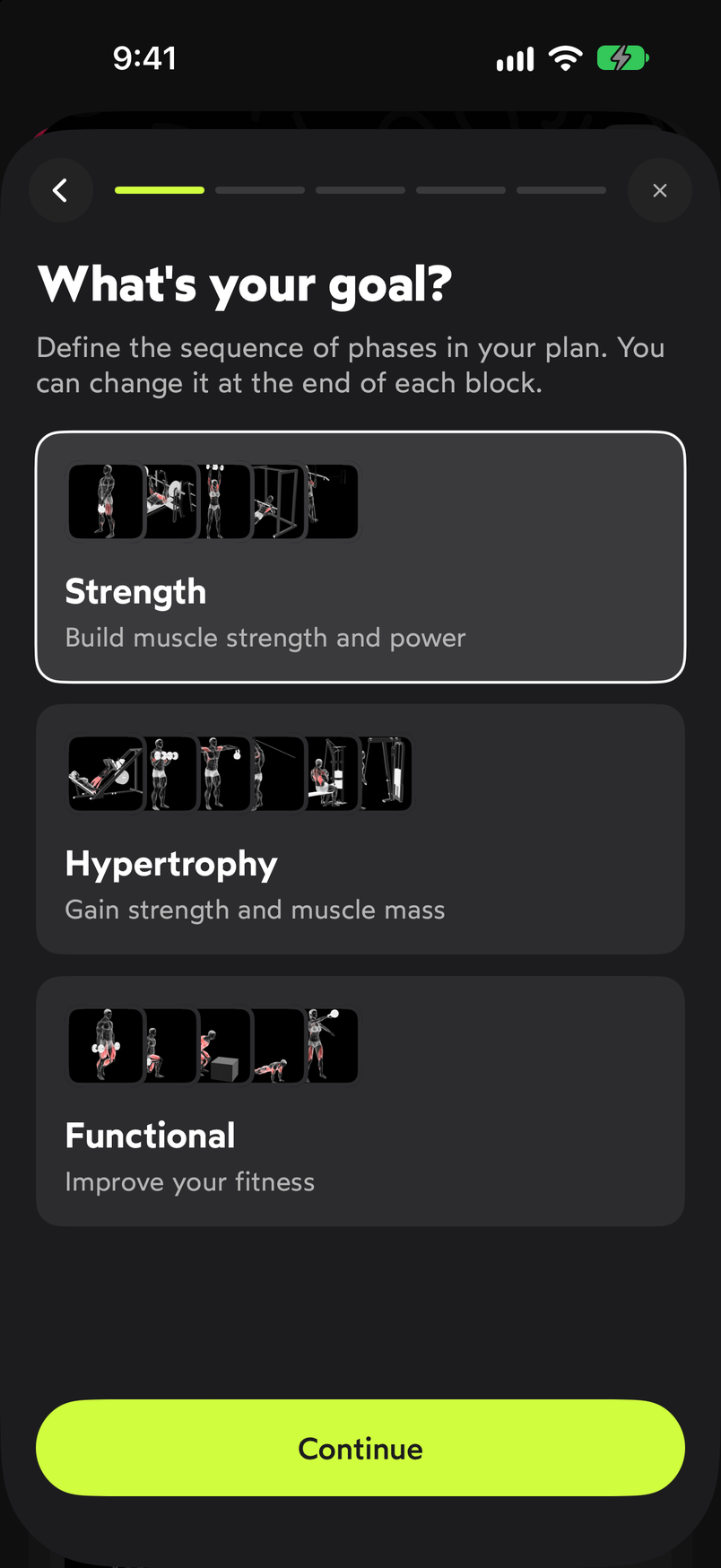
Below the button, the reminder that the plan is a guideline. Choose your goal: Strength, Hypertrophy or Functional. It defines the sequence of phases in your plan, and you can change it at the end of each block. Tap Continue.
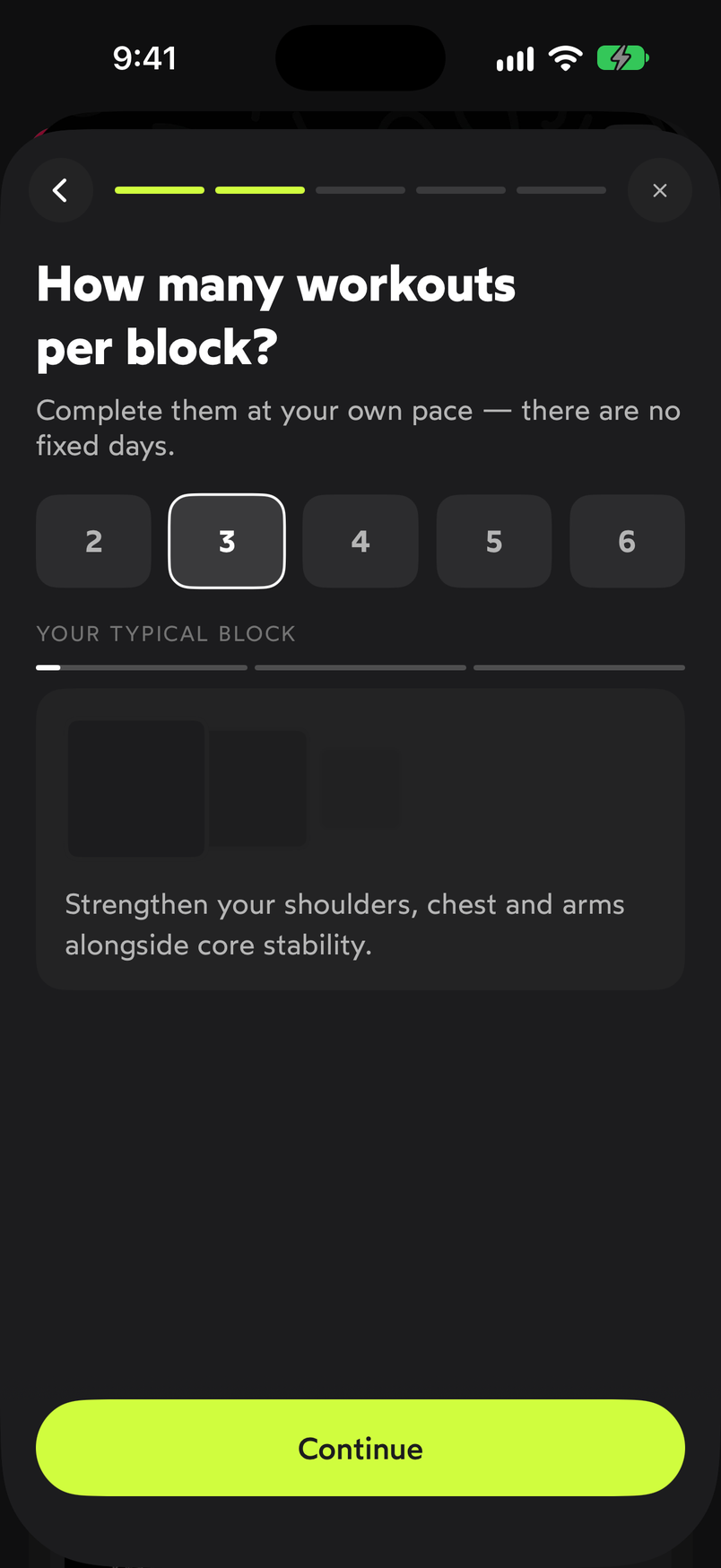
The goal sets the phases of the plan. Pick how many workouts you want in each block, from 2 to 6. You complete them at your own pace, with no fixed days. Tap Continue.
Your typical block, from 2 to 6 workouts. Tell WeFit your level: Beginner, Intermediate or Advanced. It filters the suggested exercises by difficulty. Tap Continue.
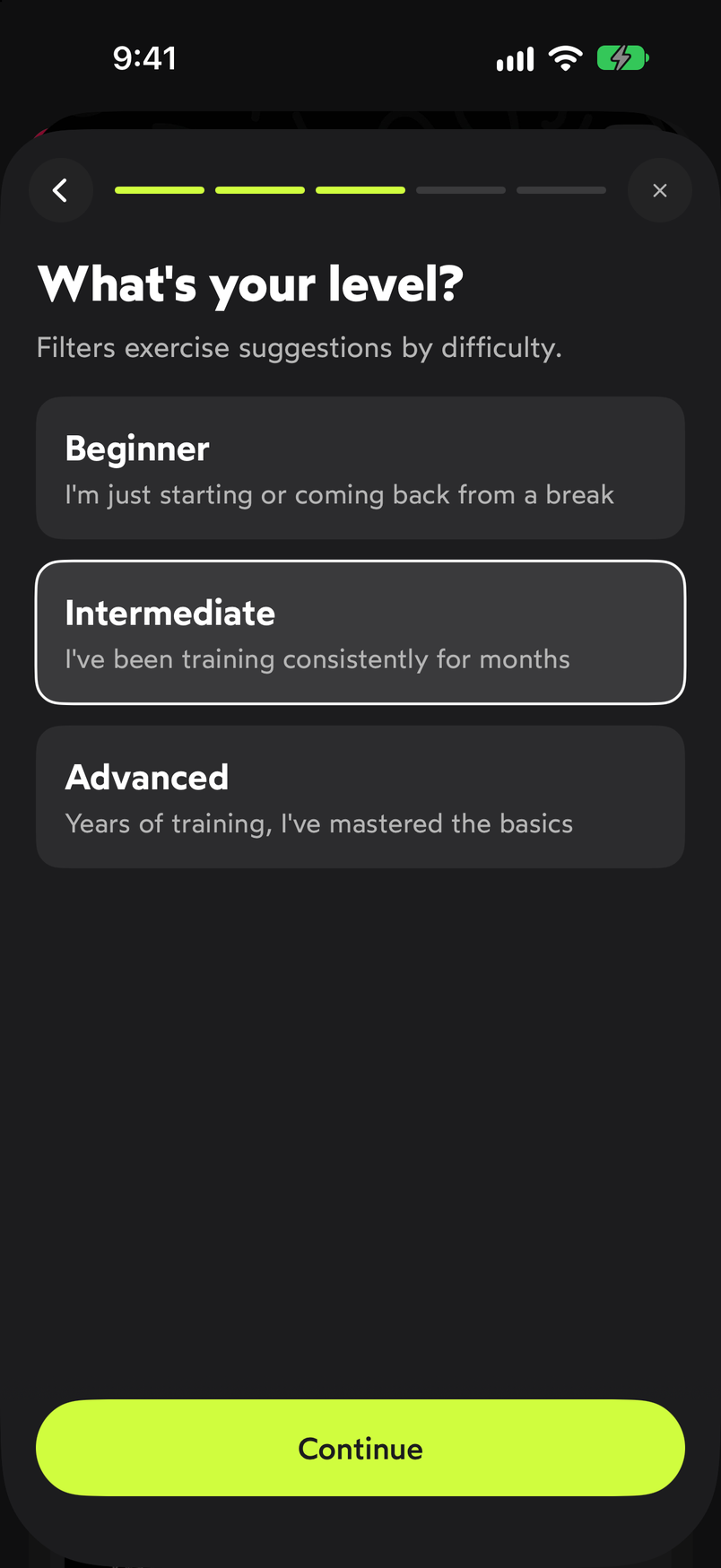
The level adjusts the difficulty of the proposal. Choose how long you want it to last: 8 weeks (24 workouts), 12 weeks (36 workouts) or 16 weeks (48 workouts). The progress bar at the top shows which step you’re on. Tap Generate plan.
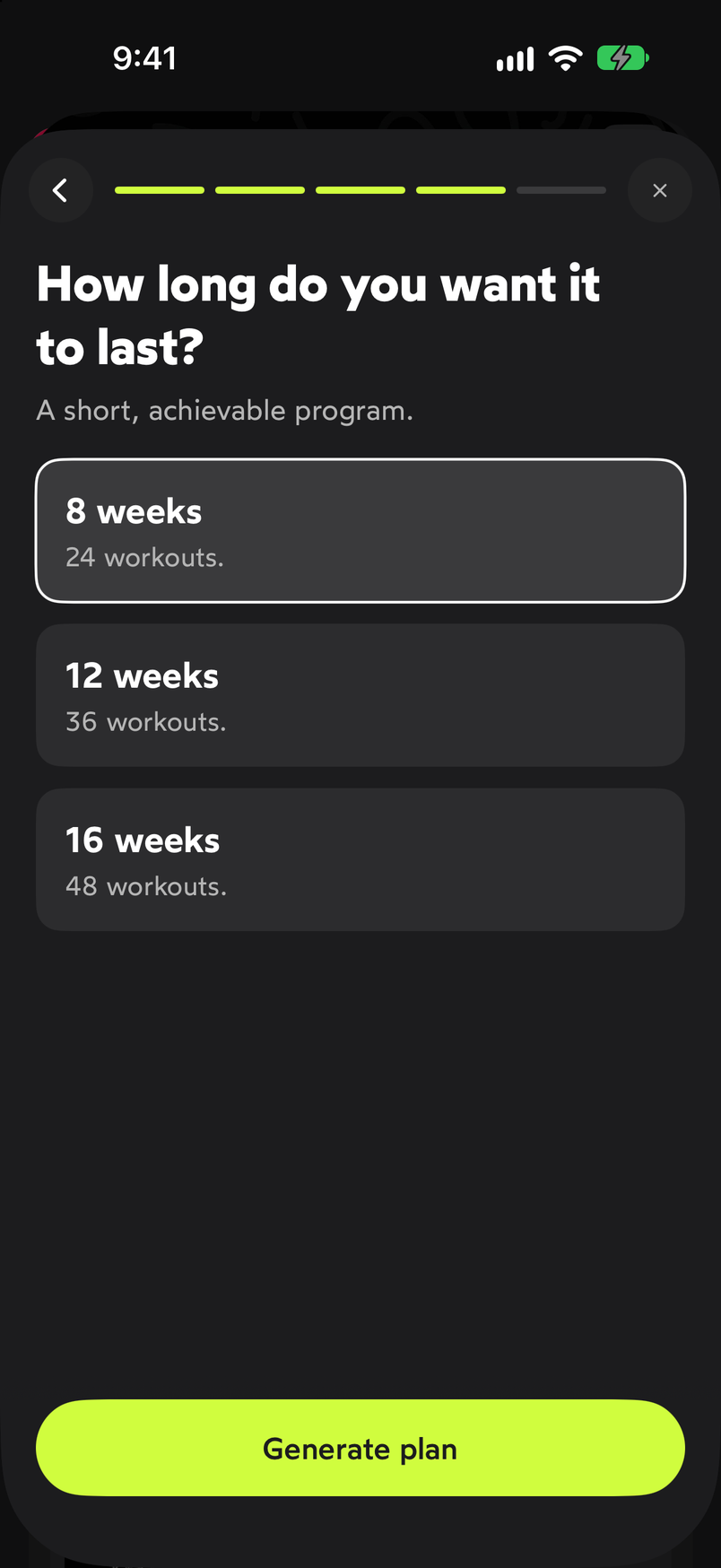
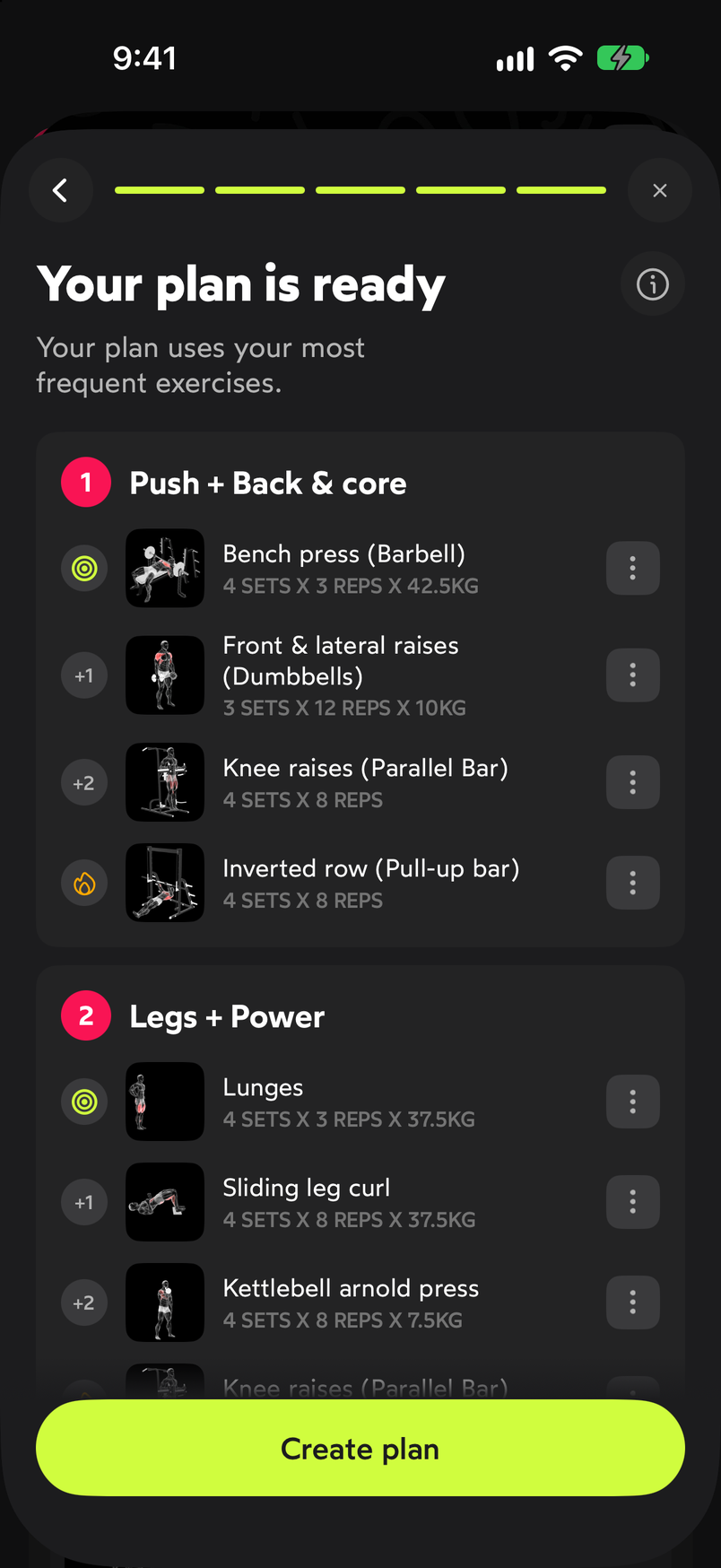
A short program is easier to complete. Under Your plan is ready you’ll see the proposal: the numbered workouts with their names, for example “Push + Back and core”, “Legs + Power” or “Pull + HIIT”, and inside each one its exercises with the planned sets. WeFit picks them from your most frequent exercises.
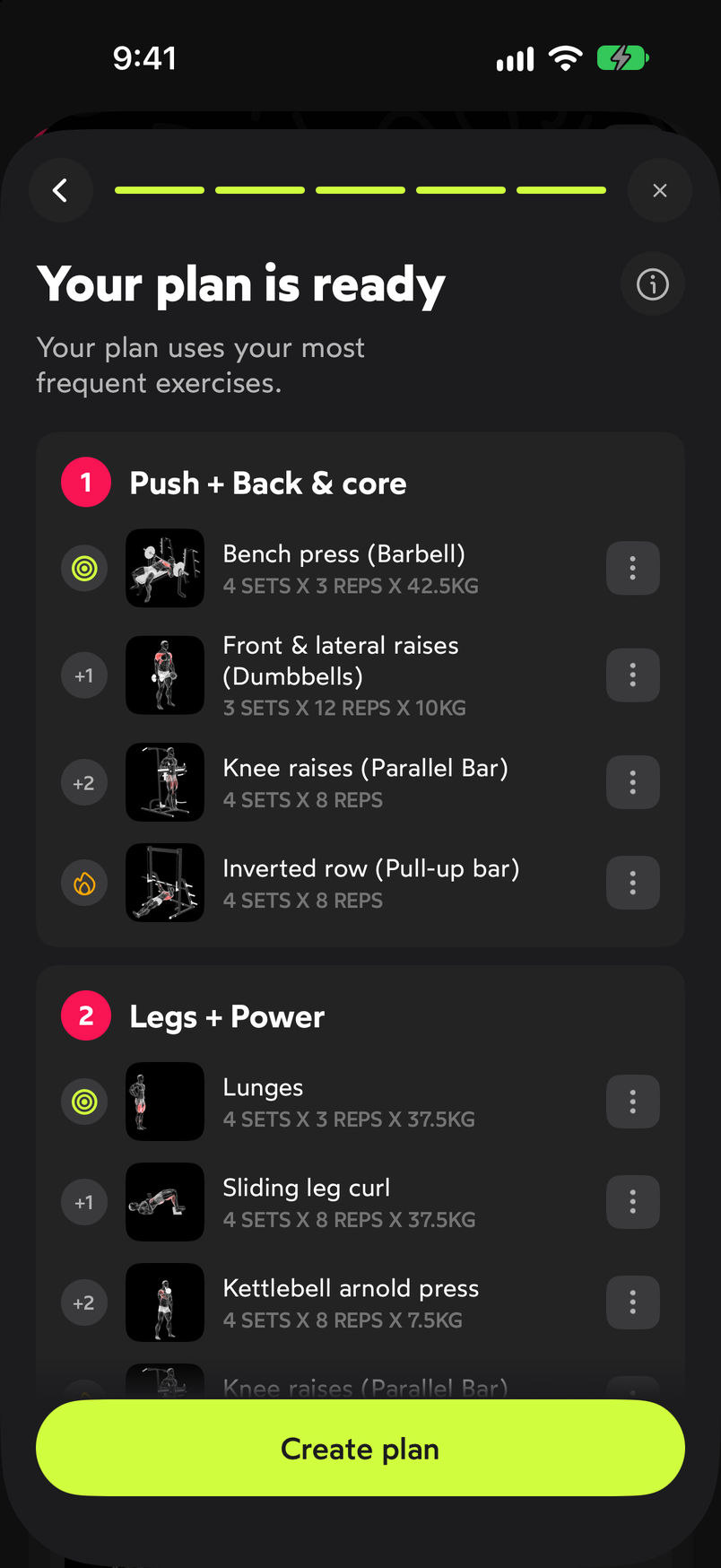
Each workout has a main block and extras marked +1 and +2. If you don’t like an exercise, tap its ⋯ button: you can choose Change exercise to swap it for another one, or open Exercise details to see its page before deciding.
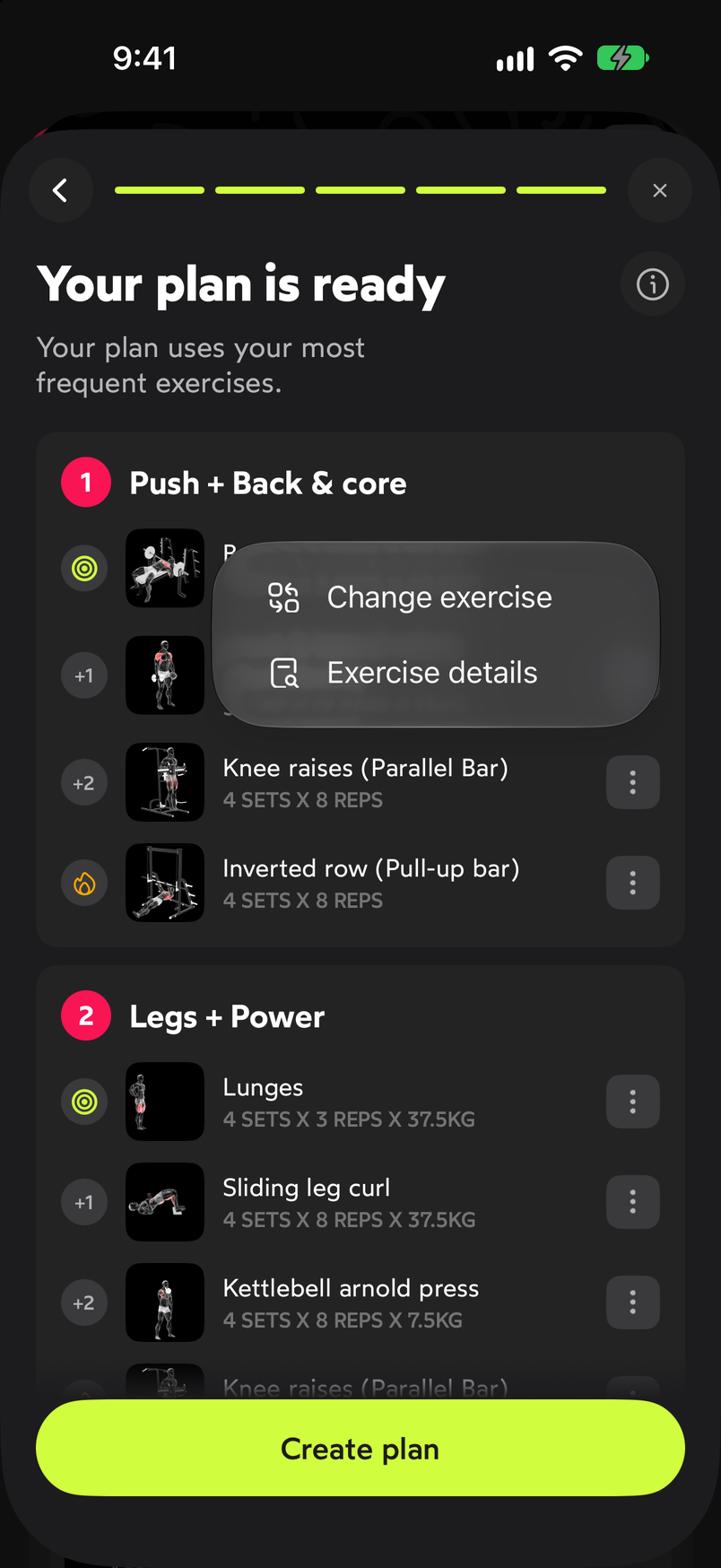
Any exercise in the proposal can be replaced before you create the plan. When you like the proposal, tap Create plan at the bottom.
The Create plan button activates the program. The app shows three intro screens: The plan is your guide (you can change any exercise and there are no fixed days), Reach your goal (each block is dynamic and allows free workouts or activities) and Simplify your training and analyze your progress. Move through them with Next and finish with Start.
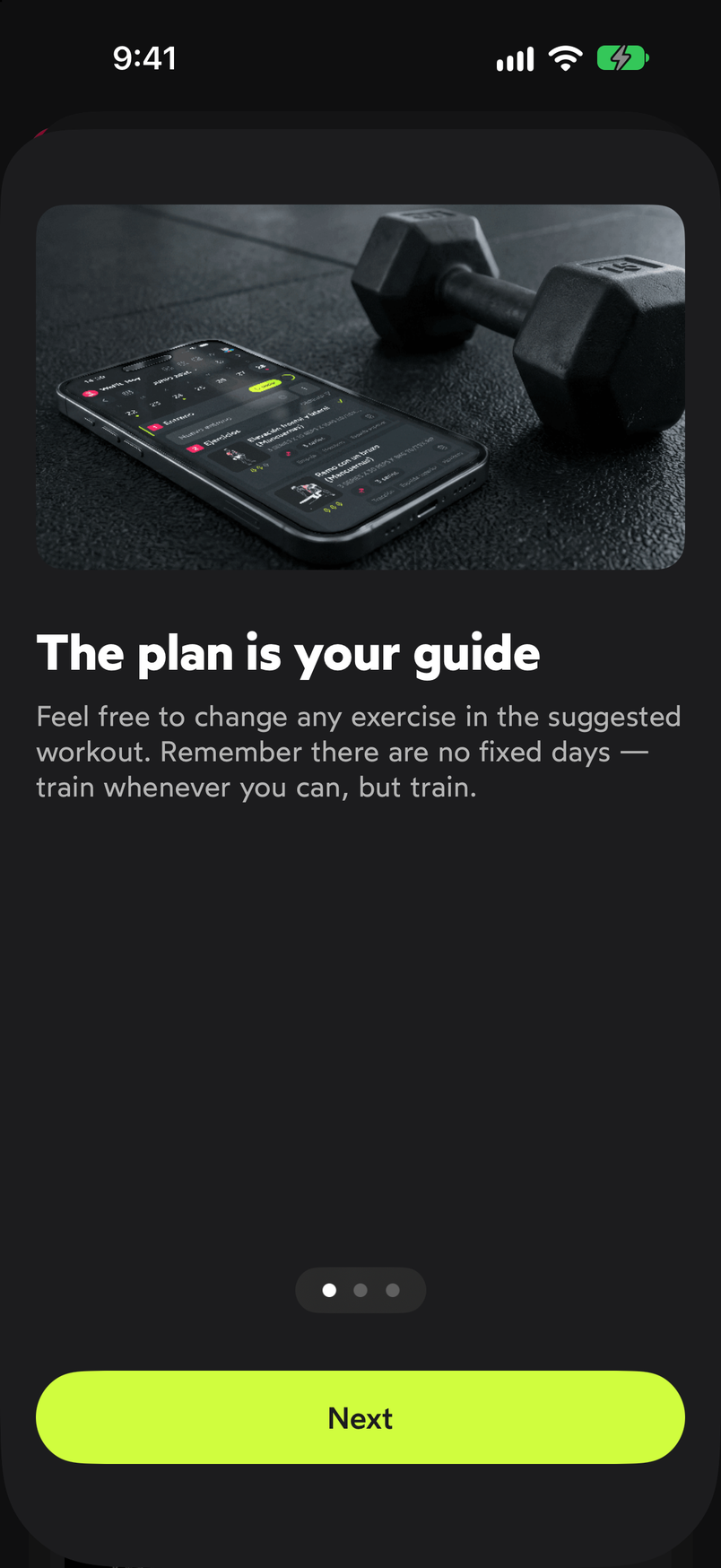
First intro screen. 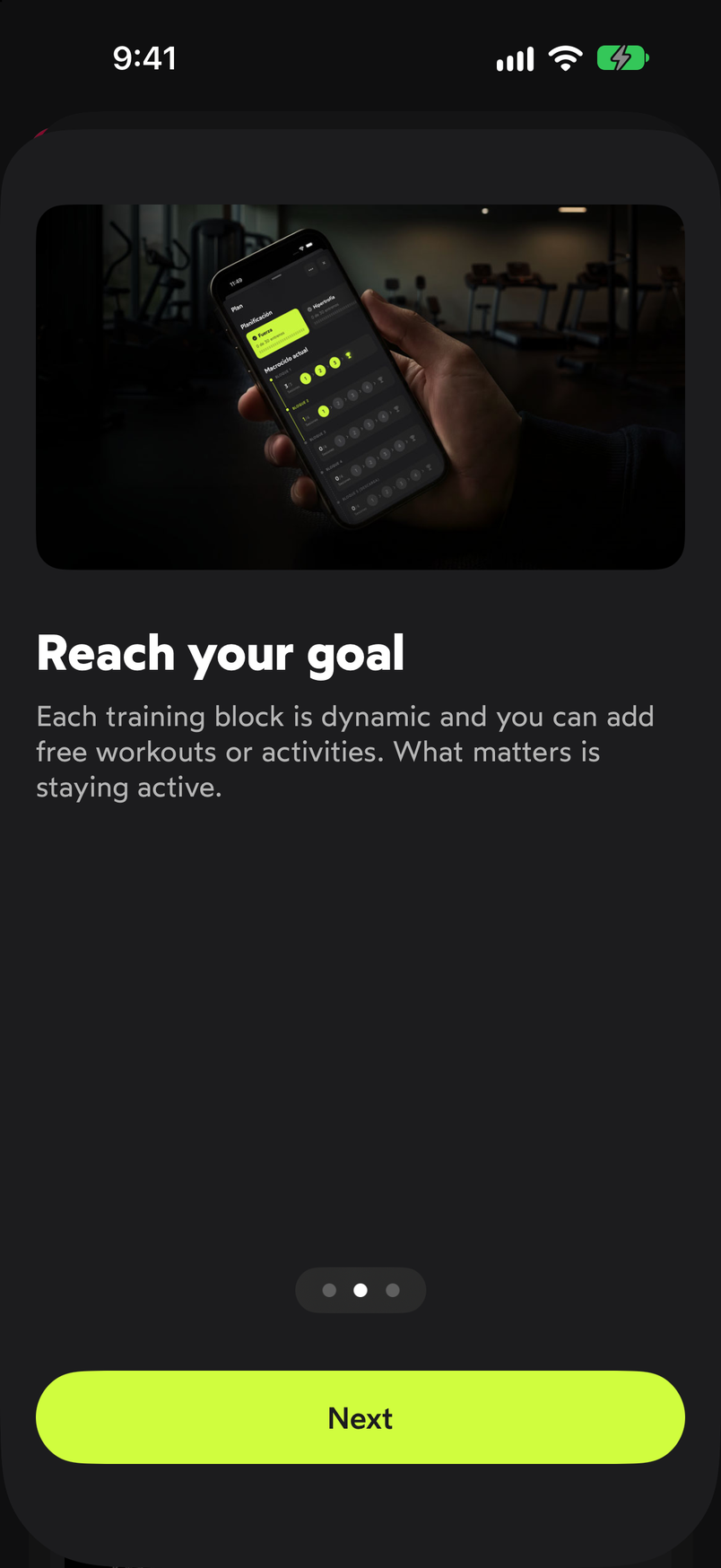
Each block allows free workouts or activities. 
Start takes you to the plan view.
When you finish, you land on the Plan view, with the blocks and the pending workouts. How to follow it is explained in Follow the plan block by block.
Common problems
The proposal repeats exercises I don’t want to do
The plan is built from the exercises you’ve used the most. Change the ones you don’t want with ⋯ → Change exercise before creating it, or do it later from the workout itself.
I want a different length
While you’re in the generator, the back button in the top left corner takes you back to the length step. If the plan is already created, you can create a new one from the ⋯ menu in the Plan view; it’s explained in Adjust or quit your plan.
Related guides
3 months free, cancel anytime.
What WeFit PRO includesHow did this guide go for you?
Thanks for your feedback