
The Today screen
What's on the WeFit home screen for iPhone: the day bar, the quote of the day, your workout, the main menu and the shortcuts at the bottom of the page.
Today is the screen WeFit opens to. It brings together the weekly calendar, the workout for the selected day and, further down, the widgets, your friends and quick shortcuts. From its header you reach the main menu and settings.
Steps
The header has the logo with the title WeFit · Today (or the date, if you have another day selected), the three-line menu button and your avatar, which opens settings. Below it is the week bar: arrows to change weeks, the calendar icon to jump to a specific date, the month dropdown (for example “OCTOBER 2026”) and the friends button. Tap a number to select that day; a green dot marks a day with a completed workout and a red one a pending workout. Next comes the motivational quote of the day, with the Another quote and Hide quote buttons, and the Workout card with the Start button and the list of exercises.
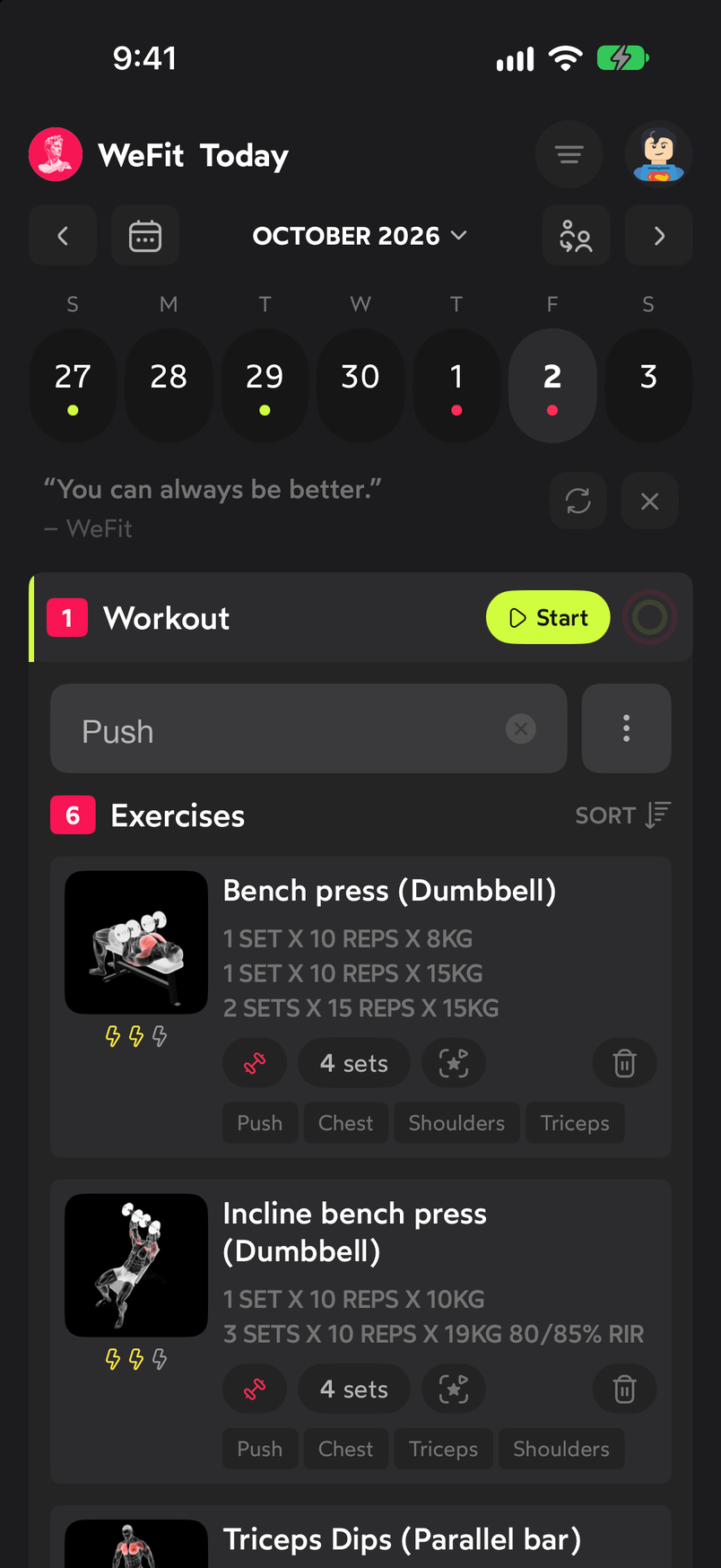
The header, the week bar and the workout for the day. Tap the three-line button to open the main menu: WeFit Intelligence, My workouts, My routines, My exercises, Library, Training plan and Tracking. Each entry opens its section on top of the Today screen.
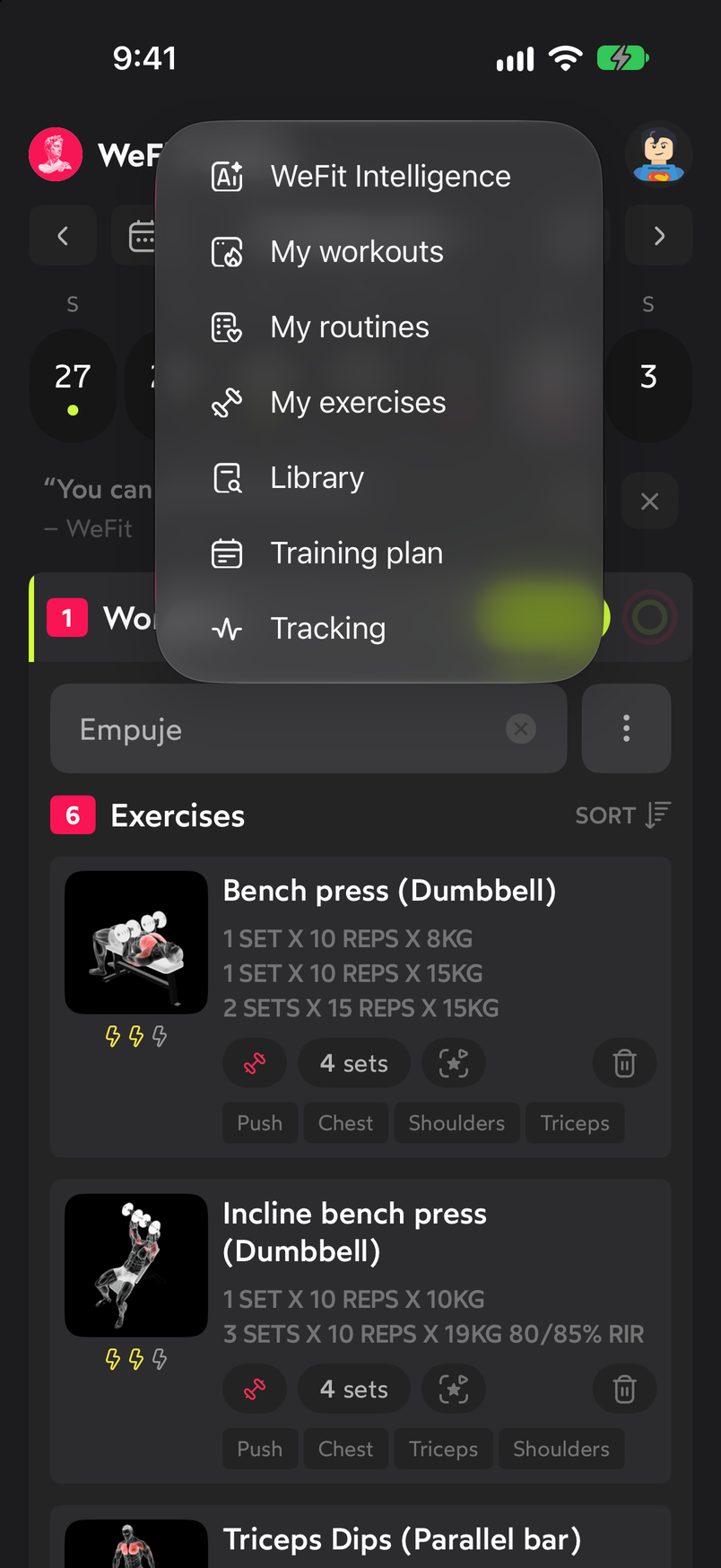
The main menu gives access to all sections. At the bottom of the page, after the widgets, you’ll find the My friends card with your friends’ avatars and the See all button, the See latest workouts button and, closing the screen, Share and Customize home.
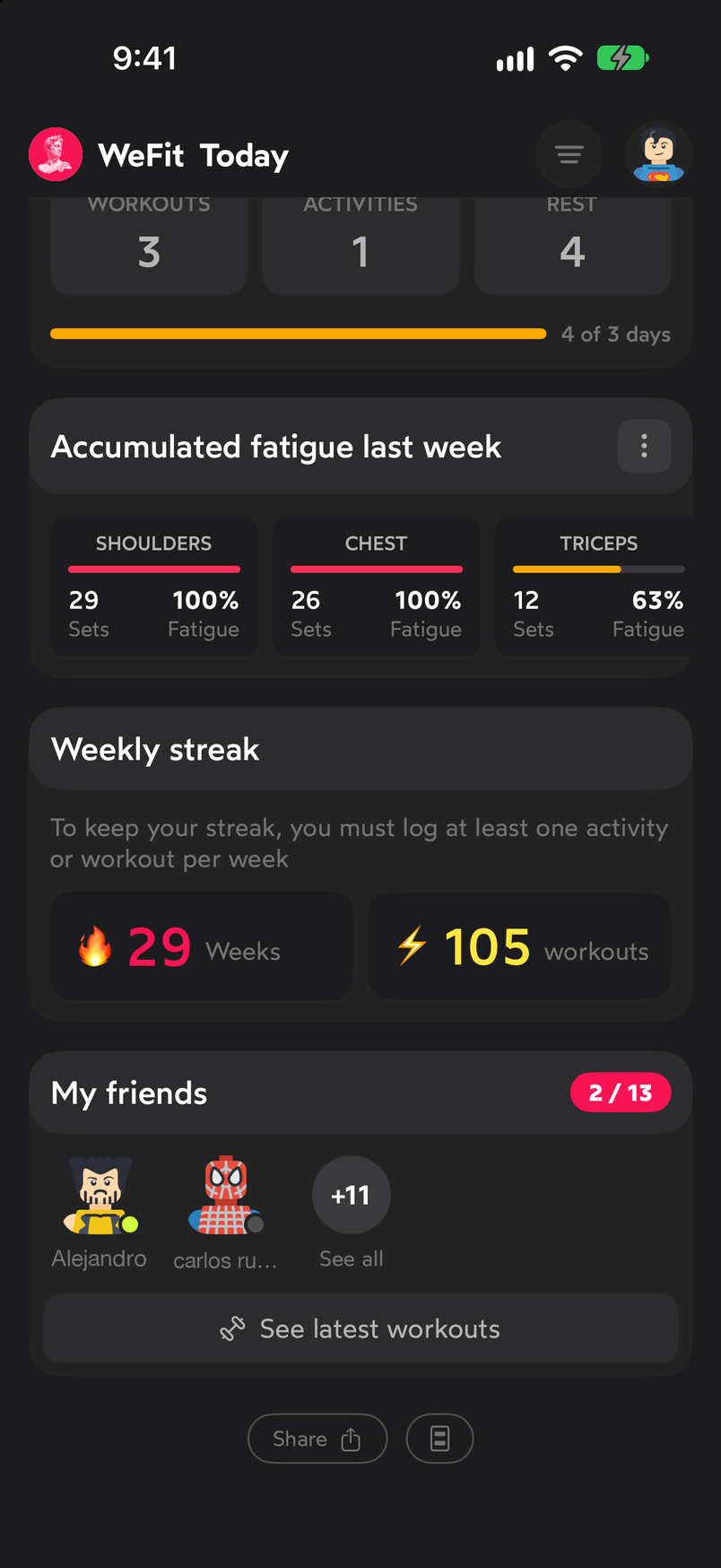
The shortcuts at the bottom of the page.
Moving between days
- Tapping a number in the bar selects that day and the screen switches to its content.
- The arrows at the ends move to the previous or next week.
- The calendar icon, next to the left arrow, takes you back to the current day (in the app the button is called “Go to today”).
- The month dropdown lets you jump to another date.
On a day with no workout, the card changes to offer you the chance to create one: we explain it in Create a workout from scratch.
Common problems
I don’t see the Start button
It only appears on the current day. On other days the workout card is shown without that button.
The quote of the day bothers me
Tap Hide quote on its card. With Another quote you swap the text for a new one.
I can’t find settings
They’re behind your avatar, at the top right. What they contain is explained in Account and app settings.
Related guides
How did this guide go for you?
Thanks for your feedback