
Download WeFit and create your account
How to install WeFit on your iPhone, sign in with Google, Apple or email, sign up, complete the first launch and use the same account on the web, Android and Apple Watch.
WeFit for iPhone is downloaded from the App Store and works with a WeFit Training Days account. That account is the same everywhere: on the web, in the Android app and in WeFit Go for Apple Watch. The first time you sign in, the app asks you a few questions to tailor your workouts to you.
Install and sign in
Install WeFit from the App Store: WeFit Training Days. When you open it, the sign-in screen offers three ways to get in: Sign in with Google, Sign in with Apple or Use email and password. If you already use WeFit on the web or on Android, sign in with the same method as always and you’ll see your workouts.
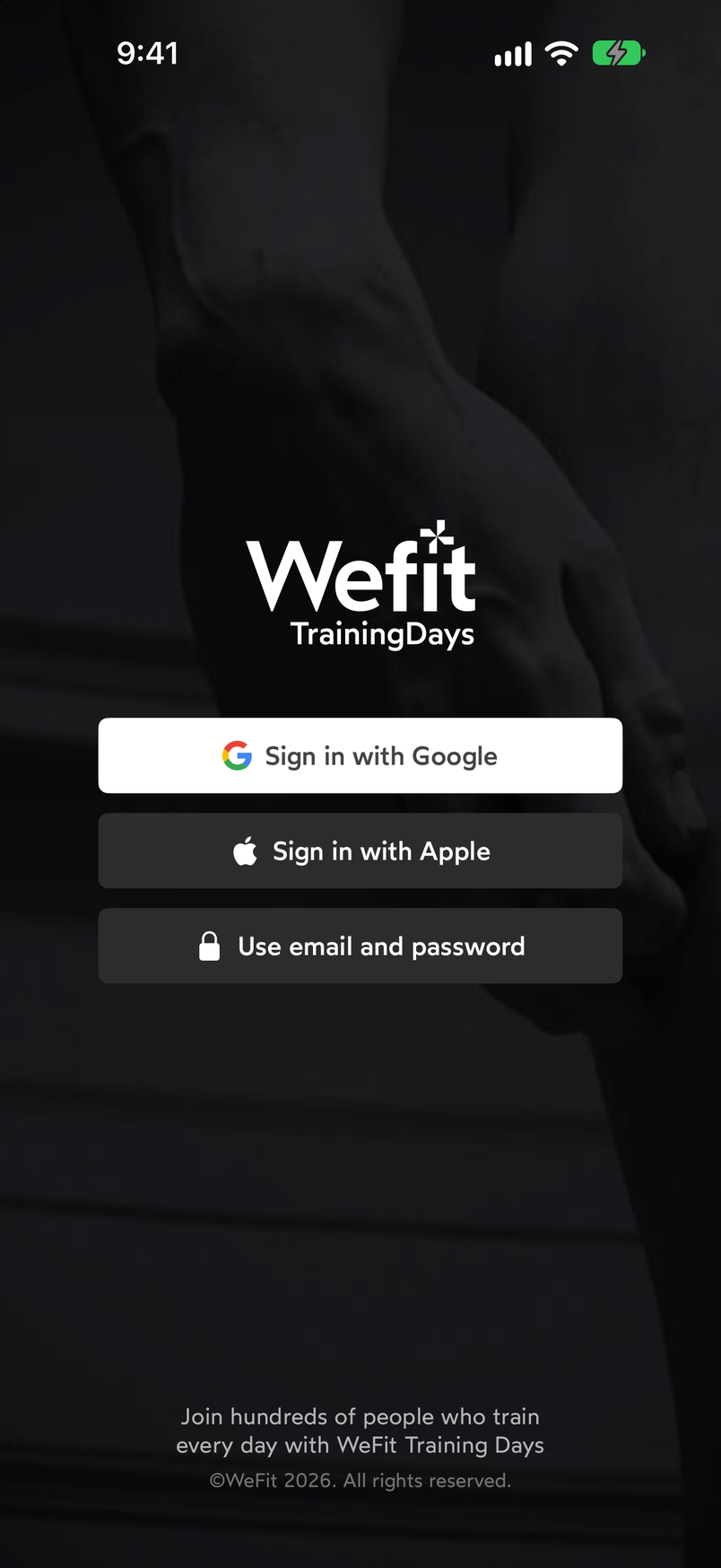
Choose Google, Apple or your email to sign in. If you choose Use email and password, enter your email and password and tap Sign in. The eye icon shows the password as you type it, and the Reset password link is there in case you don’t remember it. The Back button takes you to the previous screen.
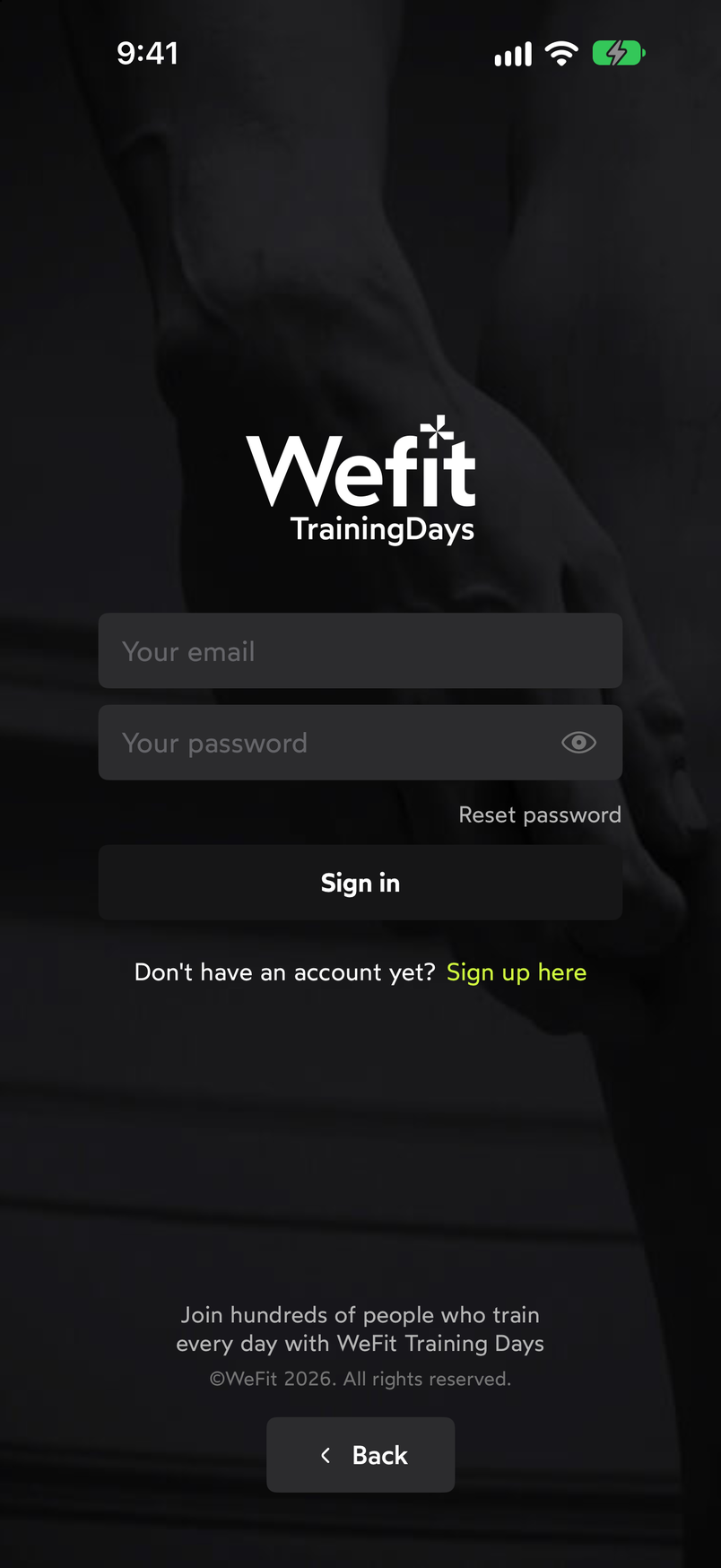
Sign in with email and password. If you don’t have an account yet, tap Sign up here below the form. On the sign-up screen, enter your email and a password, repeat it, and tap Sign up. From there you can go back to sign-in with Sign in.
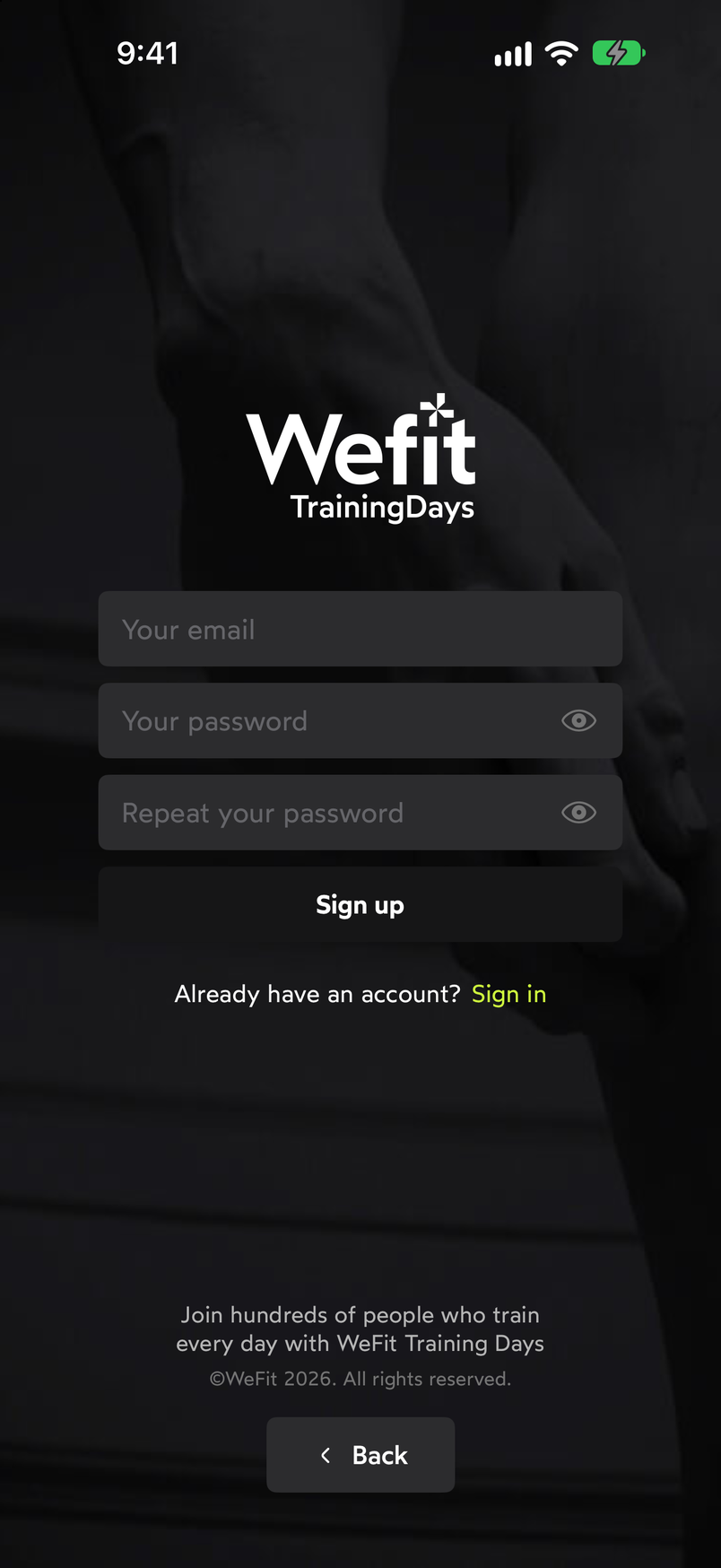
Create a new account with your email. If it’s your first time, the app will ask for your goal (for example, gain strength), your profile (name and avatar) and your personal information: weight, height, date of birth, gender and activity level. It uses these to calculate your progressions and stats.
When you’re done, you land on Today, the main screen. With the three-line icon at the top right you open the menu with the rest of the sections.
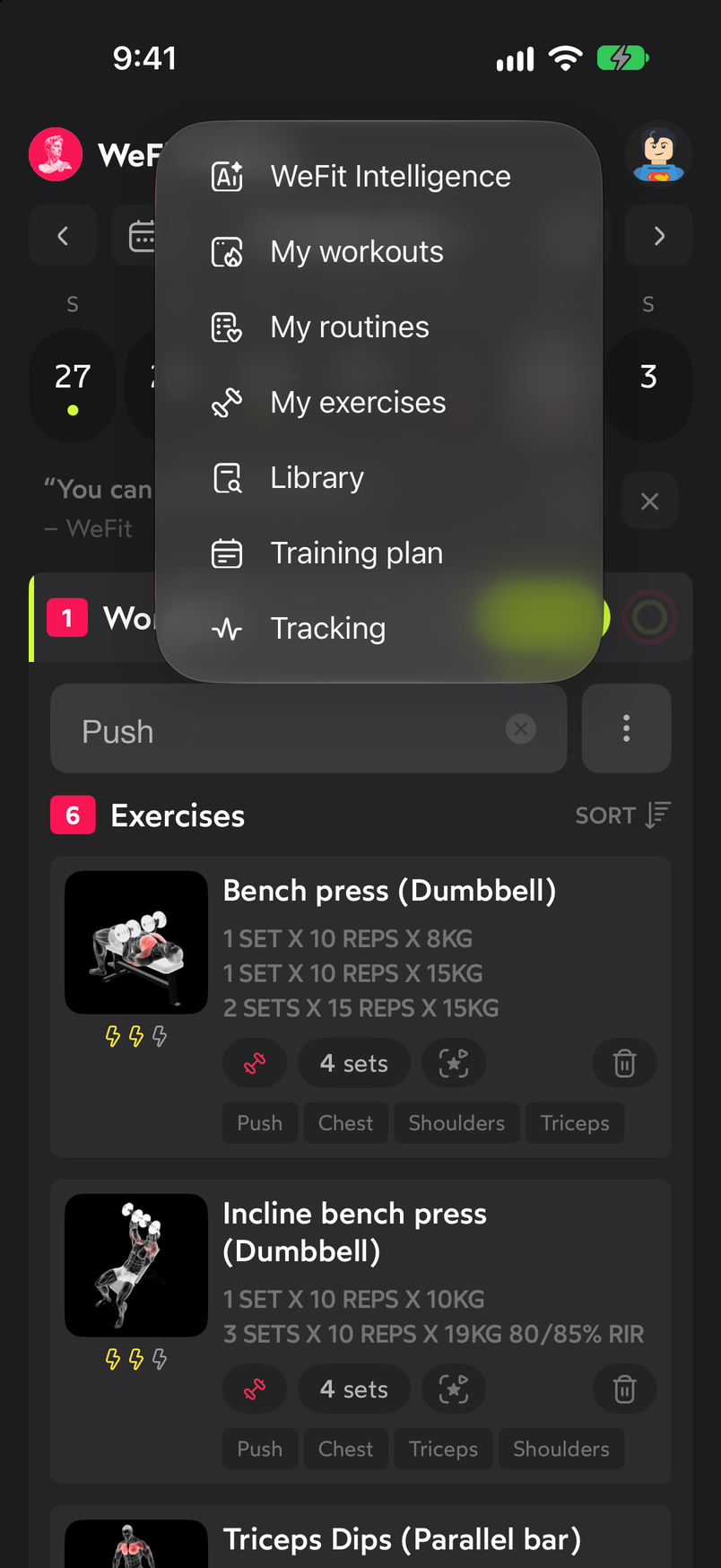
The main menu gives access to all the sections of the app. You can repeat the first launch whenever you want: tap your avatar to open Settings, go into Personal information and use Set up again.
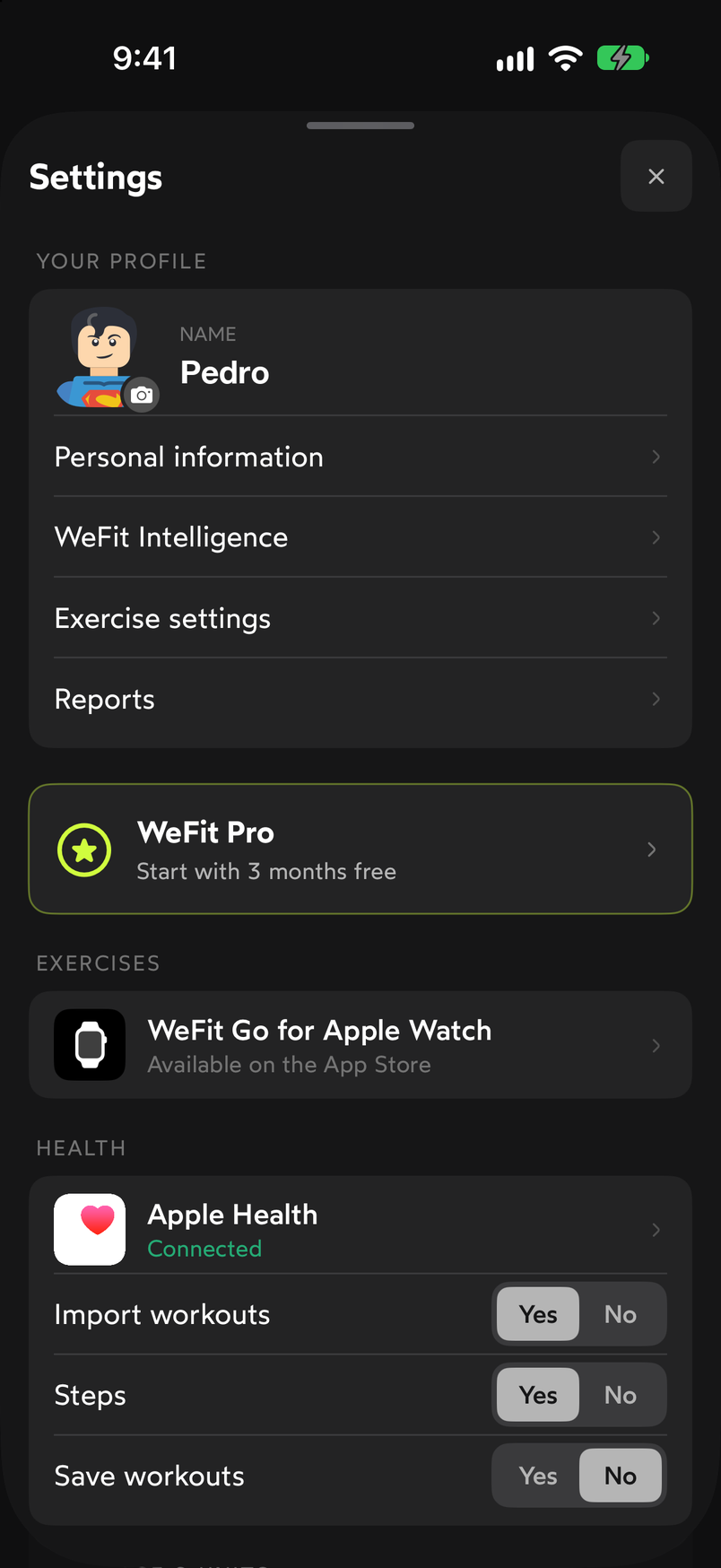
In Settings you can review your profile and set up your data again.
Next steps
- Get to know the main screen in The Today screen.
- Review your profile, language and units in Account and app settings.
- If you train with an Apple Watch, see the WeFit Go guide: it uses this same account.
- To see your steps and workouts from other sports, connect WeFit to Apple Health.
Common problems
I don’t remember my password
If you sign in with email and password, tap Reset password on the sign-in form. If you created the account with Apple or Google, you don’t have a WeFit password: sign in with that same provider.
I want to change my email or password
Tap your avatar to open Settings and scroll down to Sign-in method. There you’ll find Change email and Change password.
I already have an account on Android or the web
It’s the same account. Sign in on your iPhone with the same method and your workouts, routines and progress will show up with nothing else to do.
How did this guide go for you?
Thanks for your feedback