
My exercises and favorites
What the My exercises list in WeFit for iPhone is, how to search and filter it, how to mark favorites and what the Archive option does.
My exercises is your personal selection within the WeFit library. It’s the list that appears in the picker every time you add an exercise to a workout, so the better organized it is, the faster you’ll put together each session.
Steps
Open the main menu with the three-line icon, at the top right of Today, and tap My exercises.
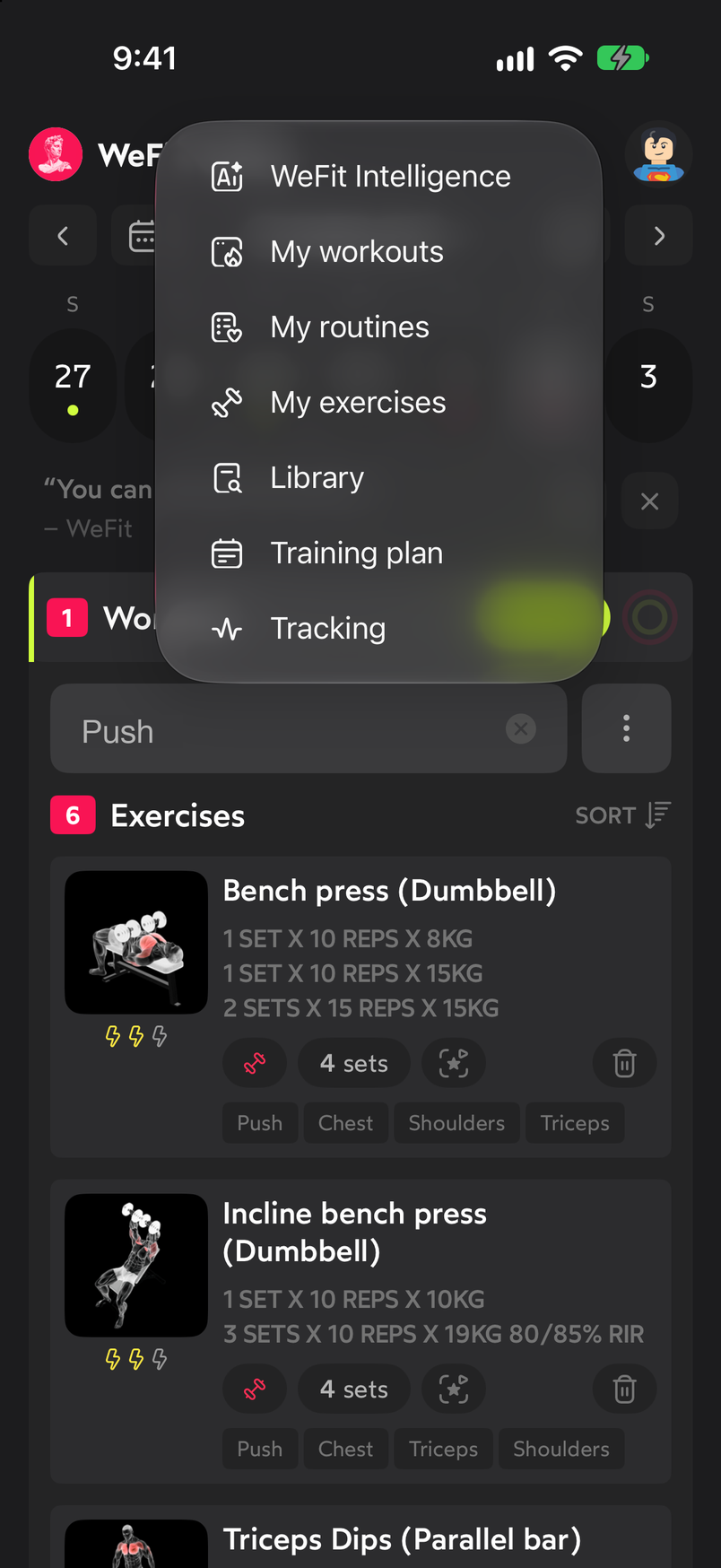
The main menu gives access to My exercises. The screen shows how many exercises you have (here, 290) and the full list. At the top are the Search exercise search field, the All filter to narrow by muscle group and, on the right, the buttons for name language, alphabetical order, favorites and numbered list. Each row has the animated icon, the name, the exercise type, its muscle groups, the star and the three-dot button. The Customize button in the header lets you decide which exercises go into this list.
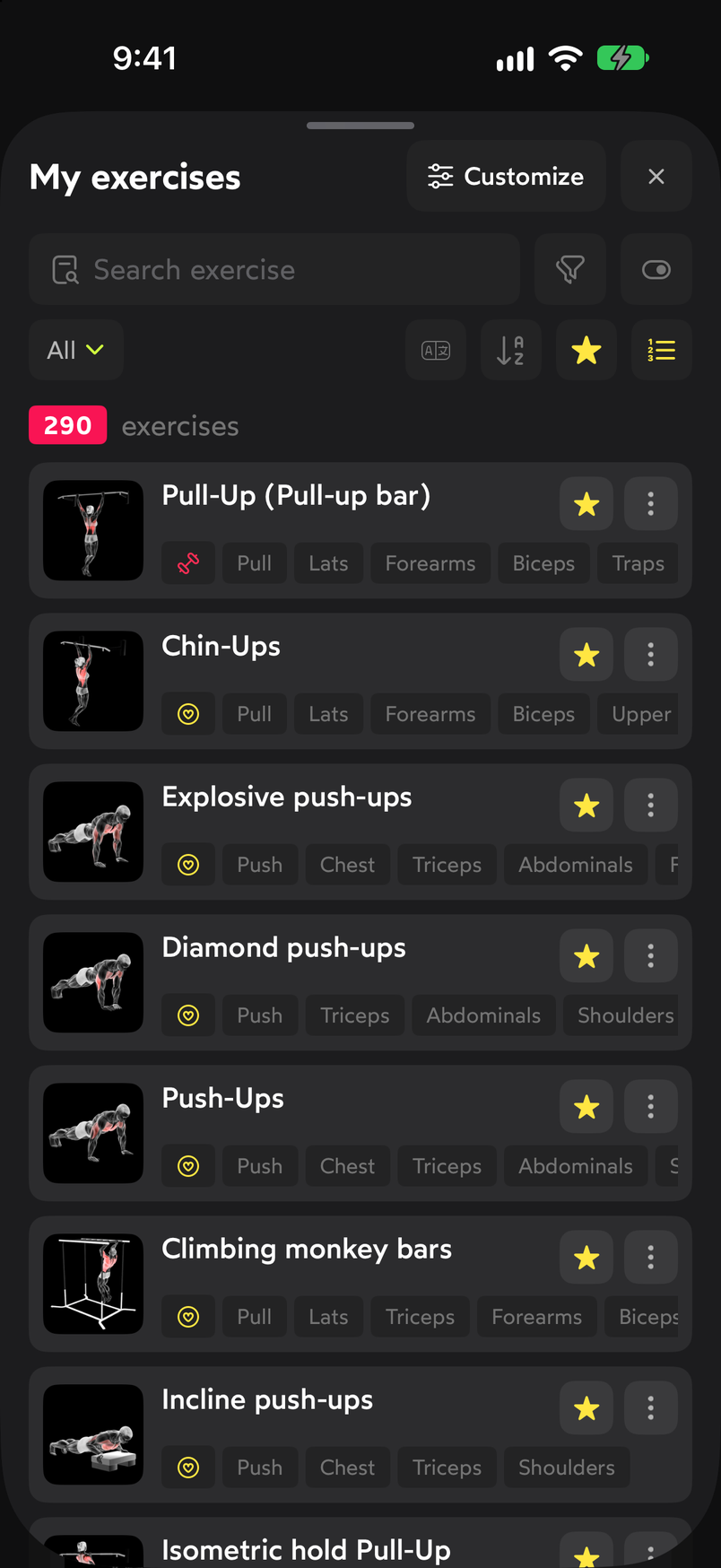
Search field, filters and the list with a favorite star on each row. Tap the star on a row to mark or remove a favorite. Tap the three dots to see the exercise’s two options: View details opens its detail page and Archive sets it aside from My exercises.
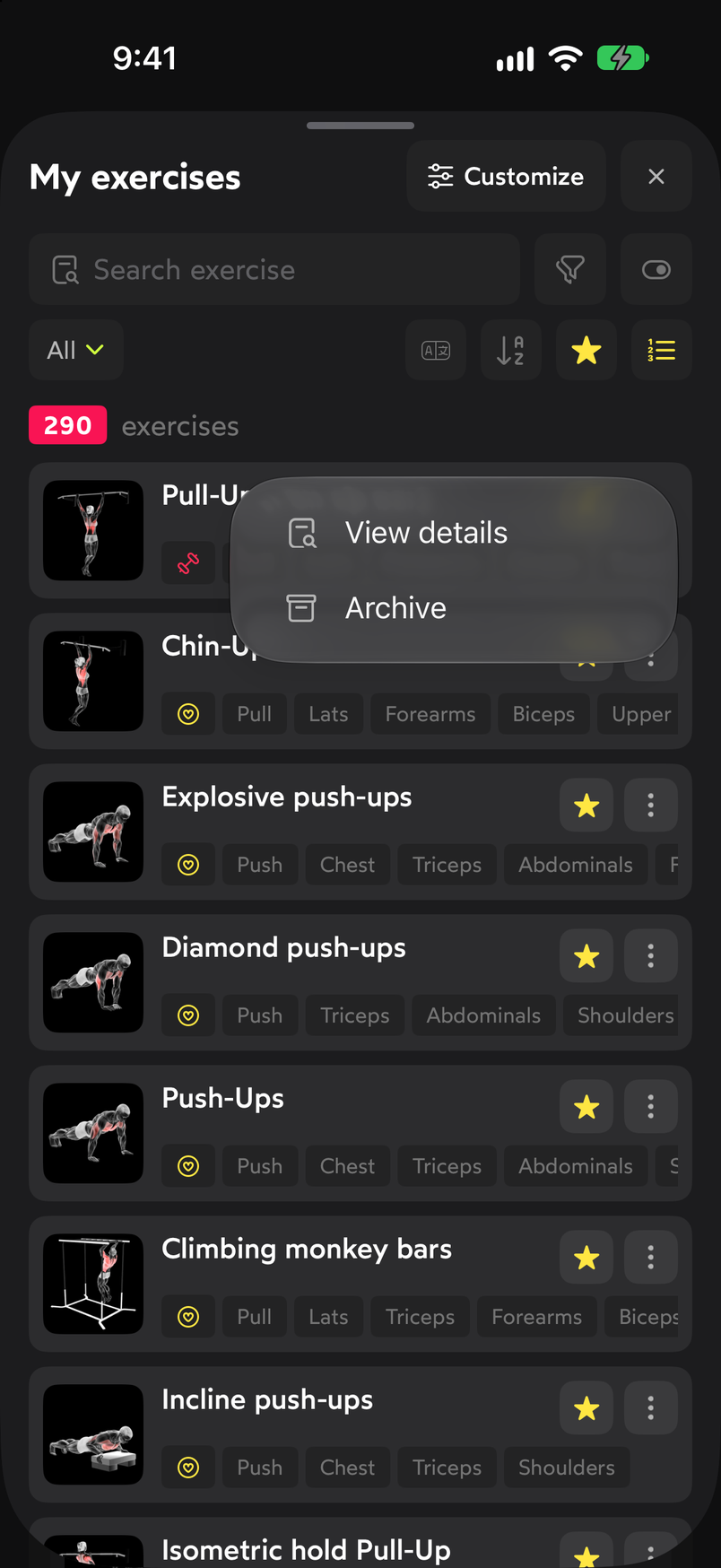
View details and Archive, the two options in each exercise's menu.
Common problems
I can’t find an exercise in My exercises
My exercises only contains your selection. If the exercise exists in the library but doesn’t show up for you, add it from Customize, in the screen header. You’ll find the details in Customize the exercise list.
I archived an exercise by accident
Archiving sets it aside from My exercises, it doesn’t delete it from the library. Add it back from Customize, in the All view or in its muscle group.
I want to see the name in another language
Use the name language button in the filter row, next to the alphabetical order button. On the exercise detail page both names are always shown.
Related guides
How did this guide go for you?
Thanks for your feedback