
The exercise page
What an exercise page shows in WeFit for iPhone: animated image, muscle groups, strength stats, history of your previous workouts and how to do it.
Every exercise has a page with its animated image, the muscles it works, your progress stats, the history of the times you’ve done it and an explanation of the technique. It opens from My exercises with the three-dot menu and the View details option, and also from the exercise card in Today.
Steps
The top shows the exercise’s animated image, with a button in its corner to switch between dark and light background. In the header you have the favorite star and the check that indicates whether it’s in My exercises (tap it to remove it). Below are the name in Spanish and English, how many times you’ve used it and the Muscle groups figures with the involved areas highlighted. At the end there are three collapsible sections: STATS, MY PREVIOUS WORKOUTS and HOW TO DO IT.
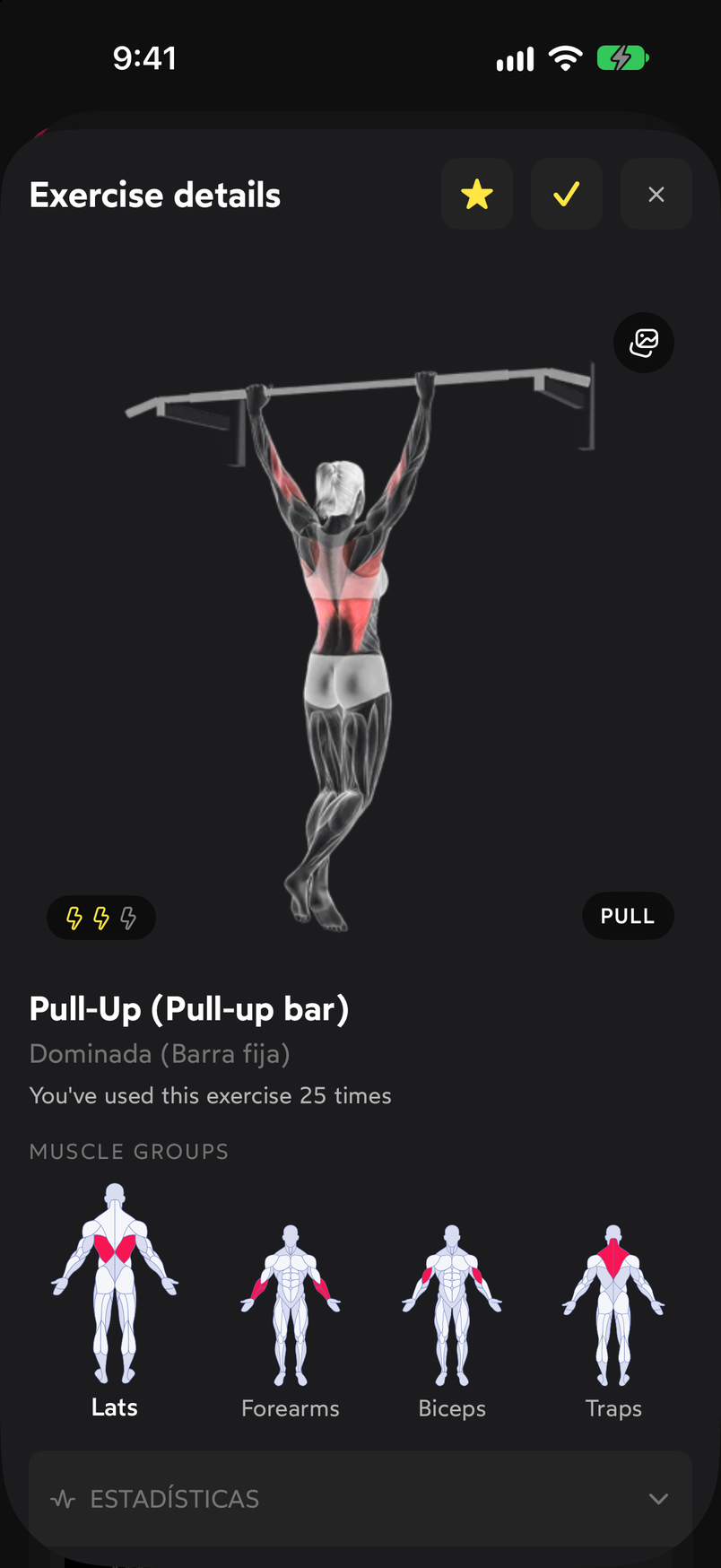
Image, name, uses and muscle groups, with the collapsible sections below. Tap STATS to unfold them. You’ll see the strength summary of your last seven workouts with sets, the Weekly tonnage chart (total tonnage versus peak volume) and the Progressive overload chart, with the historical evolution of the estimated 1RM and the max weight, plus the 1RM max reached.
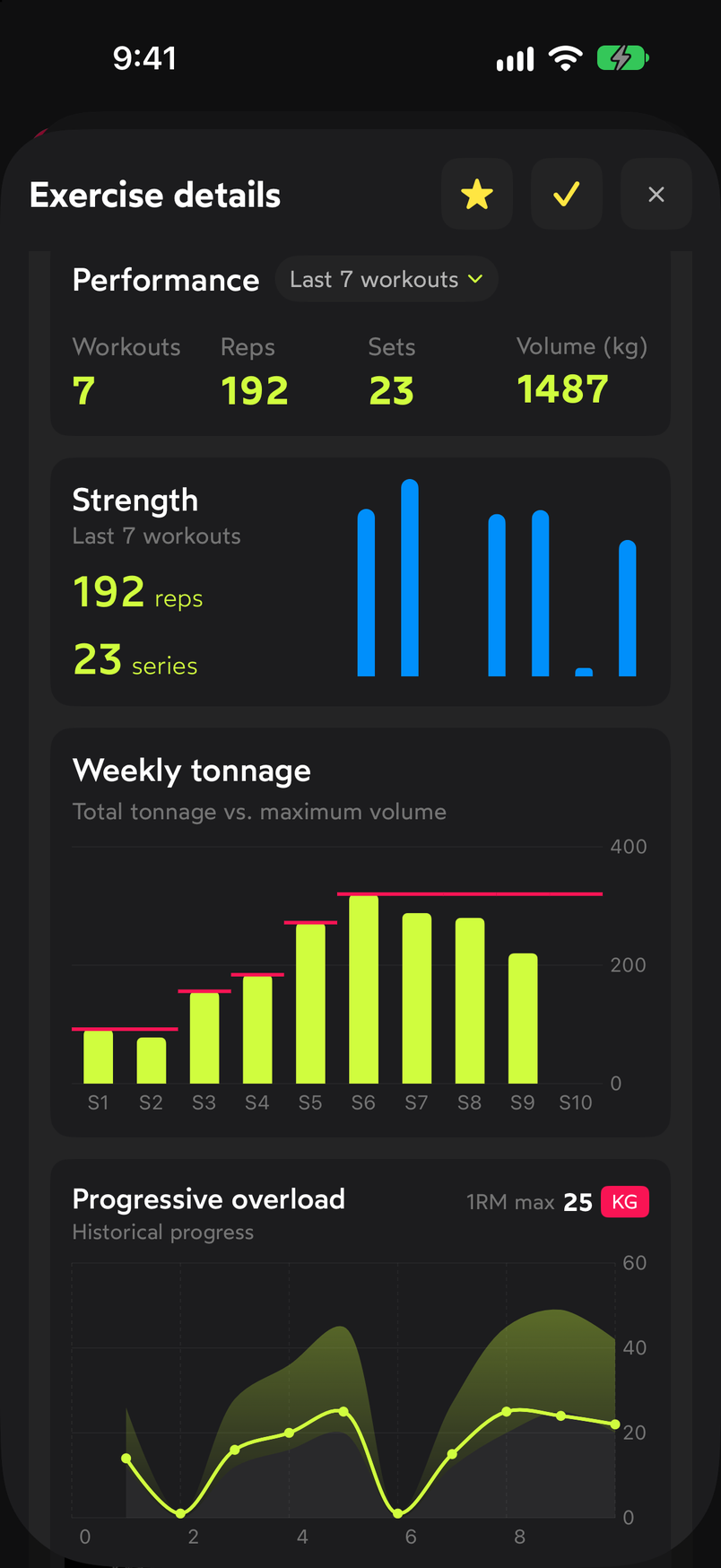
Weekly tonnage and progressive overload with the estimated 1RM and max weight. MY PREVIOUS WORKOUTS lists, by date, every time you’ve done the exercise with the sets logged: reps, weight, intensity (for example, 100%RM) and rest.
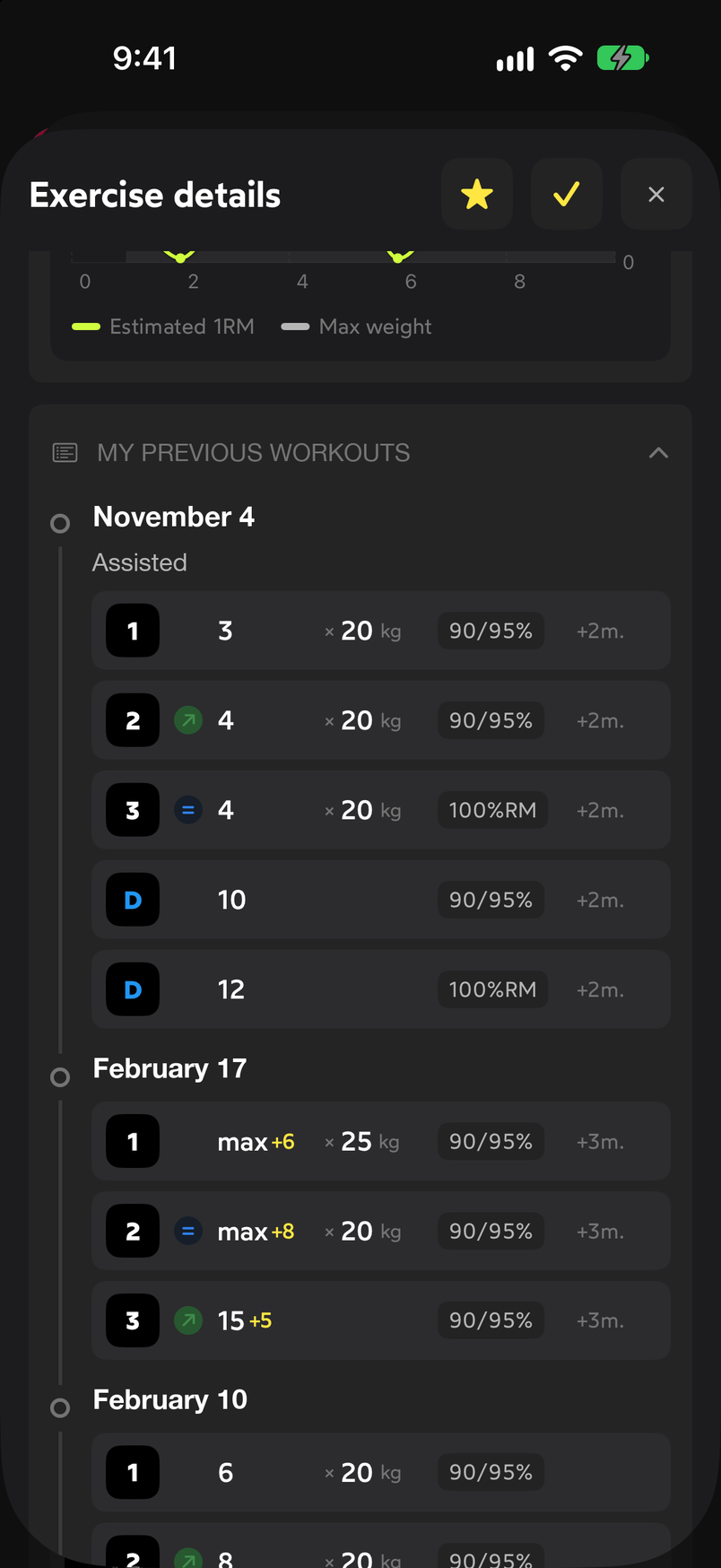
The history groups the sets by the date of each workout. HOW TO DO IT explains the technique: a short description, the numbered steps of the execution and a list of tips to do it right.
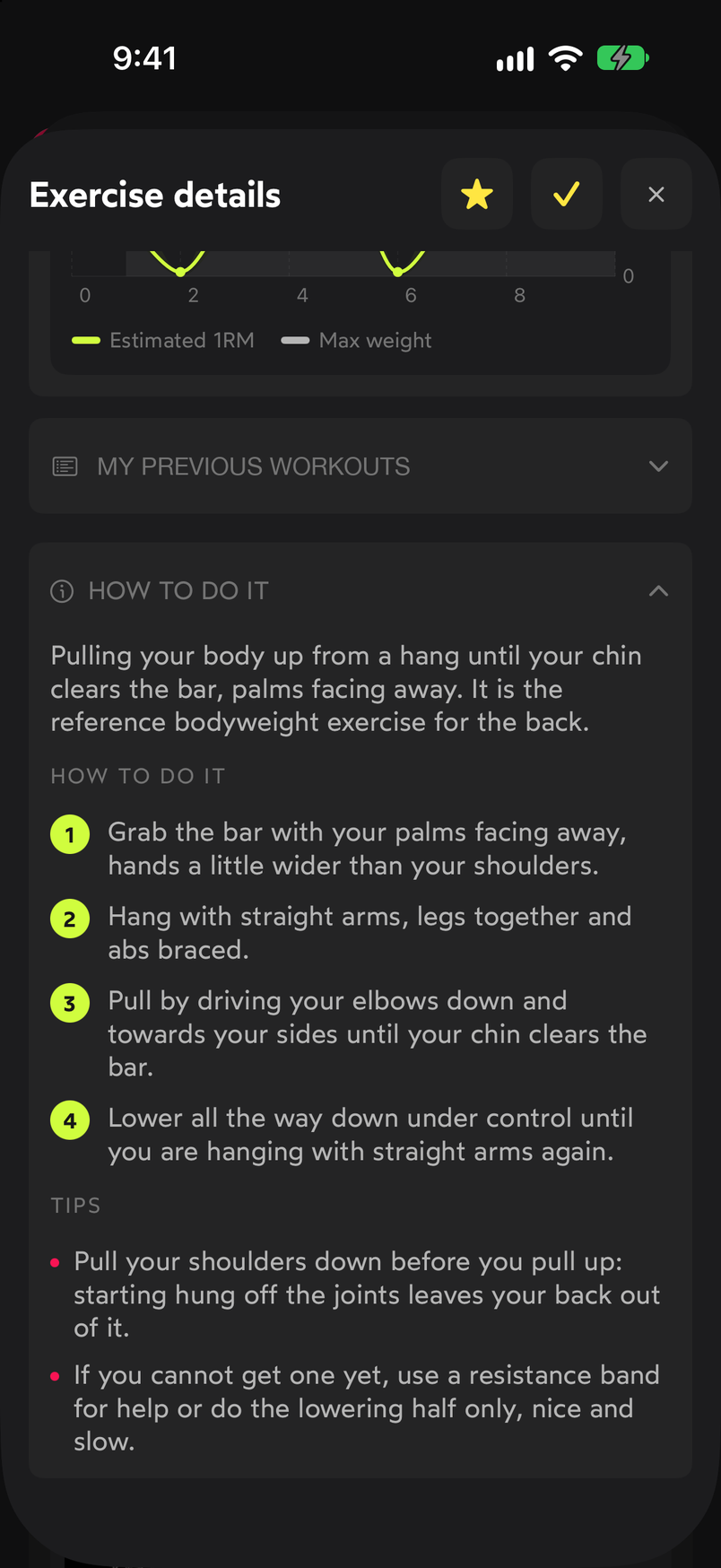
Execution steps and technique tips.
Common problems
The stats are empty
There’s only data once you’ve logged the exercise with weight and reps in at least one workout. The charts are built from your latest workouts, so they’ll appear as soon as you do it several times.
I can’t see the animated image clearly
Use the button in the corner of the image to switch the background between dark and light. That setting applies to the exercise images across the whole app.
I want to remove the exercise from My exercises from its page
Tap the check in the header. The exercise stops appearing in your list, but it’s still in the library and you can add it back from Customize the exercise list.
Related guides
How did this guide go for you?
Thanks for your feedback