
Customize the exercise list
How to choose which exercises from the WeFit library for iPhone go into My exercises: folders, favorites, recents, muscle groups and Deck mode to add or discard by swiping.
The WeFit library has 642 exercises, but you don’t need all of them to show up when you build a workout. From Customize you choose which ones make up your My exercises list, the one that appears in the picker when you add exercises.
Steps
In My exercises, tap Customize in the header. The screen organizes the library into folders: My exercises (your selection, here 290), Favorites (98), Recents (17), All (all 642 in the catalog) and one folder per group or equipment type: Abs, Resistance bands, Calisthenics and bodyweight, Cardio, Weight training, Suspension training (TRX), Balance, Stretches, Fitness machines and Movement. The information icon in the header opens help.
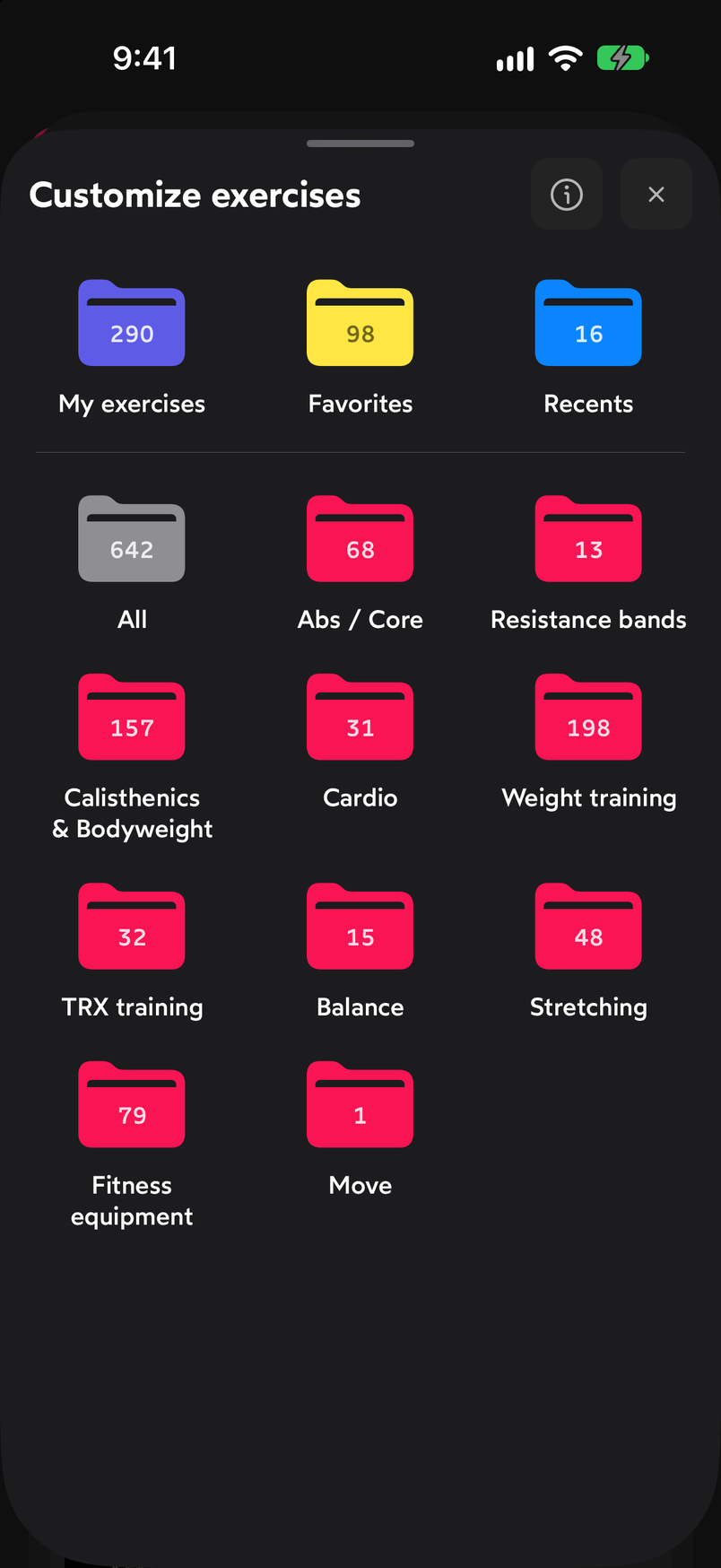
Folders for selection, favorites, recents and exercise groups. Help summarizes what each icon does: the + adds the exercise to My exercises; the check means it’s already there and, when tapped, removes it; the star marks it as a favorite and also adds it; Deck mode lets you swipe right to add and left to discard; the eye icon hides the ones you already have so you only see the ones you’re missing; and the last one switches between images with a dark or white background across the whole app. Below, it describes the folders: Recents are the ones you’ve used in the last 30 days, All is the complete catalog and Groups organizes it by exercise type.
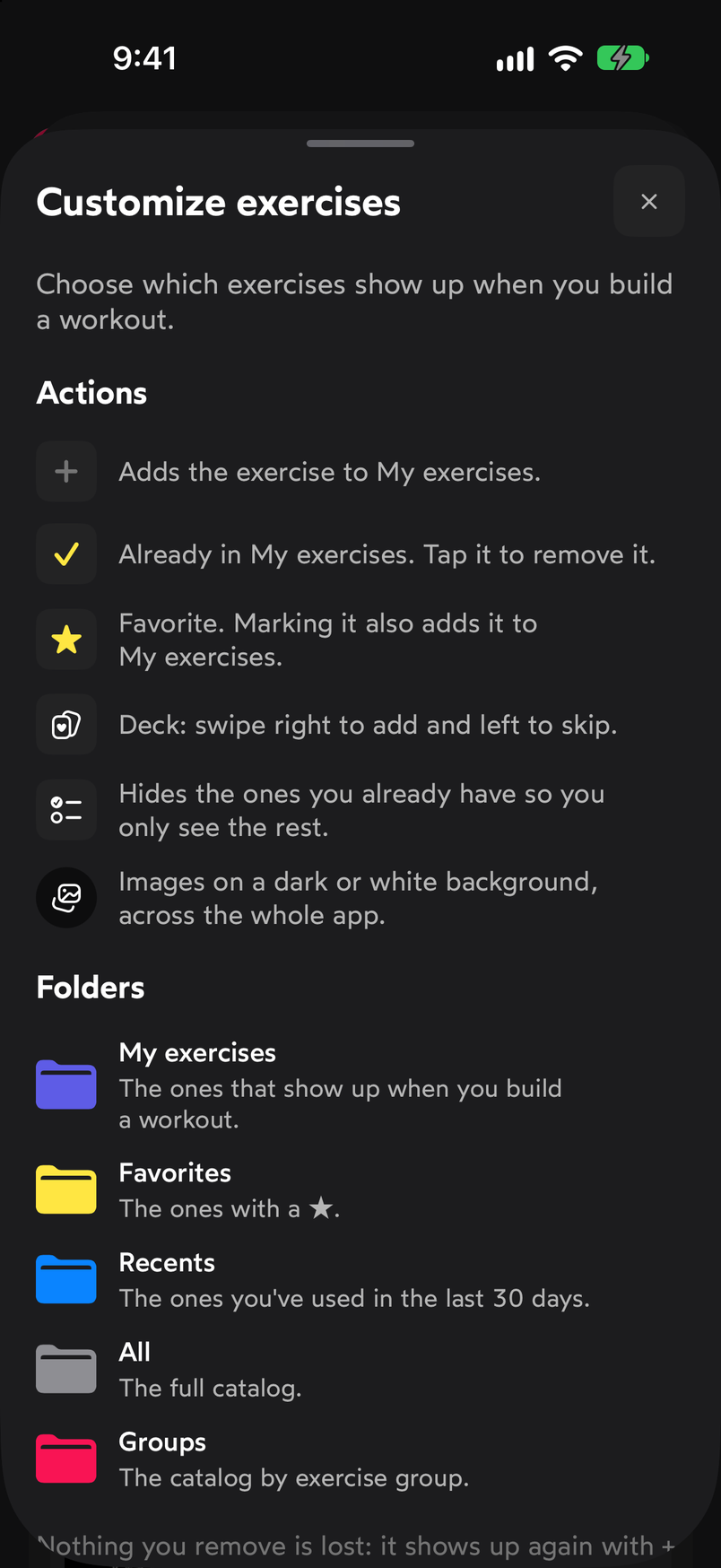
Help explains the actions and the folders. Go into All or a folder. At the top right you switch the view between List, Grid and Deck. In Deck, each exercise takes up one large card with its image, name, difficulty and muscle groups, and at the bottom you have three buttons: the cross to discard it, the star to make it a favorite and the + to add it to My exercises. You can also swipe the card right to add or left to discard.
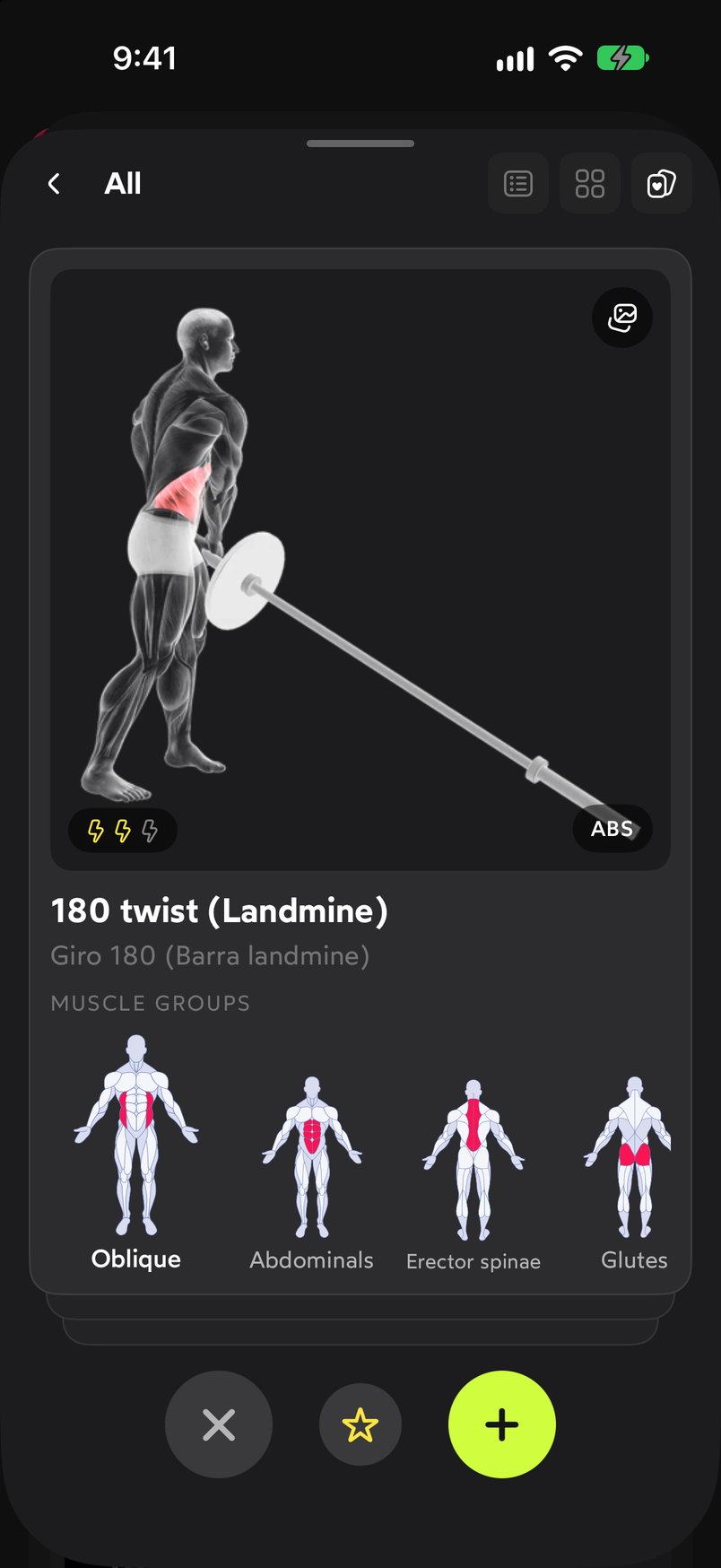
Deck mode: one card per exercise to add or discard by swiping.
Common problems
I discarded an exercise and want it back
What you discard in Deck isn’t deleted. It shows up again in All and in its group when you go back in.
I want to see only the exercises I don’t have yet
In a folder’s view, use the eye icon to hide the ones already in My exercises and leave only the pending ones.
My exercises has too many and the picker gets long
Go into the My exercises folder and tap the check on the ones you don’t use to remove them. You can also set them aside one by one with Archive from the list, as explained in My exercises and favorites.
Related guides
How did this guide go for you?
Thanks for your feedback