
Add exercises from the watch
How to add one or more exercises to a workout from WeFit Go on the Apple Watch using the exercise picker and its filter.
You don’t need the iPhone to finish a workout on the go: from the watch session you can open the exercise picker, select the ones you want and add them to the end of the workout.
Steps
Open the workout in Hoy (Today) and scroll to the end of the exercise list. Tap + Ejercicio (Exercise).
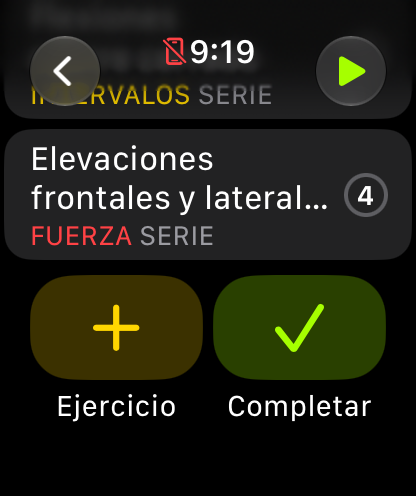
The + Ejercicio button is at the end of the session. The Ejercicios (Exercises) picker opens: an alphabetical list with the image and name of each exercise and a circle to select it. At the bottom right is the filter button, which narrows the list.
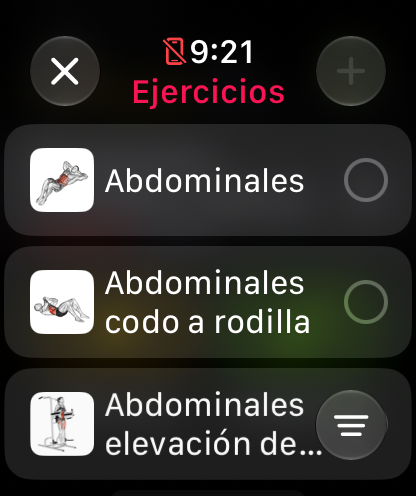
The list starts at A; the filter button is at the bottom right. Turn the Digital Crown to scroll the list and select one or more exercises. Once you have your selection, confirm with the + button at the top right, which turns on as soon as something is selected. The exercises are added to the end of the workout.
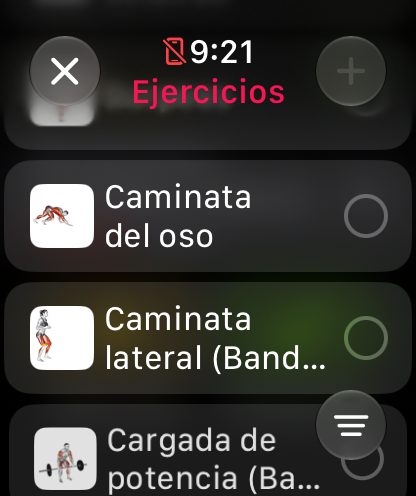
Select the ones you want and confirm with the + at the top.
Common problems
The + button at the top is dimmed
It turns on when you select at least one exercise. Tap the circle on the row to select it.
The list is very long
Use the filter button at the bottom right to narrow it, or turn the Digital Crown quickly to move through the list. If the exercise doesn’t appear, check your exercise selection on the iPhone: the watch uses the same account. It’s explained in Customize the exercise list.
I picked the wrong exercise
Delete it from the iPhone, where the exercise card has the trash can. It’s explained in Reorder and delete exercises.
Related guides
How did this guide go for you?
Thanks for your feedback