
Widgets and Live Activity
The four WeFit widgets for the iPhone Home Screen (plan, streak, weekly goal and muscle fatigue), how to add them and the Live Activity with the workout timer.
WeFit comes out of the app in two ways: with widgets on the iPhone Home Screen and with a Live Activity while you have a workout in progress. Don’t confuse these widgets with the cards on the Today screen, which are configured inside the app and are explained in Home widgets: weekly goal, fatigue and streak.
WeFit widgets
WeFit includes four widgets for the Home Screen, in several sizes (nine combinations in total):
- Your plan: your progress and adherence to the training plan. If you don’t have a plan, the widget invites you to create one.
- Weekly streak: your consecutive weeks of training and your accumulated workouts.
- Weekly goal: the days trained against your goal for the week, with the breakdown of workouts, activities and rest.
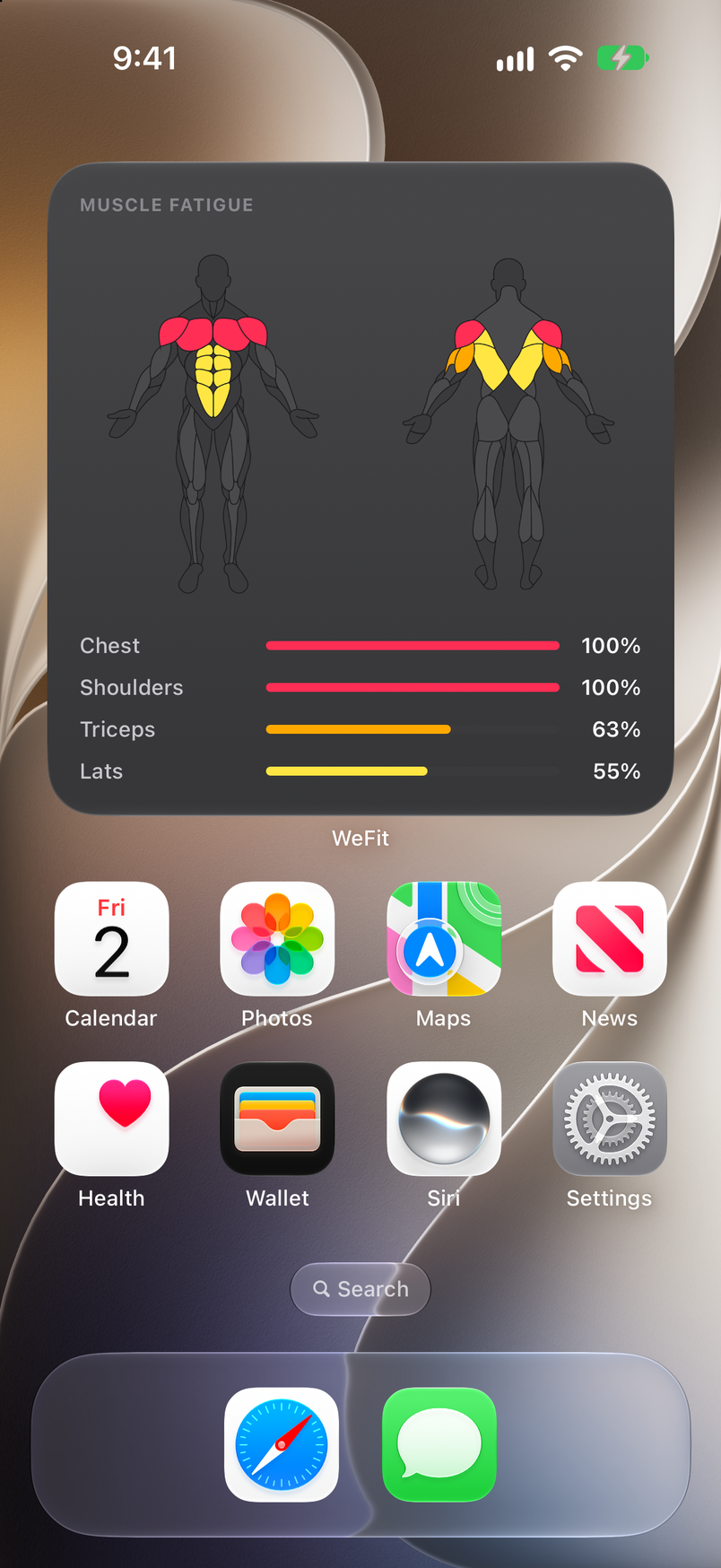
- Muscle fatigue: which muscle groups are loaded or recovered this week, with a figure and the percentage for each group.
Add a widget
Touch and hold an empty area of the Home Screen until the icons start to jiggle. Tap Edit in the top left corner and choose Add Widget.
In the gallery, look for WeFit in the list of apps (or type it into “Search Widgets”). The WeFit page opens with the first widget, Your plan, and the Add Widget button.
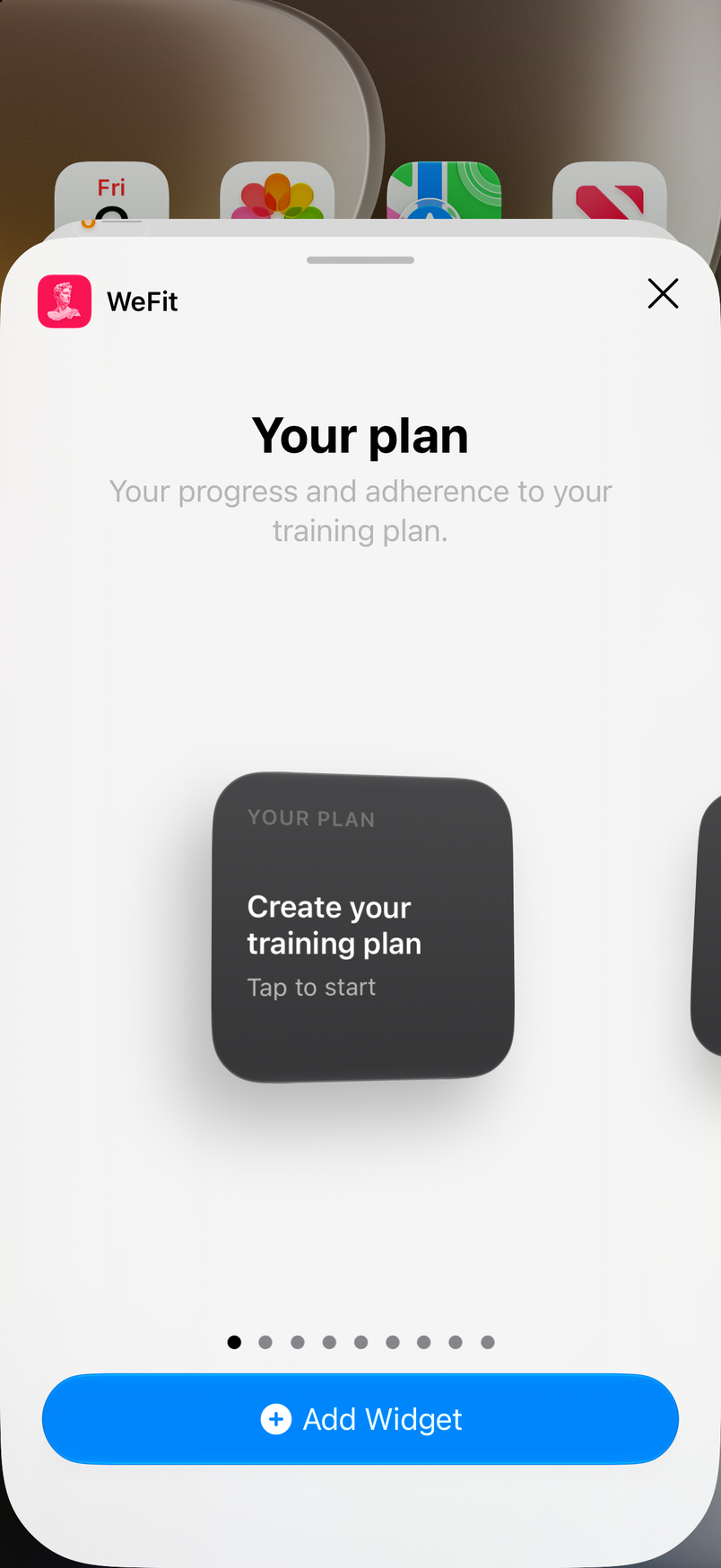
The WeFit page in the widget gallery, with Your plan in small size. Swipe sideways to go through the widgets and their sizes. Each page shows the name, a short description and a preview with your real data.
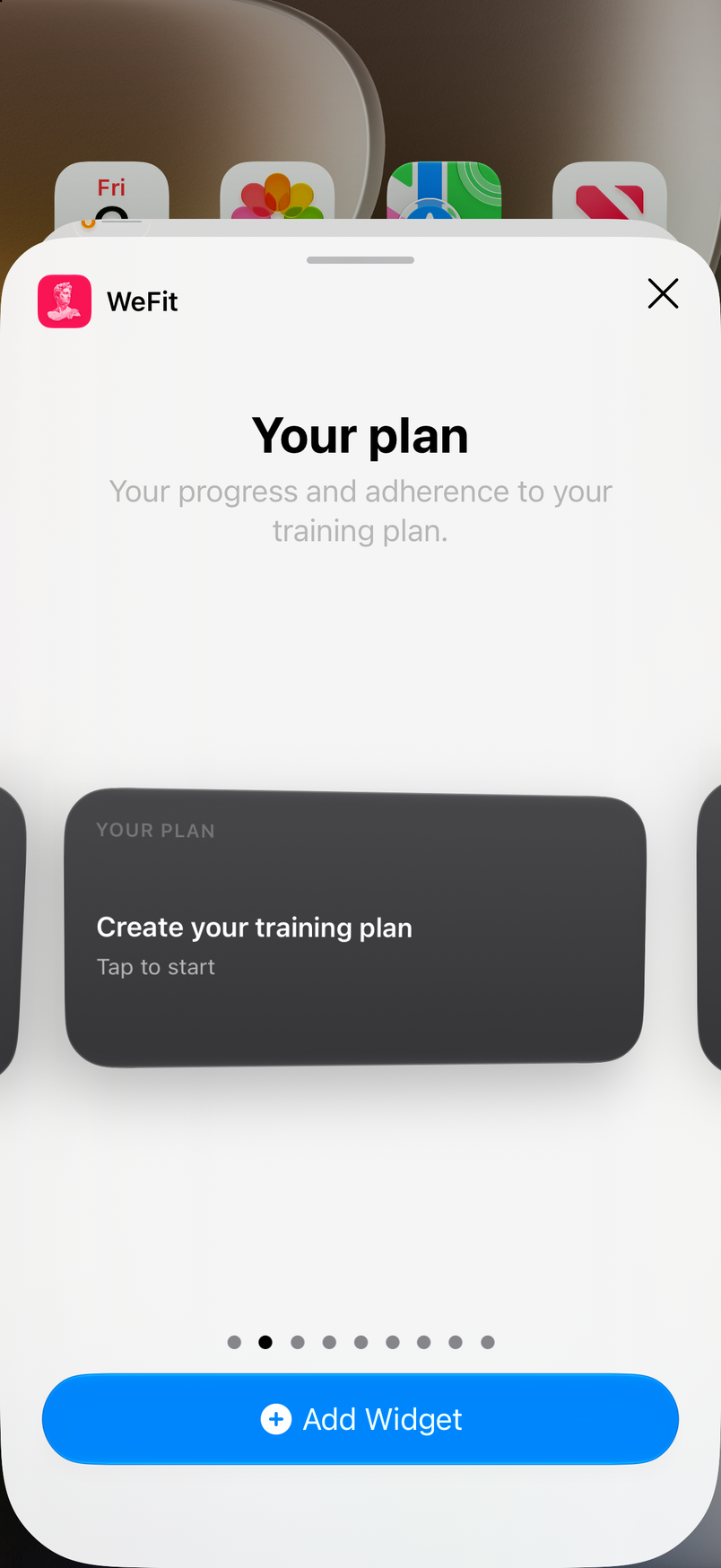
Your plan in medium size. 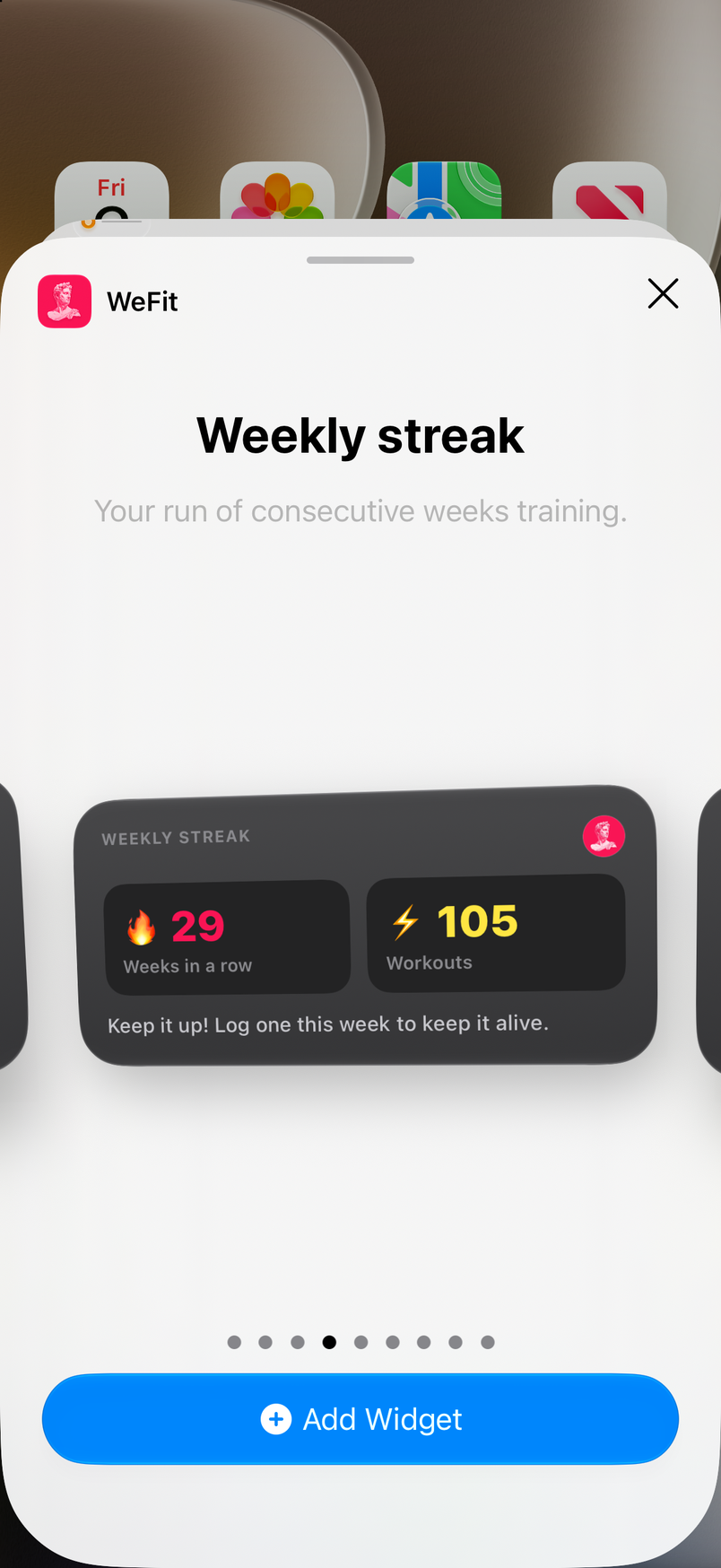
Weekly streak: consecutive weeks and accumulated workouts. 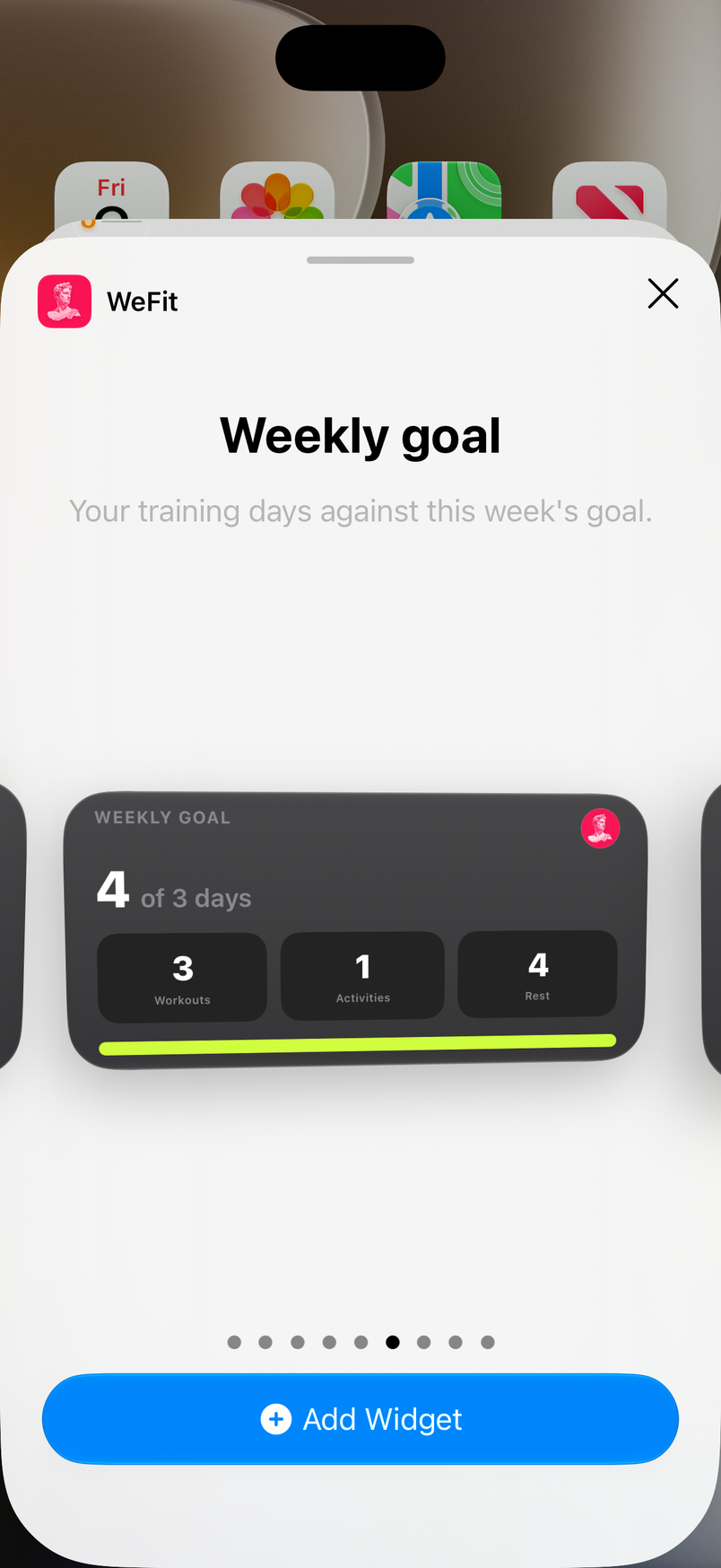
Weekly goal: days trained against your goal, with workouts, activities and rest. 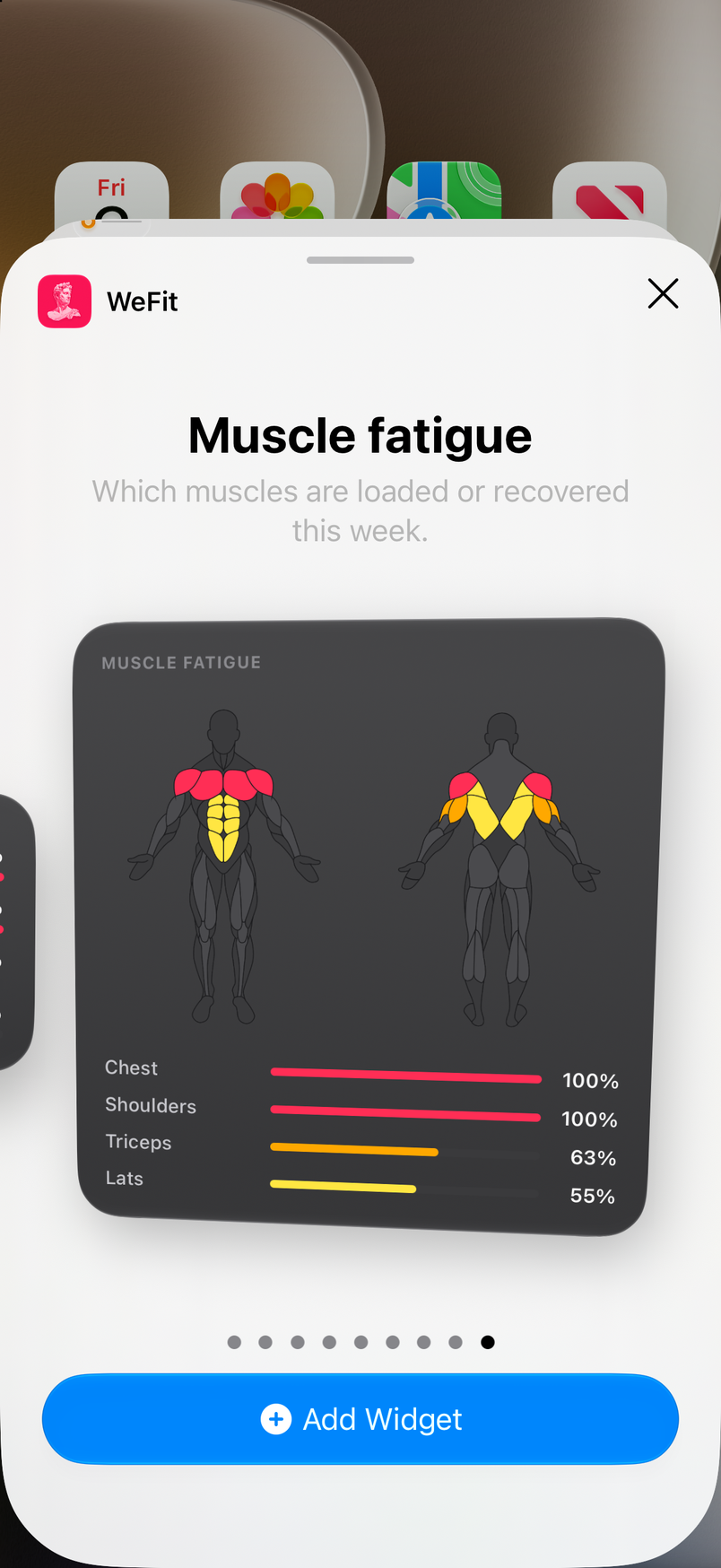
Muscle fatigue in large size. When you see the one you want, tap Add Widget. The widget appears on the Home Screen; drag it wherever you prefer and tap Done at the top right to leave edit mode.
Live Activity during the workout
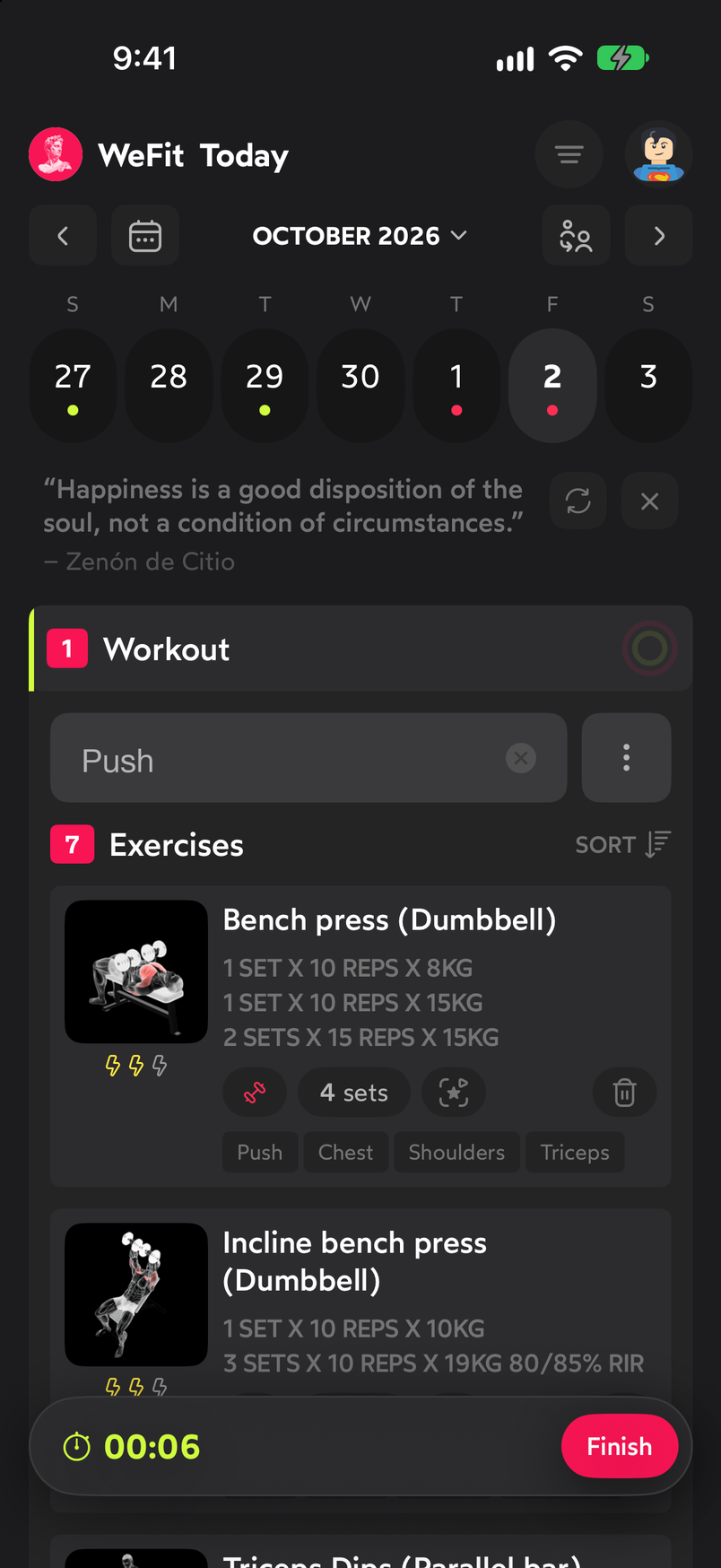
When you start a workout from Today, a floating bar with the timer and the Finish button appears inside the app. While the session is in progress, WeFit also shows a Live Activity with that same timer on the Lock Screen and in the Dynamic Island, so you can see the time without unlocking your iPhone. How the session starts and ends is covered in Start and finish a workout.
Common problems
The Live Activity doesn’t appear
Check in iOS Settings, under the WeFit entry, that Live Activities are allowed. It only appears while a workout is in progress; it disappears when you tap Finish.
The widget doesn’t show any data
Open WeFit once so it updates. The plan widget only has content if there’s an active plan, and the fatigue widget needs workouts logged in the last week.
I can’t find WeFit in the widget gallery
The list is in alphabetical order and WeFit is near the end; scroll to the bottom or type “WeFit” in the “Search Widgets” field at the top.
How did this guide go for you?
Thanks for your feedback