
Share a workout as a link or image
How to share a WeFit workout on iPhone: send the link or QR code so others can open it in WeFit, or create a card with the session's numbers for social media.
Any workout on the calendar can be shared in two ways. As a link or QR code, so whoever receives it can open the workout in WeFit. Or as an image, a card with the name, the date and the session’s numbers, designed for social media.
Steps
On Today, tap the ⋯ button next to the workout name and choose Share.
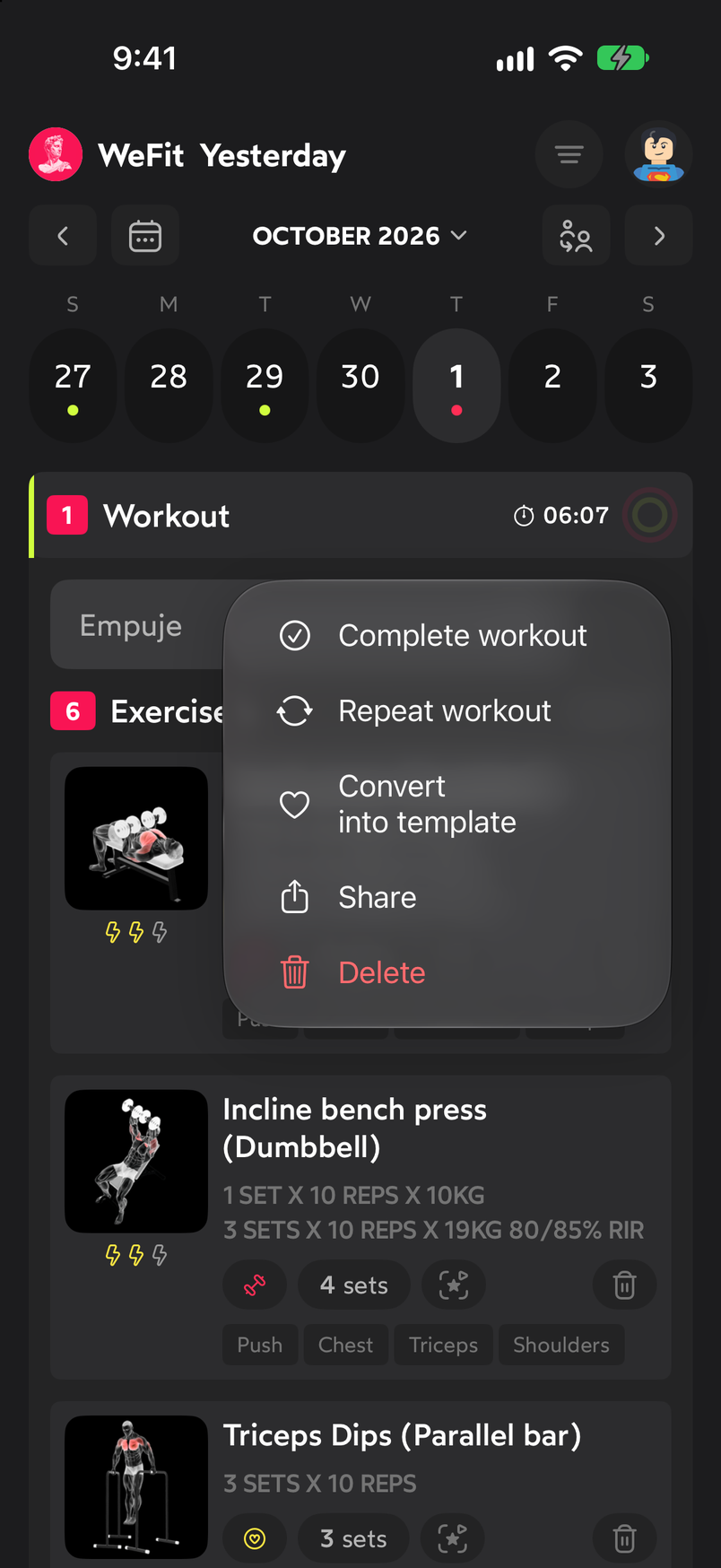
The workout menu has the Share option. The Share workout sheet opens. At the top is the workout link with a button to copy it and, below, its QR code. The Share button opens the iOS share sheet so you can send the link through the app you prefer. Whoever receives it will be able to open the workout in WeFit.
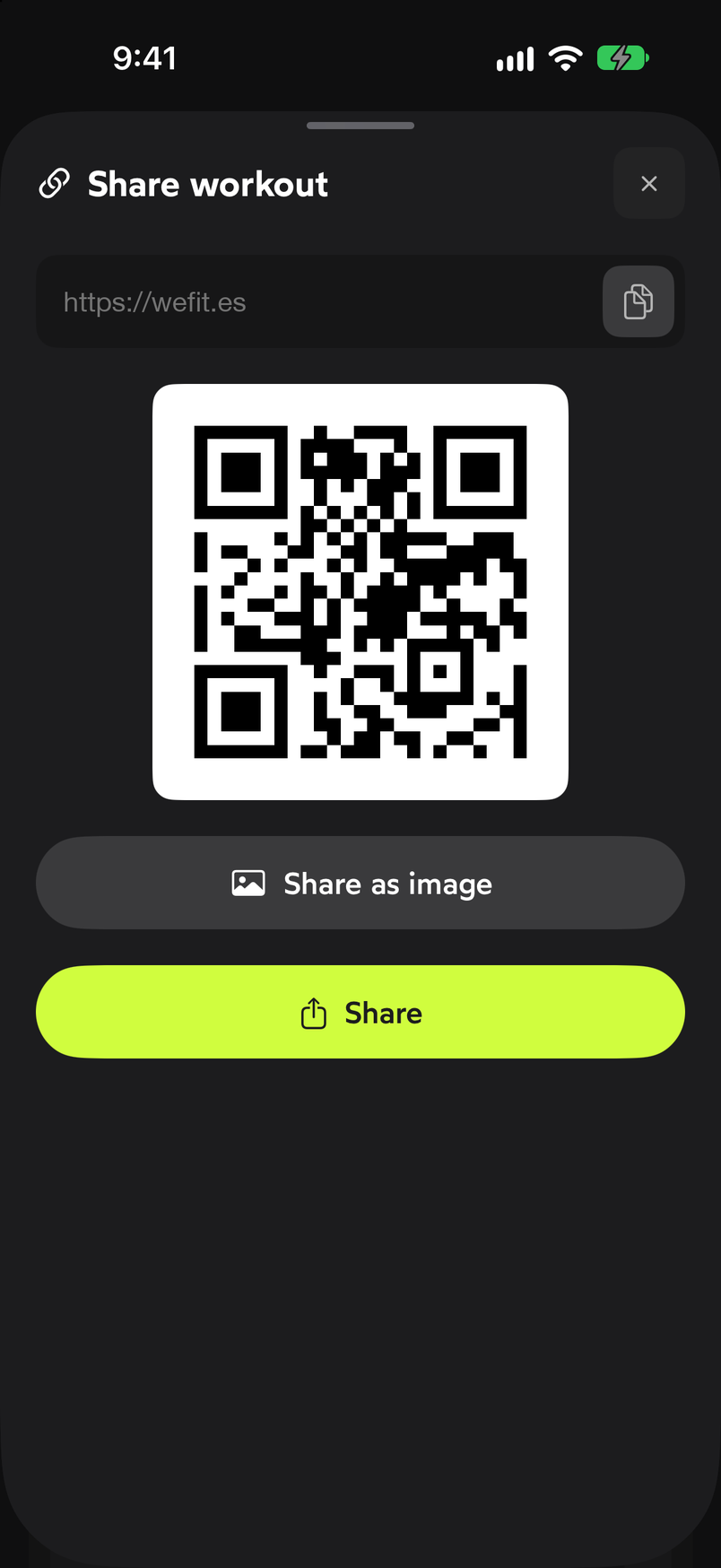
The workout's link and QR code, ready to send. If you prefer an image, tap Share as image. Choose the 9:16 format (vertical, for stories) or 1:1 (square). The preview shows the card with the workout name, the date and the volume, duration, sets and reps numbers, with the footer “Tracked with WeFit”. The Name and Date buttons show or hide that information. At the bottom you can save to Photos, send it to Instagram or Facebook, or use Share for any other app.
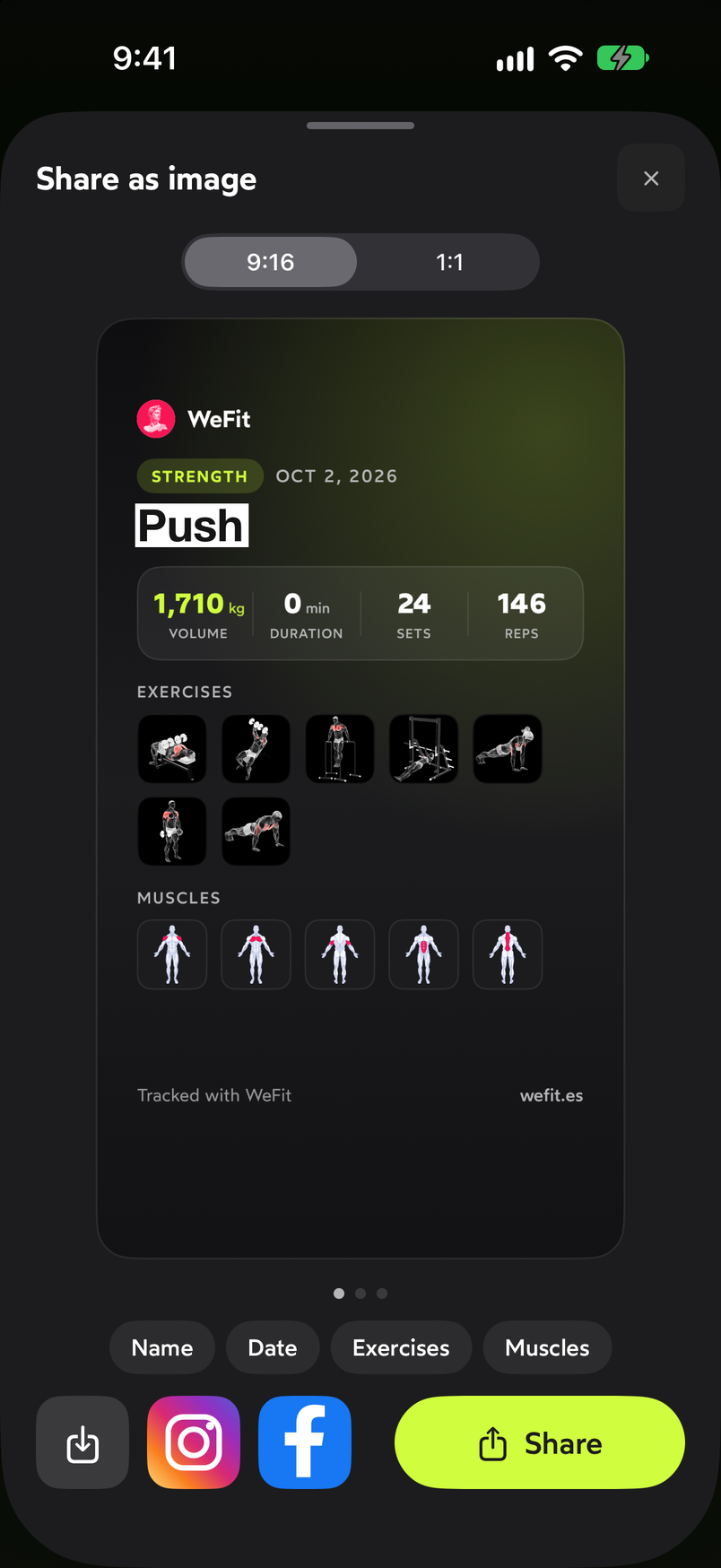
The card sums up the session in an image for social media. You can also get to the card when you finish a workout: the Workout complete! summary includes the Share workout button.
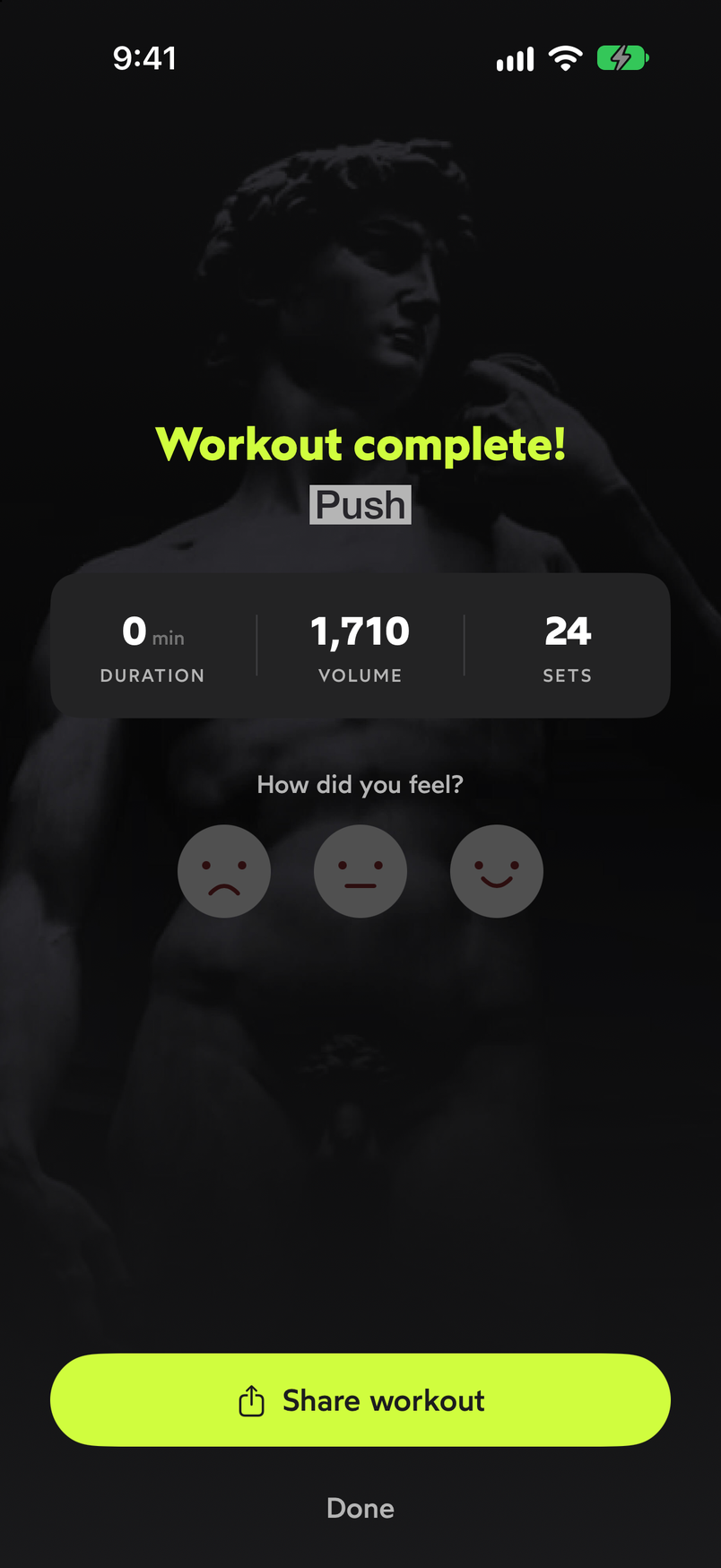
When you finish the session you can share it right away.
Common problems
The card shows zeros for the numbers
The card uses what was logged in that session. If you share a workout you haven’t done yet, volume, duration, sets and reps show as zero. Finish the workout before creating the card: Start and finish a workout.
I don’t want the workout name or date to show
In the image editor, turn off Name or Date before saving or sharing.
I want to share the workout with an app that doesn’t appear
Use the Share button on the sheet: it opens the iOS share menu with all your installed apps. The shortcuts to Instagram and Facebook are just shortcuts.
How did this guide go for you?
Thanks for your feedback