
Organize routines in folders
How to open My routines in WeFit for iPhone, create folders with a name, color and symbol, and move a routine from one folder to another.
A routine is a saved workout you can reuse as many times as you like. Once you’ve built up a few, folders let you group them by type, by where you train or by whatever is most convenient for you. Each folder has its own name, color and symbol.
Steps
In Today, tap the three-line icon in the top right corner. The main menu opens with WeFit Intelligence, My workouts, My routines, My exercises, Library, Training plan and Tracking. Tap My routines.
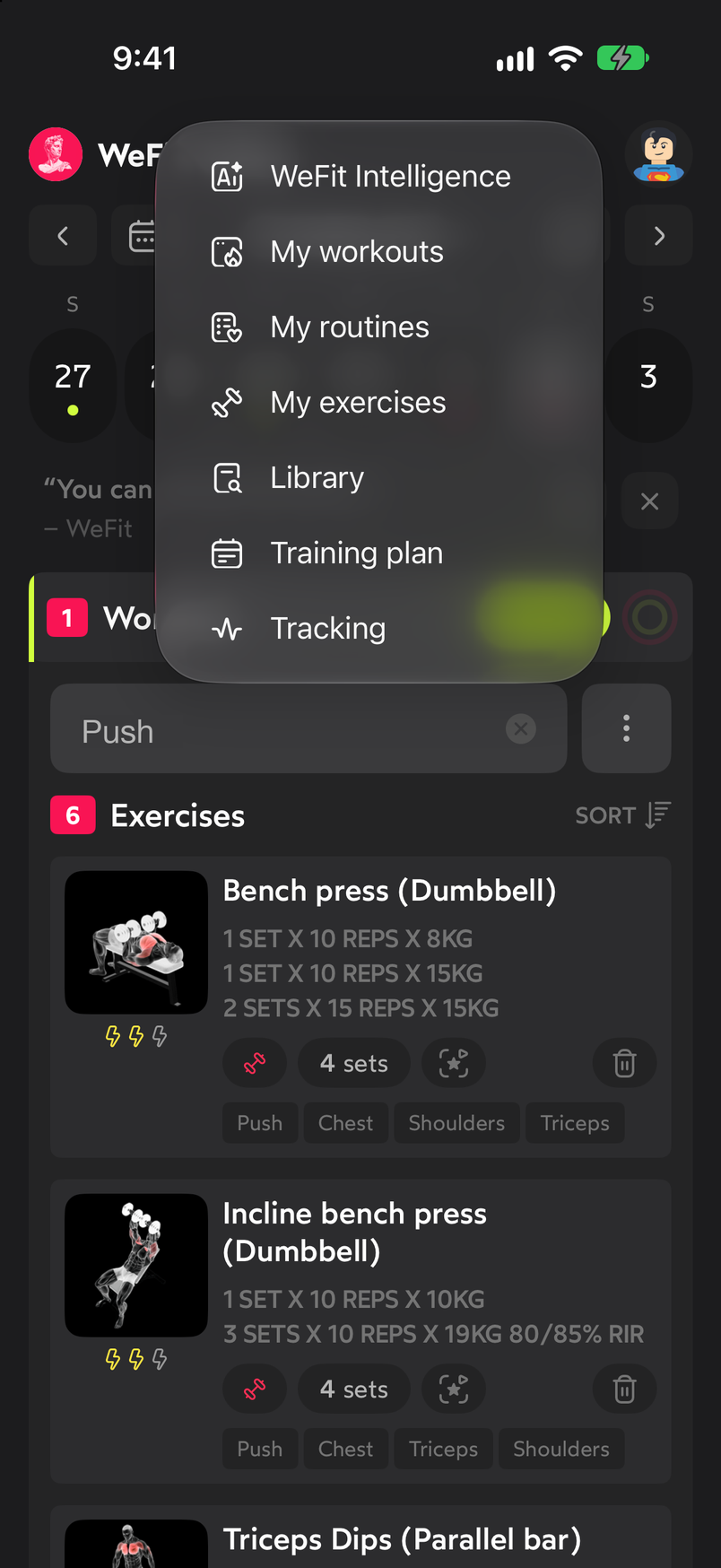
The main menu opens from the three-line icon. The My routines screen shows one card per folder with its symbol, its name and the number of routines it contains. At the top right you have the New folder button (a folder with a plus sign) and the close button.
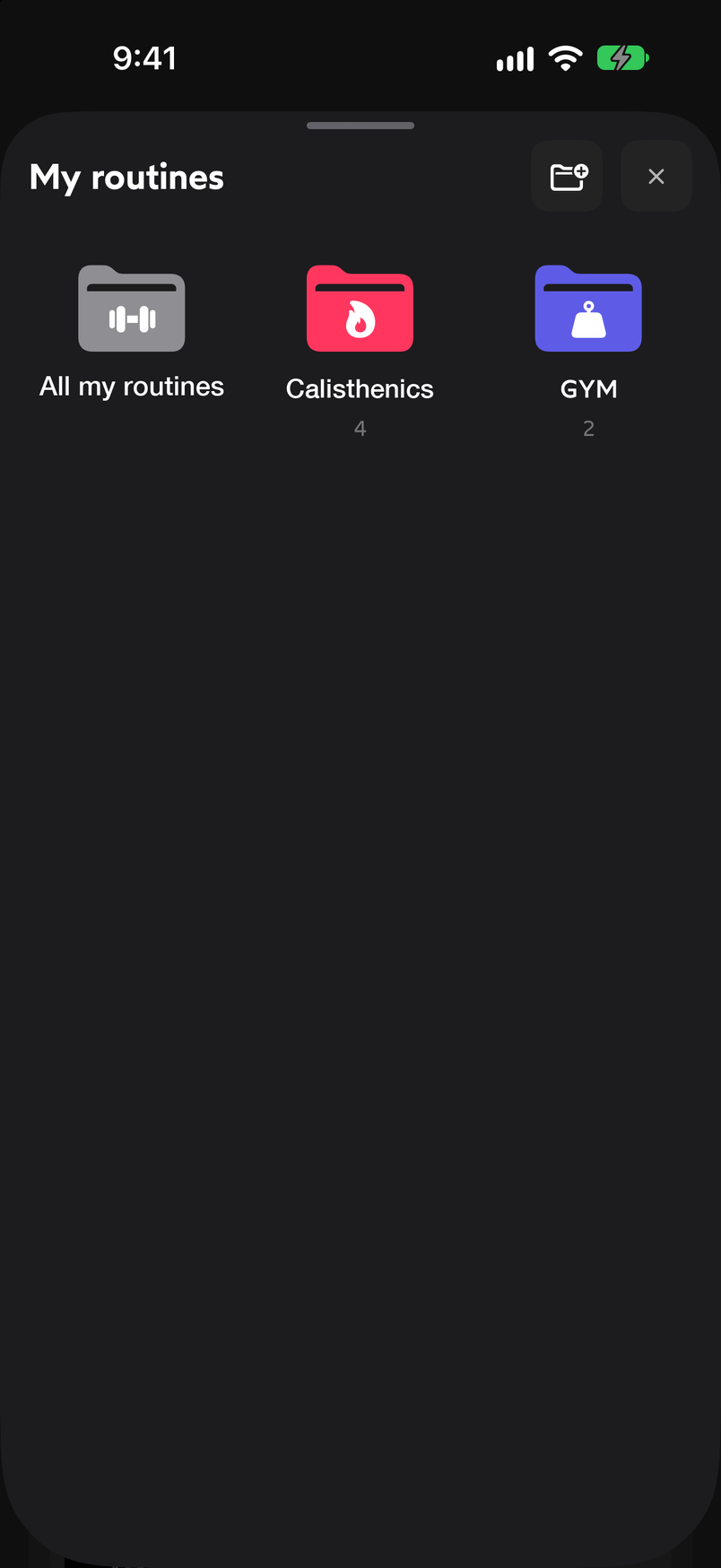
Each card shows how many routines are inside. Tap New folder. In the New folder sheet, type the name in the Folder name field, choose a Color from the available ones and a Symbol from the icon grid. The Save button becomes active once the folder has a name.
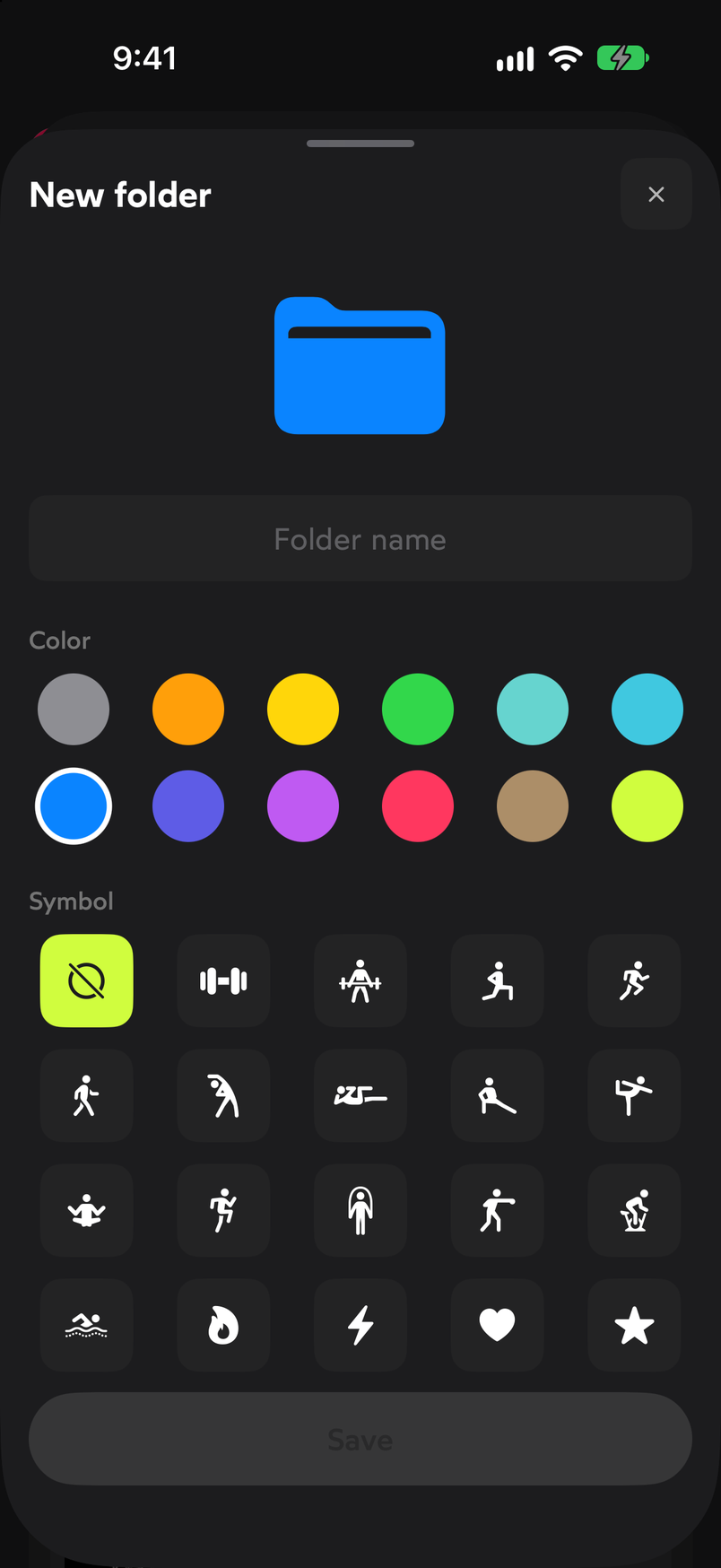
Color and symbol help you recognize the folder at a glance. To move a routine to a different folder, go into its current folder, tap the ⋯ button on the routine and choose Move to…. The sheet lists all the folders, with the current one marked; tap the destination. All my routines is the same as leaving it without a folder.
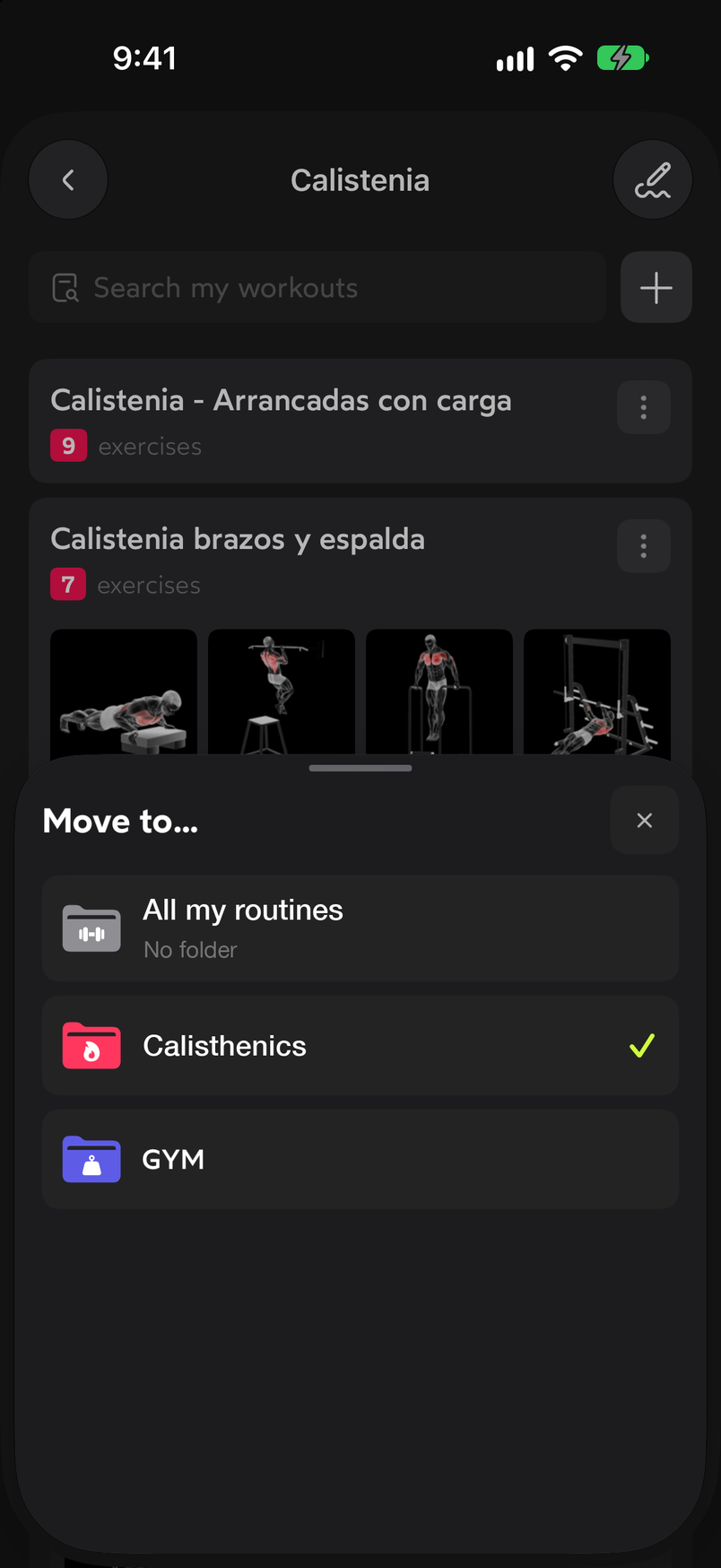
The folder the routine is in appears marked.
Common problems
I can’t save the folder
The Save button stays disabled until you type a name in the Folder name field. Color and symbol are optional.
I want to take a routine out of a folder without putting it in another
Use Move to… and choose All my routines, which is the “No folder” option.
I can’t see my routines
Check that you’re in the right folder: the number on each card shows how many routines it contains. Inside a folder, the search field at the top filters by name.
Related guides
How did this guide go for you?
Thanks for your feedback