
Explore the workout Library
How to get around the WeFit Library for iPhone: collections by goal, subcollections, search and a quick view of the exercises in each template.
Only part of this needs WeFit PRO. What’s included
The Library brings together WeFit’s prebuilt workouts, organized into collections by goal. Use it to find a ready-made session and use it as is, save it to your routines or simply see how it’s put together.
Steps
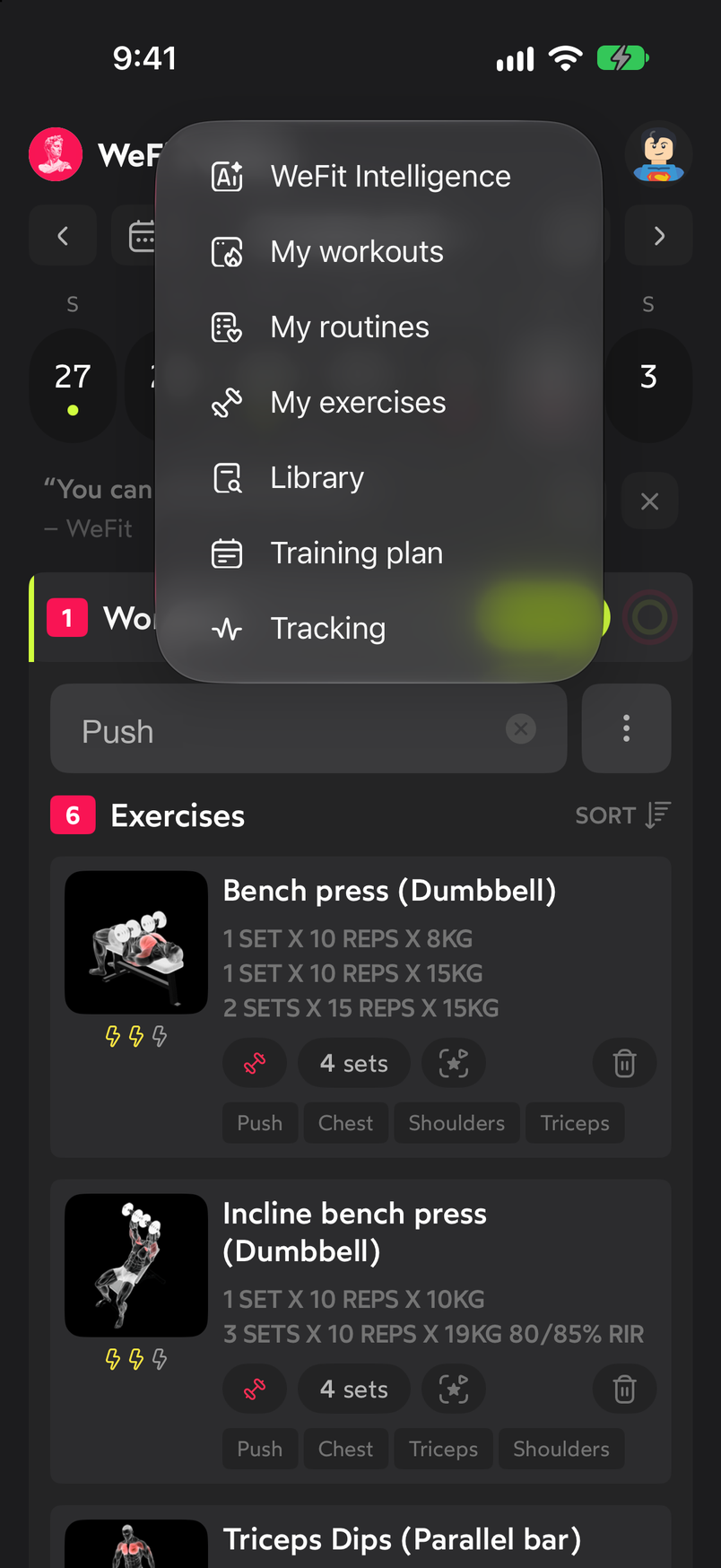
In Today, tap the three-line icon in the top right corner. The main menu unfolds with the app’s sections: WeFit Intelligence, My workouts, My routines, My exercises, Library, Training plan and Tracking. Tap Library.
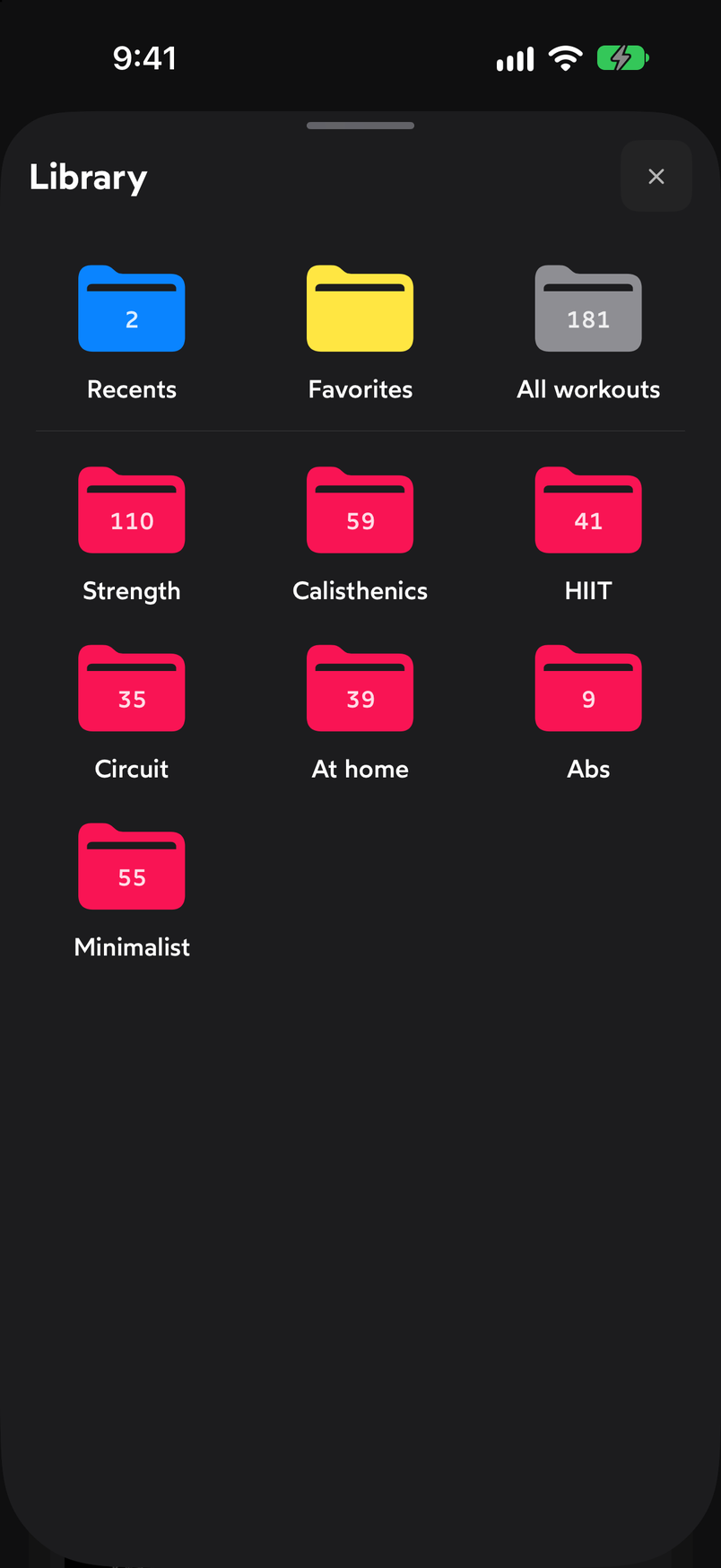
The Library opens from the main menu. The front page shows three quick-access cards (Recents, Favorites and All workouts, with the total of 181) and below them the collections by goal with their number of workouts: Strength, Calisthenics, HIIT, Circuit, At home, Abs and Minimalist. Tap a collection to go in.
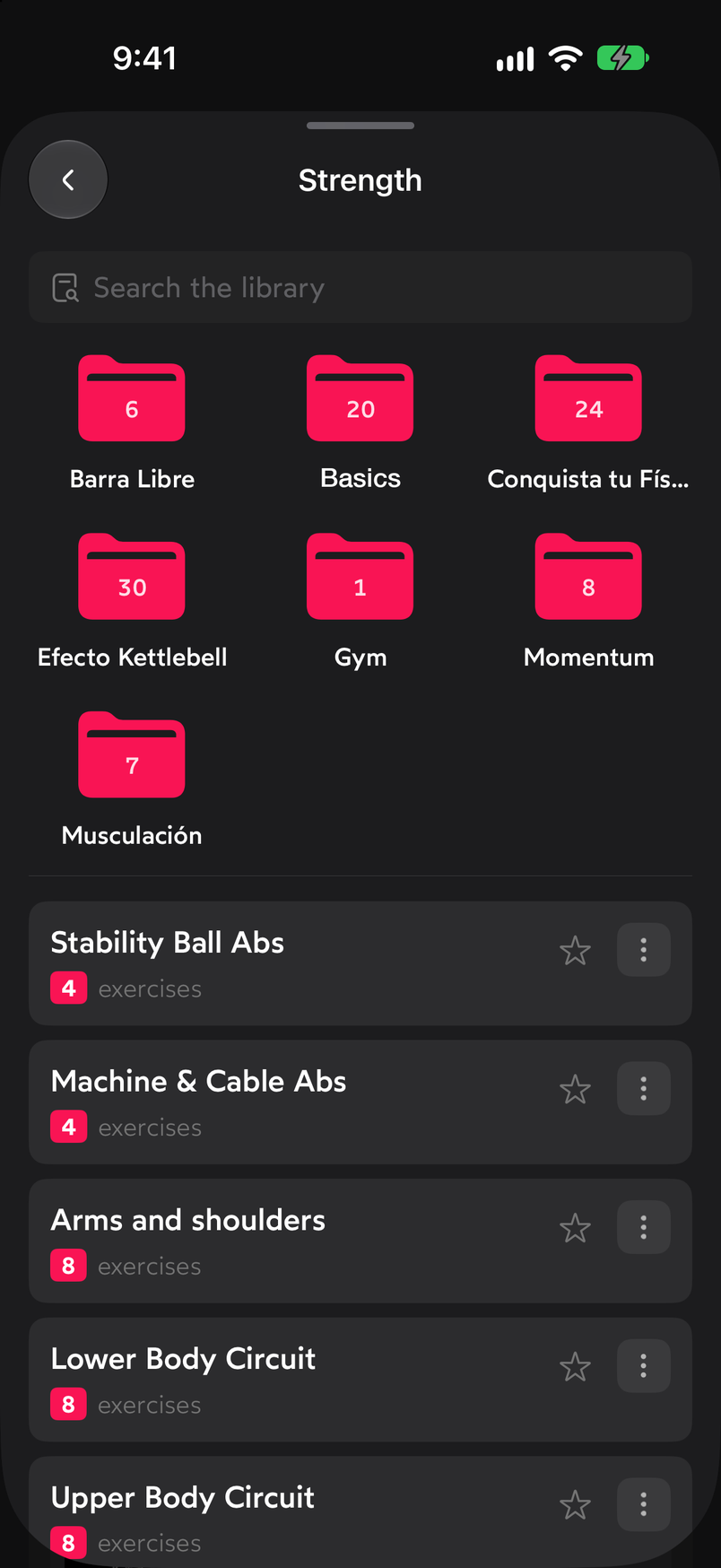
Each folder shows how many workouts it contains. Inside a collection, for example Strength, you have the “Search the library” search field at the top, then the subcollections (Barra Libre, Basics, Conquista tu Físico, Efecto Kettlebell, Gym, Momentum, Musculación) and, further down, the collection’s individual workouts with their number of exercises.
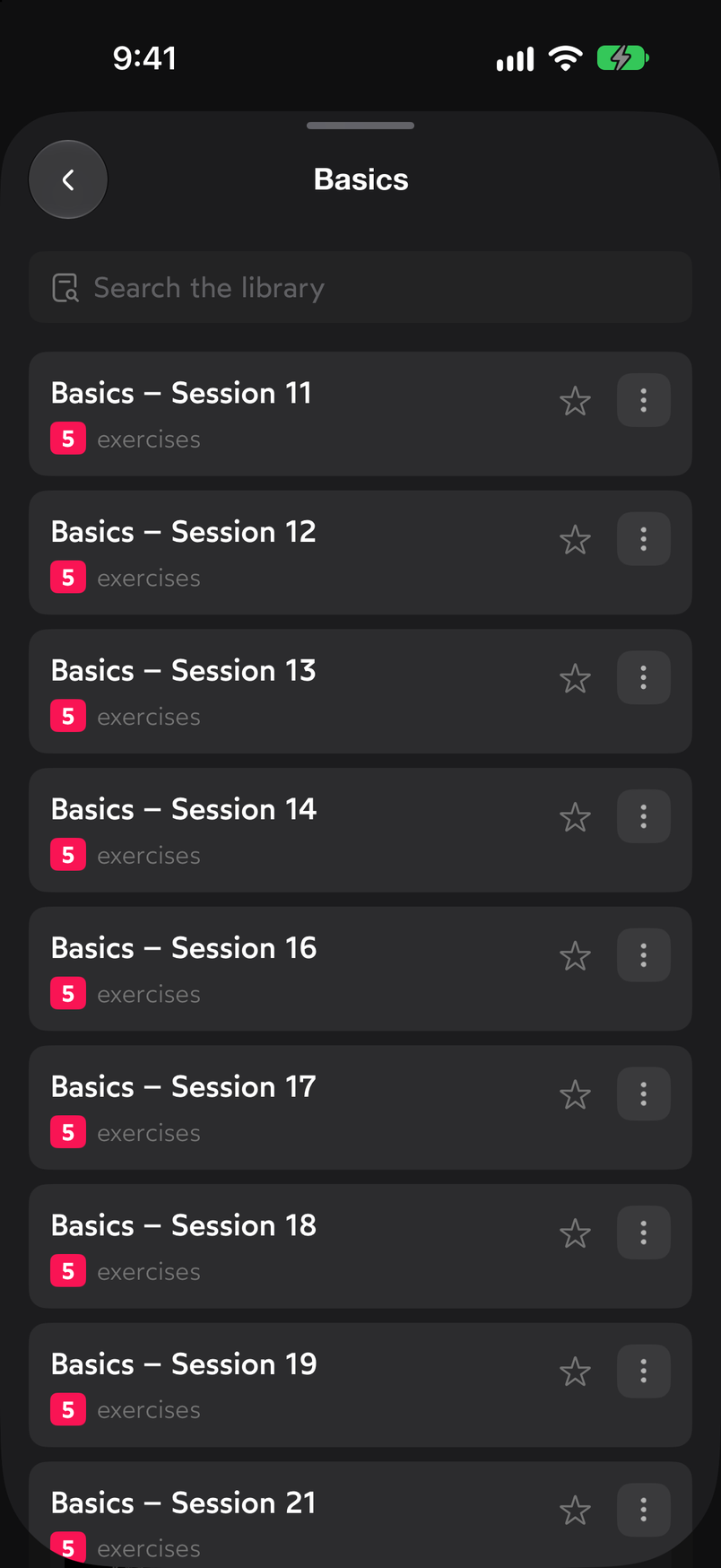
Large collections are split into subcollections. A subcollection such as Basics is a list of numbered sessions. Each row shows the name, the number of exercises, the star to mark it as a favorite and the three-dot button with its options.
The star and the three-dot button are on every row. Tap a row to unfold the thumbnails of its exercises below it, with the name of each one. It’s the fastest way to see what a session includes without fully opening it. Tap the row again to fold it.
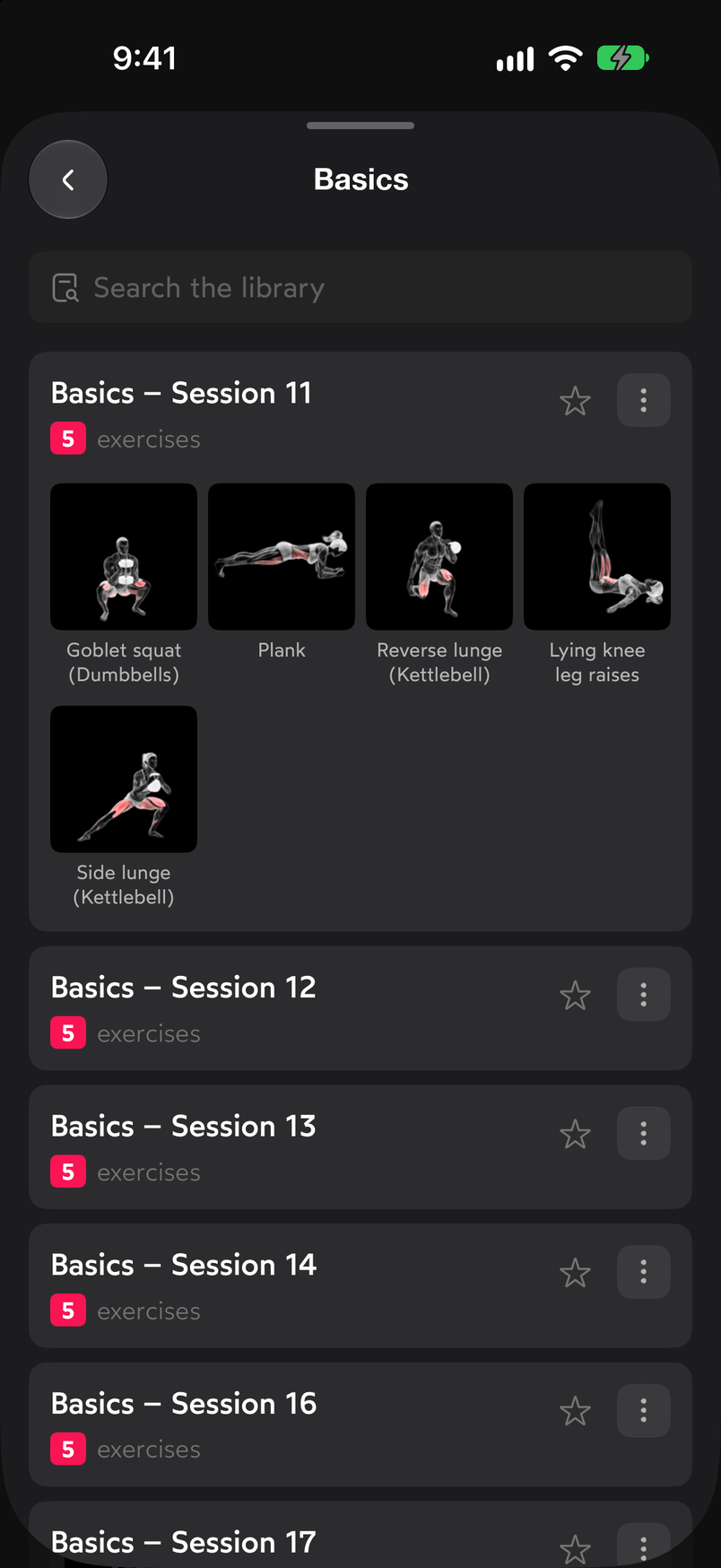
The thumbnails show the exercises in the session.
To load a session into your calendar or save it to your routines, continue with Use a template from the Library.
Common problems
I can’t find a specific workout
Use the search field inside each collection. If you don’t know which collection it’s in, go into All workouts from the front page and search there.
A workout I opened no longer appears in Recents
Recents only keeps the last ones you opened. If you want to always have it at hand, mark it with the star and you’ll find it in Favorites.
I want to change the exercises in a template
Library workouts can’t be edited directly. Save it to your routines with the three-dot button and edit the copy from My routines.
Related guides
3 months free, cancel anytime.
What WeFit PRO includesHow did this guide go for you?
Thanks for your feedback