
Tracking: muscles, activity and progress
What the Tracking screen in WeFit for iPhone shows: the muscle group breakdown and muscle map, the exercise types from your recent workouts and your yearly activity history.
Only part of this needs WeFit PRO. What’s included
Tracking summarizes everything you’ve logged in WeFit across three tabs: Muscles (which groups you’ve worked and which are rested), Activity (what kind of exercises you do) and Progress (how much you’ve trained over the year). Open it from the main menu, the three-line icon at the top right of Today.
Open Tracking
On Today, tap the three-line icon at the top right and choose Tracking, the last entry in the menu.
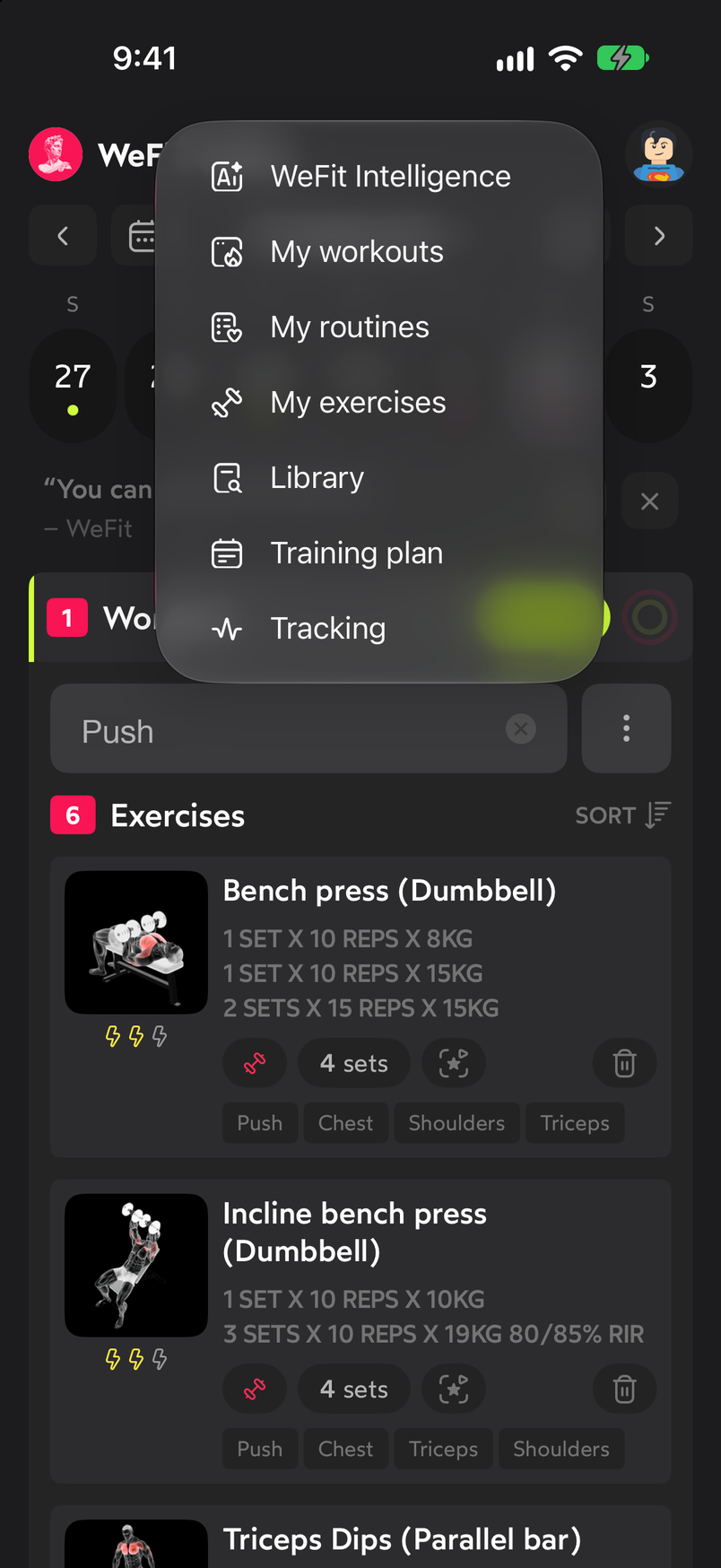
Tracking is at the bottom of the main menu.
Muscles tab
Muscle groups is a radar chart with the axes Abs, Arms, Back, Shoulders, Chest and Lower body: the more the shape stretches toward an axis, the more you’ve worked that group in the selected period. The selector at the top right (30 days) changes the period. Below it, Muscle map · Last week paints the muscles you’ve worked in the last seven days on two figures, front and back.
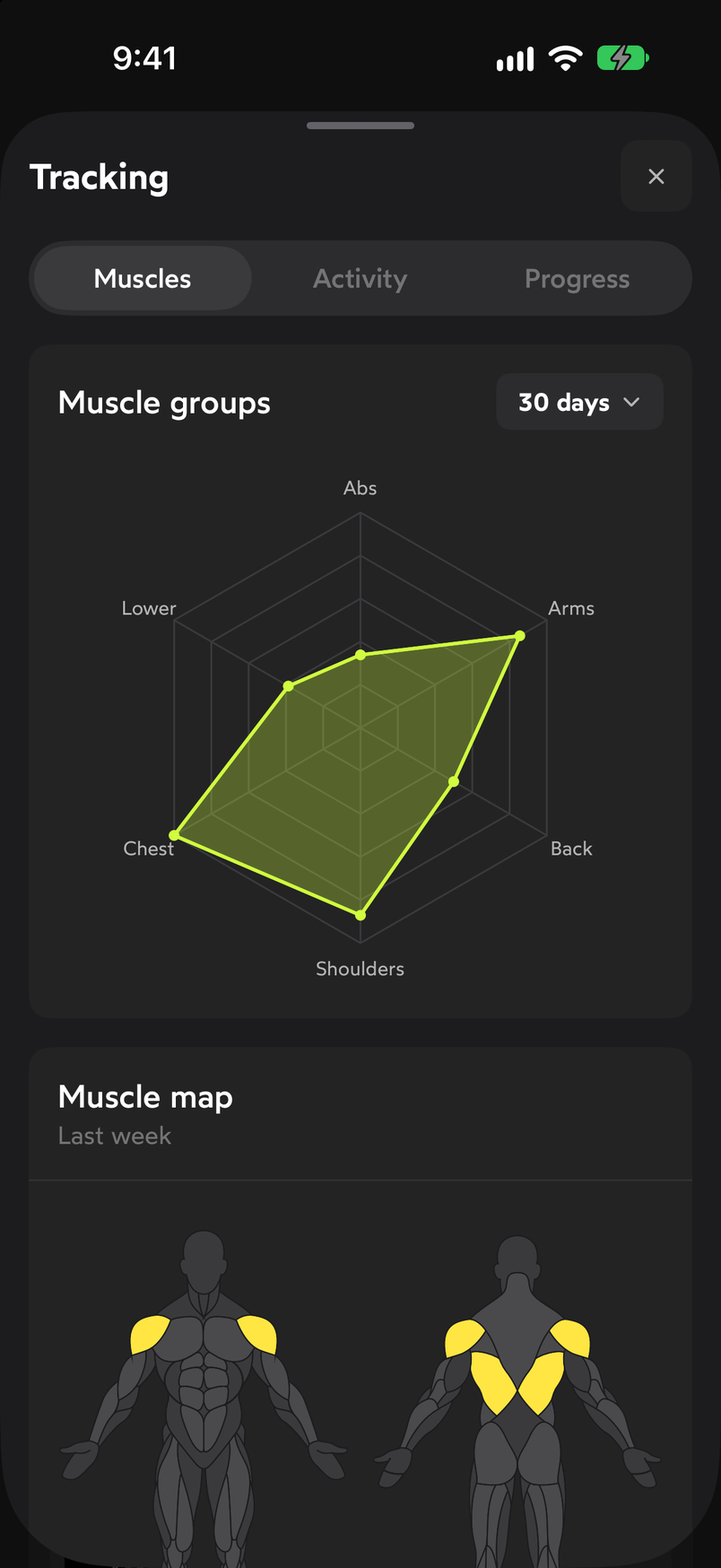
The radar shows how your work is distributed; the map shows which muscles you've hit this week. Keep scrolling and you reach Rested muscles: one card per group (Lats, Upper back, Erector spinae…) with a percentage, a bar and the totals for Sets, Repetitions and Volume in the period. It lets you see at a glance which groups haven’t been worked in a while. At the end there is a Personal information block that invites you to fill in your weight, height, age and activity level to get body composition and energy expenditure estimates.
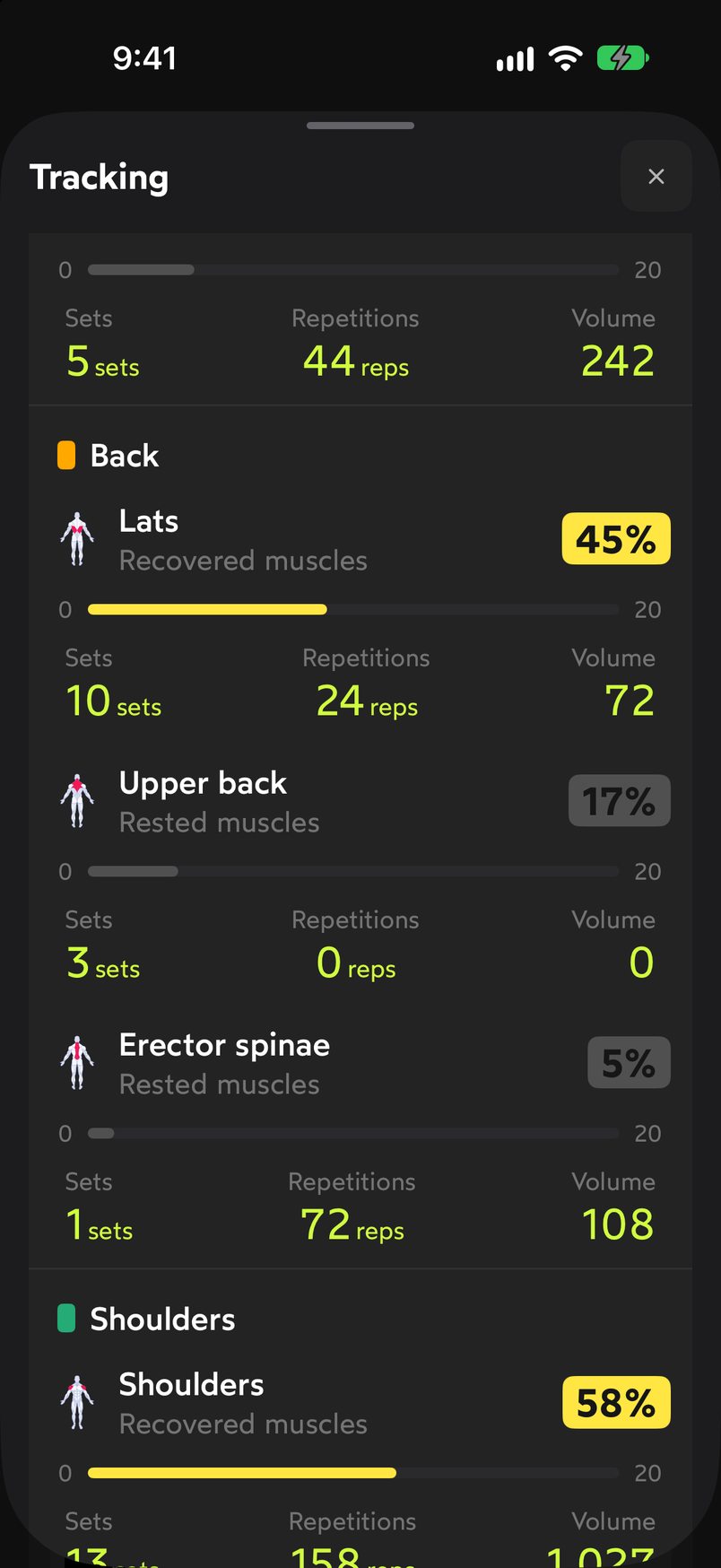
Each group shows how much you've worked it and how much rest it has accumulated.
Activity tab
Exercises by type counts, for the period in the selector (30 days), how many Strength, Intervals and Time exercises you’ve done. Below, Exercise types · Recent workouts (sets) is a stacked bar chart, one bar per workout (S1, S2, S3…), with each session’s sets split by color between Legs, Abs, Push and Pull. The number above each bar is the total number of sets in that workout.
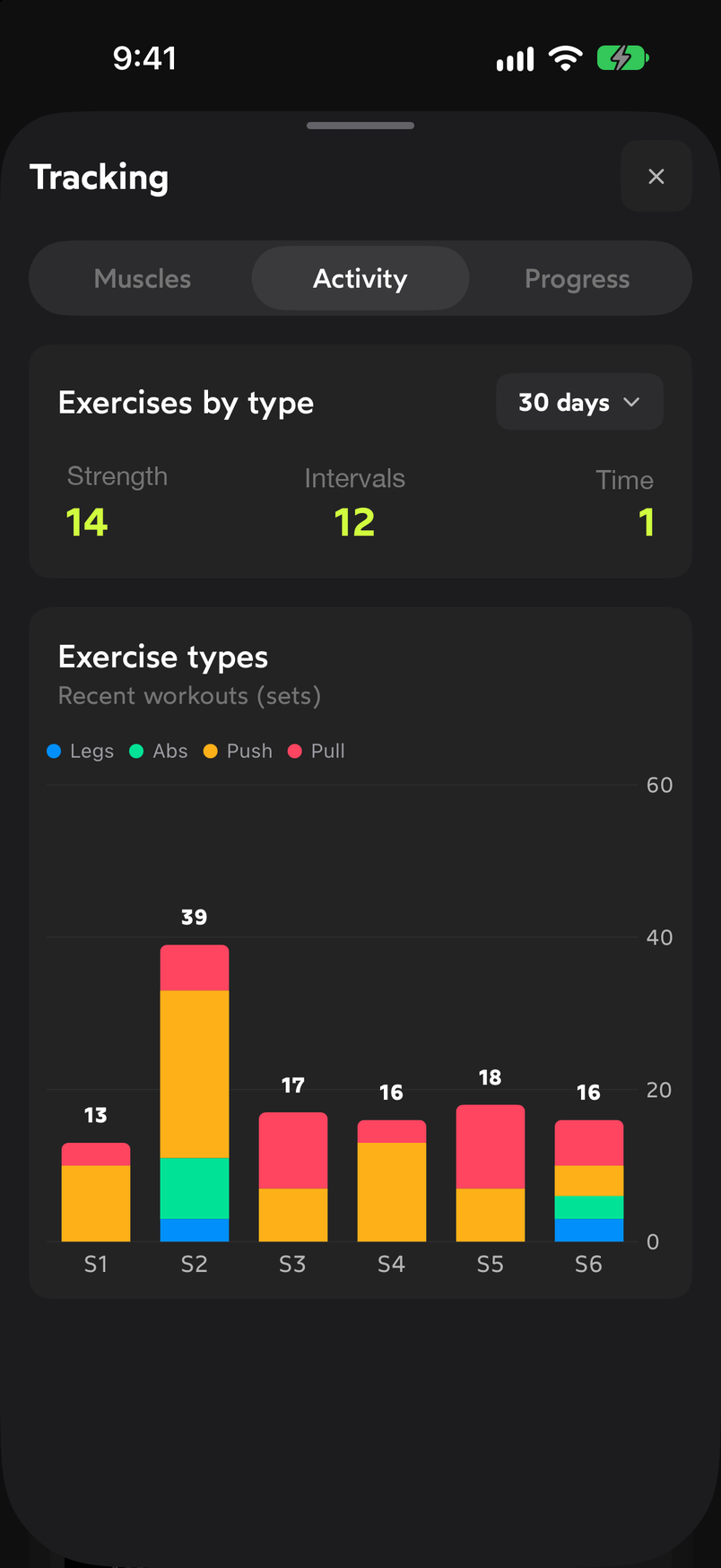
Each bar is a workout; the colors split its sets by movement type.
Progress tab
At the top you pick the year with the arrows. Activity history · Your completed workouts is a bar chart by quarter (Q1 to Q4) with the number of workouts completed in each. Below, Your workouts · Muscle groups per week is a heat map: one row per group (Arms, Back, Chest, Shoulders, Lower body, Abs and core) and one column per week of the year; the more intense the blue, the more volume that week. The Volume legend goes from Less to More.
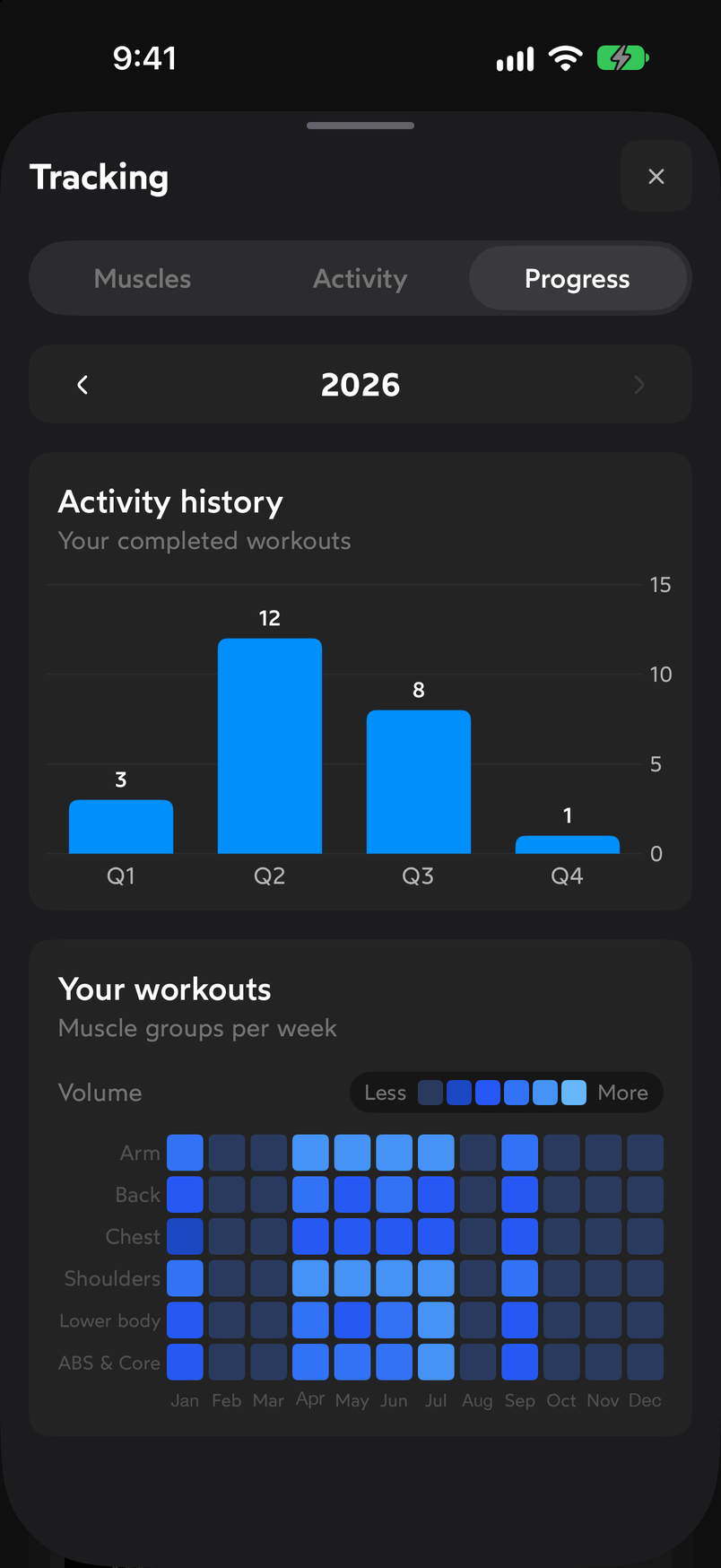
The heat map shows your strong weeks and your breaks at a glance.
Common problems
I don’t see any data or the charts are empty
Tracking only counts the sets you’ve marked as done within the selected period. Change the 30 days selector to a longer period or, in Progress, check that the selected year is the current one. If you’ve just started with WeFit, the charts will fill up as you log your first workouts.
The muscle map doesn’t match what I trained
The map covers only the last week and is painted from the muscle groups assigned to each exercise. If an exercise doesn’t have its muscles assigned correctly, the map won’t reflect it; you can check this on its detail page.
I want to see the progress of a specific exercise
The stats in Tracking are global. For a particular exercise, open its detail page from My exercises or from the exercise card on Today and expand Stats: there you’ll find the weekly tonnage, progressive load and estimated 1RM.
3 months free, cancel anytime.
What WeFit PRO includesHow did this guide go for you?
Thanks for your feedback