
WeFit Go settings
What's in the watch settings: your account, sharing your activity, language, the Health connection, signing out and the installed version.
The watch settings are short on purpose: they cover what affects your account, your friends, the language and the Health connection. The rest of the WeFit configuration is done from the iPhone.
Steps
On Hoy (Today), tap the gear at the top left. At the top you’ll see your username; below it, the Amigos (Friends) section with Compartir mi actividad (Share my activity) and the Idioma (Language) section.
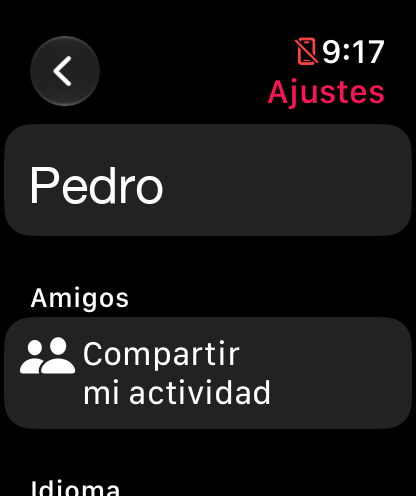
The top of Ajustes (Settings). Scroll down with the Digital Crown to Salud (Health): it shows whether the watch is connected to the Health app and reminds you that permissions are managed in the device’s Health app. At the bottom are Cerrar sesión (Sign out) and the installed version of WeFit Go.
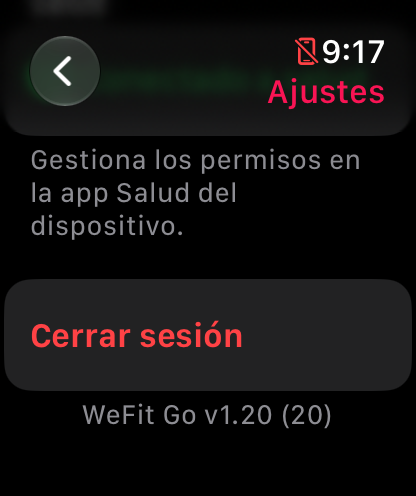
Cerrar sesión and the version, at the bottom.
Common problems
I want to change the watch language
Go to the Idioma section of Ajustes. The language of the exercise names is chosen separately on the iPhone, in Settings → Exercise language.
Salud shows as not connected
Open the Health app on the iPhone, go to the apps section and check that WeFit Go has read and write permission. We explain it in WeFit Go and Apple Health.
I need to know which version I have
It’s at the bottom of Ajustes, below the Cerrar sesión button. If you contact support, include that number.
The watch doesn’t show my workouts
Check that you signed in with the same account as on the iPhone. If you signed out, sign back in with the QR code: Sign in on the watch with the QR code.
How did this guide go for you?
Thanks for your feedback